
NEWS

iOS 26: Set a Custom iPhone Ringtone in Seconds

07/23/2025

1207

Setting custom ringtones on your iPhone is dramatically easier in iOS 26. Apple has eliminated the need for the cumbersome process of exporting a track from the GarageBand app, and now provides a simple four-step process that works directly from the Files app.
iOS 26: Set a Custom iPhone Ringtone in Seconds
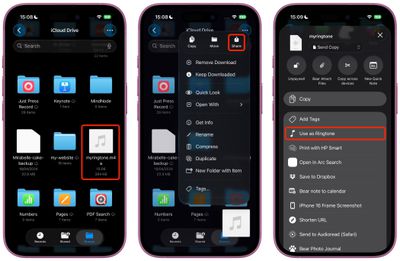
The new streamlined approach means you can transform any MP3 or M4A audio file that's less than 30 seconds into a personalized ringtone in a just a few taps. Whether it's a favorite song snippet, a voice memo, or a sound effect you've downloaded, the process is now as straightforward as sharing a photo. Here's how to set up your custom ringtone without opening an additional app in iOS 26 (currently in beta).

  • Open the Files app on your iPhone.
  • Long press an MP3 or M4A audio file that's less than 30 seconds long.
  • Tap Share in the pop-up menu.
  • Scroll down to the actions menu and choose Use as Ringtone.
iOS 26: Set a Custom iPhone Ringtone in Seconds

The change will be made immediately. You'll be sent to Settings ➝ Sounds & Haptics ➝ Ringtone, where you'll see the custom ringtone selected. From here, you can delete the ringtone (swipe left, then tap Delete) or choose another one in the default ringtones that's more to your liking.

Note that the Use as Ringtone option also appears for audio files in select other apps, including Voice Memos. Unfortunately, it's not possible to set Apple Music songs as custom ringtones for free, even with a subscription. Apple still sells 30-second song ringtones for $1.29 each through the iTunes Store app.

Source: Macrumors

Windows
Mac OS
iOS
Linux
3uTools
Win 64-bit For this device
V9.0 2025-11-11
Download
Win 32-bit For this device
V9.0 2025-11-11
Download
3uTools
Intel Chip How to Identify Chip Type
V9.0 2025-12-02
Download
Apple Silicon
V9.0 2025-12-02
Download
How to Identify Chip Type
1.  Click the Apple icon in the top-left corner of the screen and select About This Mac.
2.  Check the Processor or Chip field to determine if it is "Intel" or "Apple".
Please use the 3uTools PC client to install the iOS client:
1、 Install either the Windows or Mac version of 3uTools on your computer
2、 Open the PC client and connect your device to the computer via USB cable
3、 After the connection is successful, wait for the computer to automatically install the mobile app for the device, or locate “Install Mobile App” on the computer and manually click to install.
3uTools
deb file
V3.01 2025-11-20
Download
rpm file
V3.01 2025-11-20
Download
Windows
Windows
iOS
iOS
Android
Android
TV
TV
3uAirPlayer
Win 64-bit For this device
V6.0.2 2025-11-19
Download
Win 32-bit For this device
V6.0.2 2025-11-19
Download
iOS Device Mirroring (No App Required)
1、 Install 3uAirPlayer on the Windows PC
2、 Open Control Center and select Screen Mirroring
3、 From the list, choose your PC to start mirroring
4、 Or connect your iOS device to the PC via USB to begin mirroring
Scan to get "3uAirPlayer" App
3uAirPlayer TV V1.0.18
2025-11-28
TV System Requirements: Android 7.0 or later
Download the TV installation package, copy it to a USB drive, insert it into your TV or set-top box, then select the file from the home screen to install.




