NEWS

Apple Stops Signing iOS 17.6.1, Making It Impossible to Downgrade from iOS 18

09/24/2024

1384

Apple Stops Signing iOS 17.6.1, Making It Impossible to Downgrade from iOS 18


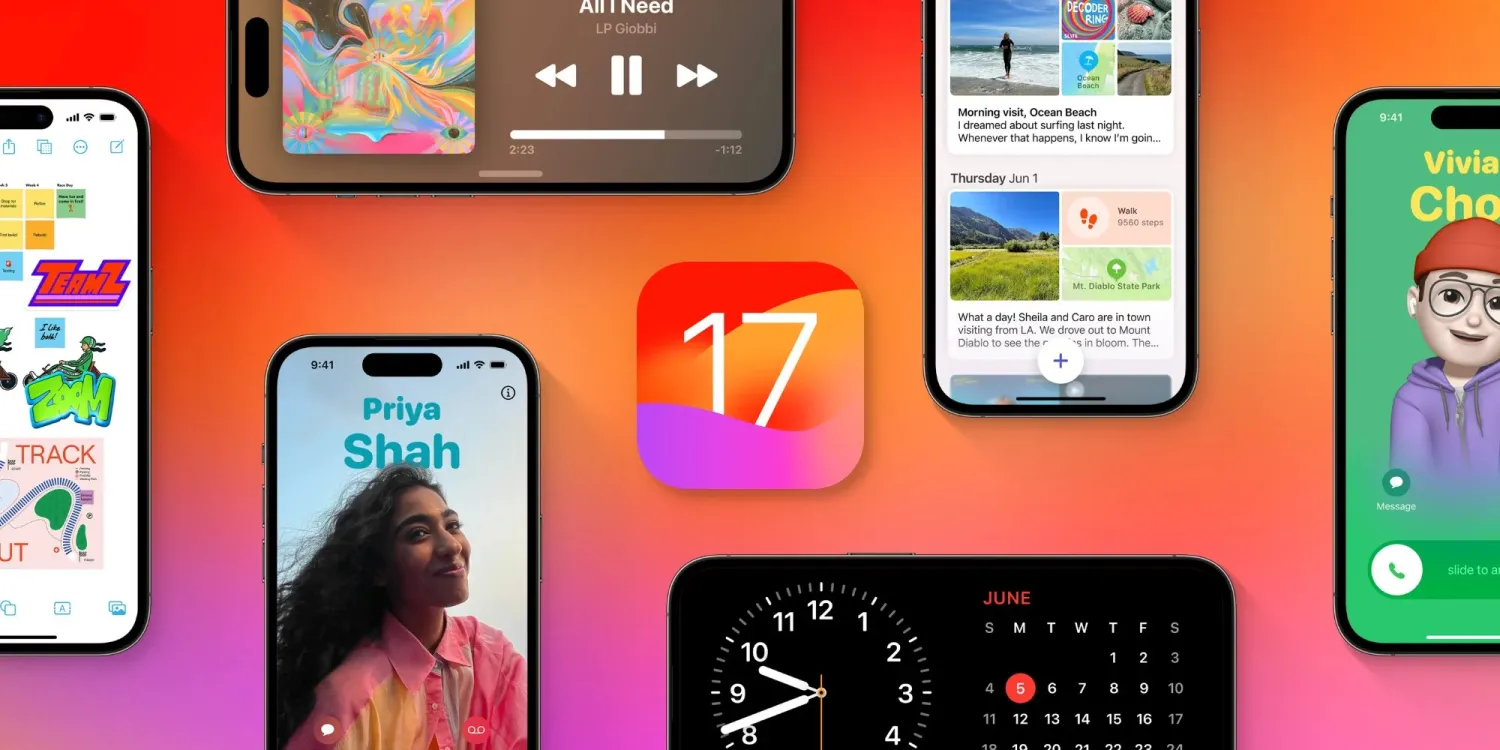
Apple last week released iOS 18 to the public. The update comes with a bunch of new features, including customizable Home Screen and Control Center, a redesigned Photos app and improvements to the Messages app. However, those who have updated to iOS 18 can no longer downgrade to iOS 17, as Apple has just stopped signing iOS 17.6.1.


Apple blocks downgrade from iOS 18


iOS 17.6.1 was released for iPhones and iPads in August with bug fixes. Although users running iOS 17 can still choose not to update to iOS 18 and stay on iOS 17.7 with all the latest security patches, there are no IPSW files available for this version of iOS. This means that once you’ve upgraded to iOS 18, it’s impossible to downgrade.


As new iOS releases often come with bugs and can break support for certain apps, some users choose to downgrade their devices until Apple and the developers fix these issues. Reverting to older iOS builds is also a technique used by those who jailbreak their iPhones and iPads.


Currently, the only device that can be downgraded is the M4 iPad Pro. That’s because a serious bug has caused some of these iPads to brick after being updated to iPadOS 18. Apple has released iPadOS 17.7 IPSW files specifically for the affected iPad models, as the company has also pulled down iPadOS 18 for the M4 iPads.


If your device is running iOS 18.1 beta, you can still downgrade to the official iOS 18.0 release. iOS 18.1, which adds the first set of Apple Intelligence features, will be released next month.


Source: 9to5mac

Windows
Mac OS
iOS
Linux
3uTools
Win 64-bit For this device
V9.0 2025-11-11
Download
Win 32-bit For this device
V9.0 2025-11-11
Download
3uTools
Intel Chip How to Identify Chip Type
V9.0 2025-12-02
Download
Apple Silicon
V9.0 2025-12-02
Download
How to Identify Chip Type
1.  Click the Apple icon in the top-left corner of the screen and select About This Mac.
2.  Check the Processor or Chip field to determine if it is "Intel" or "Apple".
Please use the 3uTools PC client to install the iOS client:
1、 Install either the Windows or Mac version of 3uTools on your computer
2、 Open the PC client and connect your device to the computer via USB cable
3、 After the connection is successful, wait for the computer to automatically install the mobile app for the device, or locate “Install Mobile App” on the computer and manually click to install.
3uTools
deb file
V3.01 2025-11-20
Download
rpm file
V3.01 2025-11-20
Download
Windows
Windows
iOS
iOS
Android
Android
TV
TV
3uAirPlayer
Win 64-bit For this device
V6.0.2 2025-11-19
Download
Win 32-bit For this device
V6.0.2 2025-11-19
Download
iOS Device Mirroring (No App Required)
1、 Install 3uAirPlayer on the Windows PC
2、 Open Control Center and select Screen Mirroring
3、 From the list, choose your PC to start mirroring
4、 Or connect your iOS device to the PC via USB to begin mirroring
Scan to get "3uAirPlayer" App
3uAirPlayer TV V1.0.18
2025-11-28
TV System Requirements: Android 7.0 or later
Download the TV installation package, copy it to a USB drive, insert it into your TV or set-top box, then select the file from the home screen to install.