
NEWS

iOS 18 Actively Recommends Charging Limit Based on iPhone 15 Usage

06/13/2024

1750

On iPhone 15 models, iOS 18 will recommend that users set a particular charging limit for their device based on their recent usage habits, with the aim of potentially improving their iPhone battery's lifespan by reducing the time that the battery is fully charged.
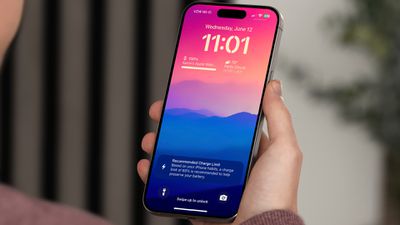
 

iOS 18 Actively Recommends Charging Limit Based on iPhone 15 Usage


All four iPhone 15 models feature a setting that prevents the devices from charging beyond 80% while toggled on, and iOS 18 expands the feature by adding new 85%, 90%, and 95% charging limit options. With the new limit options, iOS 18 now takes a proactive approach to improving battery longevity by recommending a specific charging limit to users via a notification.


The recommendation also appears in the Settings app under Battery → Charging. The charging limit feature remains exclusive to the iPhone 15 lineup on the first iOS 18 beta, with the option not found on the iPhone 14 Pro or older.
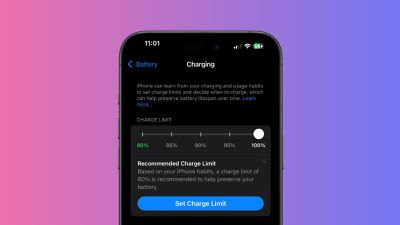
 

iOS 18 Actively Recommends Charging Limit Based on iPhone 15 Usage


In a related change, anecdotal reports suggest that iOS 18 could be recalibrating some devices' maximum battery capacity percentage. In Settings ➝ Battery ➝ Battery Health, "Maximum Capacity" is a measure of battery capacity relative to when the device was new. Lower capacity can result in fewer hours of usage between charges.


The first iOS 18 beta is available for Apple Developer Program members, and a public beta will follow in July. After beta testing is complete, the update should be widely released to all users with an iPhone XS or newer in September.


Source: Macrumors

Windows
Mac OS
iOS
Linux
3uTools
Win 64-bit For this device
V9.0 2025-11-11
Download
Win 32-bit For this device
V9.0 2025-11-11
Download
3uTools
Intel Chip How to Identify Chip Type
V9.0 2025-12-02
Download
Apple Silicon
V9.0 2025-12-02
Download
How to Identify Chip Type
1.  Click the Apple icon in the top-left corner of the screen and select About This Mac.
2.  Check the Processor or Chip field to determine if it is "Intel" or "Apple".
Please use the 3uTools PC client to install the iOS client:
1、 Install either the Windows or Mac version of 3uTools on your computer
2、 Open the PC client and connect your device to the computer via USB cable
3、 After the connection is successful, wait for the computer to automatically install the mobile app for the device, or locate “Install Mobile App” on the computer and manually click to install.
3uTools
deb file
V3.01 2025-11-20
Download
rpm file
V3.01 2025-11-20
Download
Windows
Windows
iOS
iOS
Android
Android
TV
TV
3uAirPlayer
Win 64-bit For this device
V6.0.2 2025-11-19
Download
Win 32-bit For this device
V6.0.2 2025-11-19
Download
iOS Device Mirroring (No App Required)
1、 Install 3uAirPlayer on the Windows PC
2、 Open Control Center and select Screen Mirroring
3、 From the list, choose your PC to start mirroring
4、 Or connect your iOS device to the PC via USB to begin mirroring
Scan to get "3uAirPlayer" App
3uAirPlayer TV V1.0.18
2025-11-28
TV System Requirements: Android 7.0 or later
Download the TV installation package, copy it to a USB drive, insert it into your TV or set-top box, then select the file from the home screen to install.




