
NEWS

Apple Fixes 2023 Mac Pro Hard Drive Issue in macOS Ventura 13.5

07/25/2023

1361

In a support document published last month, Apple said certain SATA hard drives might unexpectedly disconnect from the 2023 Mac Pro after the computer wakes from sleep. Apple said it was aware of the issue and would fix it in a future macOS update, and the company followed through on that promise today.
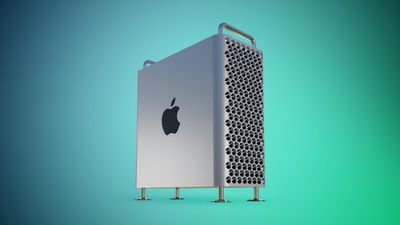
Apple Fixes 2023 Mac Pro Hard Drive Issue in macOS Ventura 13.5


Apple updated the support document today to indicate that the issue has been resolved in the macOS Ventura 13.5 update released today, so users simply need to update their Mac. The issue will also likely be resolved in the macOS Sonoma beta.


While the Mac Pro is configured with SSD storage, it has SATA ports for connecting internal hard drives, and sometimes the drives could disconnect due to a bug.


"Certain models of internal SATA drives might unexpectedly disconnect from your computer after your Mac wakes from sleep," said Apple. "This can occur if your Mac automatically goes to sleep or if you manually put your Mac to sleep. If you see a message that your disk was not ejected properly, you can restart your Mac to reconnect to the drive.


Unveiled at WWDC last month, the new Mac Pro features Apple's M2 Ultra chip. The desktop tower has the same design as the Intel-based model from 2019, but lacks graphics card support and user-upgradeable RAM due to Apple silicon's unified architecture. Customers who do not need PCIe expansion should consider the Mac Studio instead.


Source: Macrumors

Windows
Mac OS
iOS
Linux
3uTools
Win 64-bit For this device
V9.01 2025-12-27
Download
Win 32-bit For this device
V9.01 2025-12-27
Download
3uTools
Intel Chip How to Identify Chip Type
V9.0 2025-12-02
Download
Apple Silicon
V9.0 2025-12-02
Download
How to Identify Chip Type
1.  Click the Apple icon in the top-left corner of the screen and select About This Mac.
2.  Check the Processor or Chip field to determine if it is "Intel" or "Apple".
Please use the 3uTools PC client to install the iOS client:
1、 Install either the Windows or Mac version of 3uTools on your computer
2、 Open the PC client and connect your device to the computer via USB cable
3、 After the connection is successful, wait for the computer to automatically install the mobile app for the device, or locate “Install Mobile App” on the computer and manually click to install.
3uTools
deb file
V3.01 2025-11-20
Download
rpm file
V3.01 2025-11-20
Download
Windows
Windows
iOS
iOS
Android
Android
TV
TV
3uAirPlayer
Win 64-bit For this device
V6.0.2 2025-11-19
Download
Win 32-bit For this device
V6.0.2 2025-11-19
Download
iOS Device Mirroring (No App Required)
1、 Install 3uAirPlayer on the Windows PC
2、 Open Control Center and select Screen Mirroring
3、 From the list, choose your PC to start mirroring
4、 Or connect your iOS device to the PC via USB to begin mirroring
Scan to get "3uAirPlayer" App
3uAirPlayer TV V1.0.18
2025-11-28
TV System Requirements: Android 7.0 or later
Download the TV installation package, copy it to a USB drive, insert it into your TV or set-top box, then select the file from the home screen to install.




