 NEWS
NEWS
Some Users Experiencing Issues With Game Controllers in macOS Monterey 12.3
 03/24/2022
 1802
1802
Following the macOS 12.3 update that was released on March 14, some Mac users have run into issues with game controllers after installing the new software.
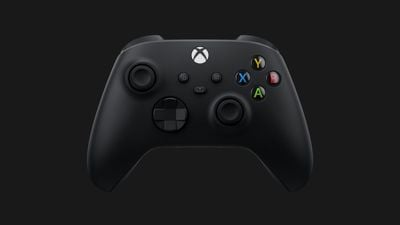
Complaints on the Apple Developer Forums and Reddit suggest that some Xbox, PlayStation, and other third-party controllers are not functioning over Bluetooth. Not all users appear to be affected, as some people have said that their controllers are operating as expected, so it's not quite clear what's going on.
Those who are experiencing problems connect their controllers to their Macs using Bluetooth and then are unable to use the controllers in Mac games. Some with problematic controllers have been able to use the controllers on the web, but for some, the controllers do not work at all. From the Apple Developer Forums:
Also experiencing the same issue. My Nimbus + Controller won't work with Apple Arcade after updating to Monterey 12.3. I'm able to connect via bluetooth, but none of the buttons work. I'm sure there are a lot of Mac Gamers with the same issue and hopefully Apple fixes this soon.
Other users have been able to get their controllers working for some games, but not others:
Same problems here. My controller is working in some games, but not everywhere:
- macOS: 12.3 (21E230)
- Xbox Wireless Controller:
- Manufacture ID: 0x045E
- Product ID: 0x02FD
- Firmware: 9.0.3
- Additional type: GamepadWorking in apps:
- Steam
- Pac-Man Party
- The PathlessNOT working in apps:
- Sonic racing
- Asphalt 8+
- Agent Intercept
Those with controllers experiencing issues have attempted to remove the controller from the Bluetooth menu and re-connect it, but that does not appear to fix the problem. There is no known fix for problematic controllers at this time, so it may be something that Apple has to address in a future software update.
Source: Macrumors









