NEWS

Apple's New U1 Chip Hints at Future Tile-Like Tracking System

09/11/2019

3459

Apple's New U1 Chip Hints at Future Tile-Like Tracking System


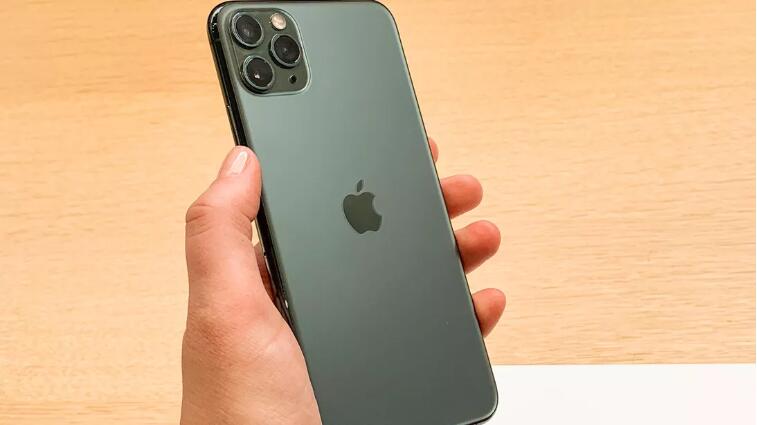
Apple's long-rumored Tile tracker rival didn't materialize at the company's iPhone 11 event Tuesday, but the company is seemingly laying the groundwork for the new product inside its latest iPhones. 


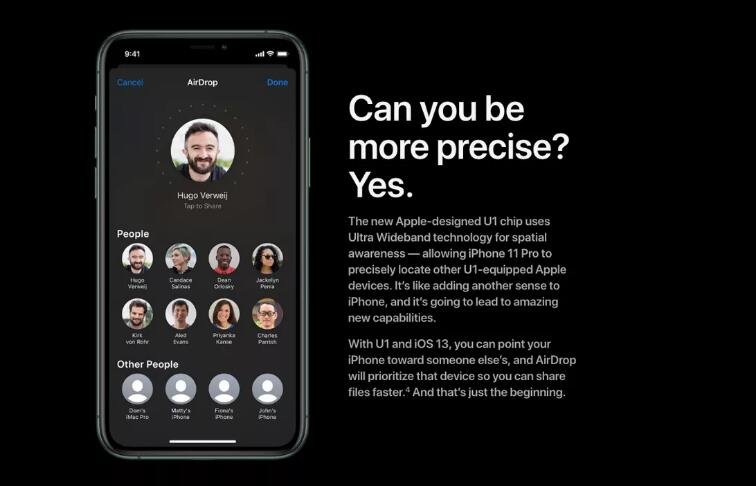
Apple has added the new chip, called the U1, to its iPhone 11, 11 Pro and 11 Pro Max phones. While it wasn't mentioned on stage, on both phones' respective product pages the company is quietly building it up, touting a capability for spatial awareness. The new chip takes advantage of ultrawideband technology, which Apple says will allow increased precision when locating other U1-equipped Apple devices by offering "GPS at the scale of your living room."


Beyond tracking, the technology will also give AirDrop a boost. Thanks to this chip and iOS 13, owners of phones in the iPhone 11 line will be able to AirDrop files just by pointing one iPhone at the other. This new feature will be available in iOS 13.1, which arrives Sept. 30. 

Apple's New U1 Chip Hints at Future Tile-Like Tracking System


The new technology was expected to be at the center of that rumored new tracking system that would allow you to purchase small trackers that could be attached to items like keys or a backpack that you could then locate through Apple's Find My iOS app. That system was never announced. 


Apple did, however, tease that it has big plans for the U1 chip, vaguely writing on its 11 Pro page that the new chip is "like adding another sense to [the] iPhone" and is "going to lead to amazing new capabilities."


Source: cnet

Windows
Mac OS
iOS
Linux
3uTools
Win 64-bit For this device
V9.01 2025-12-27
Download
Win 32-bit For this device
V9.01 2025-12-27
Download
3uTools
Intel Chip How to Identify Chip Type
V9.01 2025-12-31
Download
Apple Silicon
V9.01 2025-12-31
Download
How to Identify Chip Type
1.  Click the Apple icon in the top-left corner of the screen and select About This Mac.
2.  Check the Processor or Chip field to determine if it is "Intel" or "Apple".
Please use the 3uTools PC client to install the iOS client:
1、 Install either the Windows or Mac version of 3uTools on your computer
2、 Open the PC client and connect your device to the computer via USB cable
3、 After the connection is successful, wait for the computer to automatically install the mobile app for the device, or locate “Install Mobile App” on the computer and manually click to install.
3uTools
deb file
V3.01 2025-11-20
Download
rpm file
V3.01 2025-11-20
Download
Windows
Windows
iOS
iOS
Android
Android
TV
TV
3uAirPlayer
Win 64-bit For this device
V6.0.2 2025-11-19
Download
Win 32-bit For this device
V6.0.2 2025-11-19
Download
iOS Device Mirroring (No App Required)
1、 Install 3uAirPlayer on the Windows PC
2、 Open Control Center and select Screen Mirroring
3、 From the list, choose your PC to start mirroring
4、 Or connect your iOS device to the PC via USB to begin mirroring
Scan to get "3uAirPlayer" App
3uAirPlayer TV V1.0.18
2025-11-28
TV System Requirements: Android 7.0 or later
Download the TV installation package, copy it to a USB drive, insert it into your TV or set-top box, then select the file from the home screen to install.