NEWS

Apple Risks iPhone Ban in Germany after Court Ruling

12/21/2018

3287

Apple Risks iPhone Ban in Germany after Court Ruling


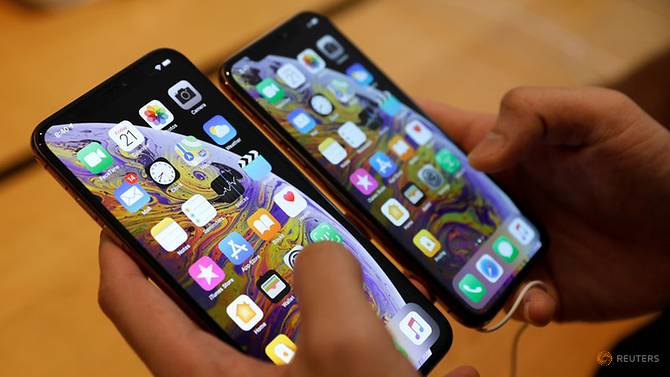
Apple is to stop selling older iPhone models at its stores in Germany after losing two patent cases brought by a chip manufacturer, the company has announced.


A Munich court ruled that the smartphone maker and its subsidiaries breached a European patent held by Qualcomm.


In a statement, Apple said: "Qualcomm's campaign is a desperate attempt to distract from the real issues between our companies.


"Their tactics, in the courts and in their everyday business, are harming innovation and harming consumers.


"Qualcomm insists on charging exorbitant fees based on work they didn't do and they are being investigated by governments all around the world for their behaviour."


The San Diego-based chipmaker has pursued similar cases in other jurisdictions in the past.


Pending an appeal, Apple said the sale of iPhone 7 and iPhone 8 models will be stopped at its 15 shops in the country.


The technology giant did say, however, that all of its phone models would still be available from mobile phone carriers and resellers.


The court ruling stated that Apple was "banned from offering or distributing unlicensed" devices using the disputed patent, which regulates the amount of energy given to the telecom chips in the devices.


Source: sky news

Windows
Mac OS
iOS
Linux
3uTools
Win 64-bit For this device
V9.01 2025-12-27
Download
Win 32-bit For this device
V9.01 2025-12-27
Download
3uTools
Intel Chip How to Identify Chip Type
V9.01 2025-12-31
Download
Apple Silicon
V9.01 2025-12-31
Download
How to Identify Chip Type
1.  Click the Apple icon in the top-left corner of the screen and select About This Mac.
2.  Check the Processor or Chip field to determine if it is "Intel" or "Apple".
Please use the 3uTools PC client to install the iOS client:
1、 Install either the Windows or Mac version of 3uTools on your computer
2、 Open the PC client and connect your device to the computer via USB cable
3、 After the connection is successful, wait for the computer to automatically install the mobile app for the device, or locate “Install Mobile App” on the computer and manually click to install.
3uTools
deb file
V3.01 2025-11-20
Download
rpm file
V3.01 2025-11-20
Download
Windows
Windows
iOS
iOS
Android
Android
TV
TV
3uAirPlayer
Win 64-bit For this device
V6.0.2 2025-11-19
Download
Win 32-bit For this device
V6.0.2 2025-11-19
Download
iOS Device Mirroring (No App Required)
1、 Install 3uAirPlayer on the Windows PC
2、 Open Control Center and select Screen Mirroring
3、 From the list, choose your PC to start mirroring
4、 Or connect your iOS device to the PC via USB to begin mirroring
Scan to get "3uAirPlayer" App
3uAirPlayer TV V1.0.18
2025-11-28
TV System Requirements: Android 7.0 or later
Download the TV installation package, copy it to a USB drive, insert it into your TV or set-top box, then select the file from the home screen to install.