 NEWS
NEWS
YouTube Adds HDR Support for iPhone XS and XS Max
 09/27/2018
 3975
3975
Apple might not be using the codecs that YouTube prefers, but that doesn’t mean you’ll be getting a second-rate viewing experience on the latest iPhones. YouTube has updated its iOS app and added HDR support for the iPhone XS and XS Max, as noticed by AppleInsider.
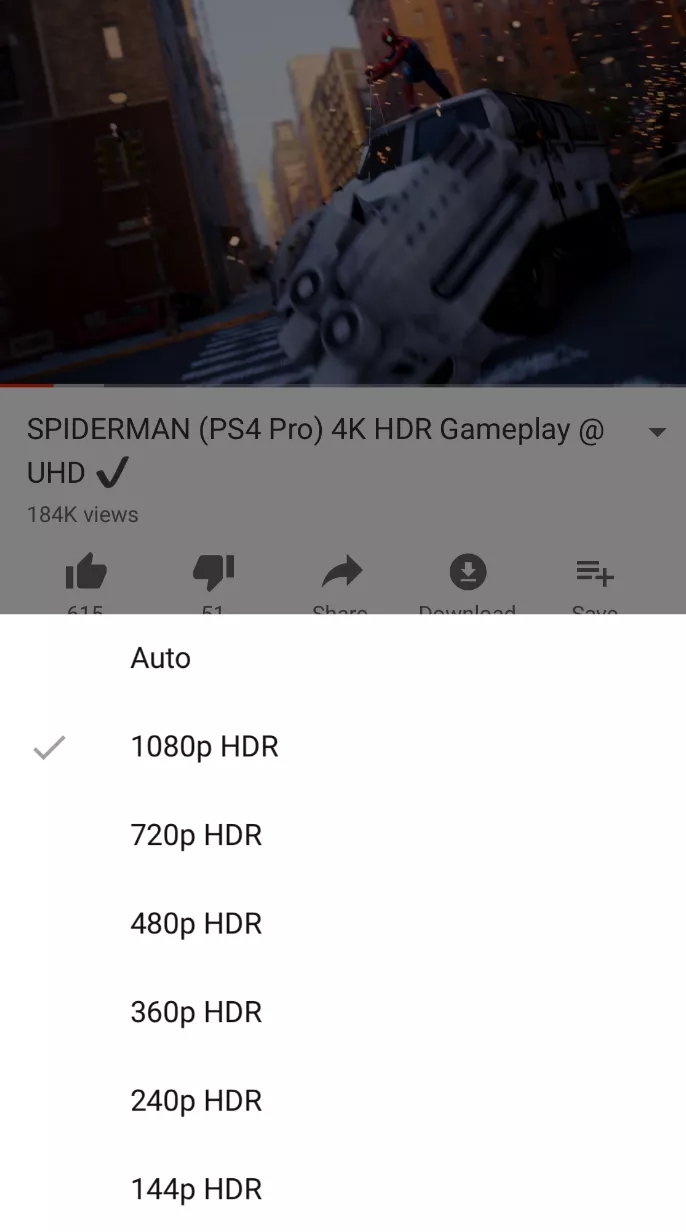
The phones were released on Friday, and in the few days since launch, users have noticed that they couldn’t play high dynamic range content from the service — whereas the iPhone X, 8 Plus, 8, and iPad Pro all can. YouTube didn’t have HDR ready in time for Friday, but thankfully the company didn’t take long to roll out compatibility for the wider color gamut and more vibrant, splashy video. It took YouTube until May to introduce HDR support for the 2017 iPhones after it debuted on Android last September. The highest resolution you’ll be able to get from YouTube on either new iPhone XS model is 1080p.
Back in August, YouTube announced a “Signature Device” program that’s meant to signify which smartphones offer the “best experience” when streaming videos from the platform. Right now, it’s all Android smartphones and no iOS devices. This is due to Apple’s lack of support for the VP9 codec. iPhones check off all other requirements to earn the Signature Device badge except for hardware decoding of VP9.
The codec requires less bandwidth for high-resolution videos, but Apple has yet to embrace it across iOS, macOS, or the Apple TV. As a result, most of Apple’s devices — including the Apple TV 4K — remain capped at 1080p resolution. (Higher-res video can be viewed in Chrome on Macs.)
Source: the verge










