NEWS

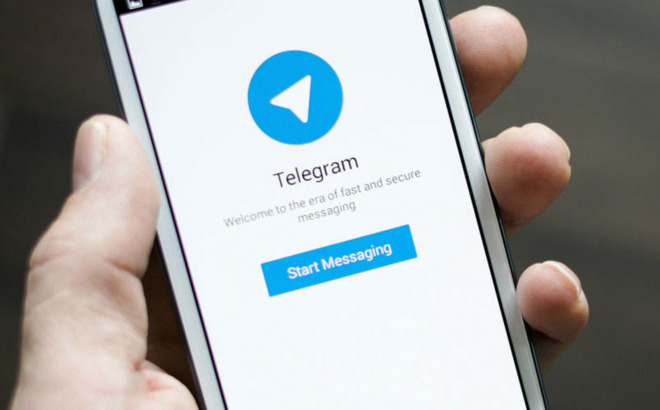
Telegram Was Pulled Because of Child Pornography, Says Apple's Phil Schiller

02/06/2018

3771

Telegram Was Pulled Because of Child Pornography, Says Apple's Phil Schiller


"The Telegram apps were taken down off the App Store because the App Store team was alerted to illegal content, specifically child pornography, in the apps," said Phil Schiller in an email seen by 9to5Mac. "After verifying the existence of the illegal content the team took the apps down from the store, alerted the developer, and notified the proper authorities, including the NCMEC (National Center for Missing and Exploited Children)."

Apple worked with the Telegram team to get the pornography removed and the people who posted it banned, Schiller continued. Telegram and Telegram X were only allowed back once this was completed and controls were put in place to prevent a repeat incident.

"We will never allow illegal content to be distributed by apps in the App Store and we will take swift action whenever we learn of such activity. Most of all, we have zero tolerance for any activity that puts children at risk —child pornography is at the top of the list of what must never occur. It is evil, illegal, and immoral," Schiller added.

It's unclear what safeguards might have been put in place. Telegram is a mainly personal messaging app, though it does allow group chats with up to 30,000 people. One possibility is that Apple and Telegram took steps to block any groups that might be sharing child pornography.


Source: appleinsider

Windows
Mac OS
iOS
Linux
3uTools
Win 64-bit For this device
V9.0 2025-11-11
Download
Win 32-bit For this device
V9.0 2025-11-11
Download
3uTools
Intel Chip How to Identify Chip Type
V9.0 2025-12-02
Download
Apple Silicon
V9.0 2025-12-02
Download
How to Identify Chip Type
1.  Click the Apple icon in the top-left corner of the screen and select About This Mac.
2.  Check the Processor or Chip field to determine if it is "Intel" or "Apple".
Please use the 3uTools PC client to install the iOS client:
1、 Install either the Windows or Mac version of 3uTools on your computer
2、 Open the PC client and connect your device to the computer via USB cable
3、 After the connection is successful, wait for the computer to automatically install the mobile app for the device, or locate “Install Mobile App” on the computer and manually click to install.
3uTools
deb file
V3.01 2025-11-20
Download
rpm file
V3.01 2025-11-20
Download
Windows
Windows
iOS
iOS
Android
Android
TV
TV
3uAirPlayer
Win 64-bit For this device
V6.0.2 2025-11-19
Download
Win 32-bit For this device
V6.0.2 2025-11-19
Download
iOS Device Mirroring (No App Required)
1、 Install 3uAirPlayer on the Windows PC
2、 Open Control Center and select Screen Mirroring
3、 From the list, choose your PC to start mirroring
4、 Or connect your iOS device to the PC via USB to begin mirroring
Scan to get "3uAirPlayer" App
3uAirPlayer TV V1.0.18
2025-11-28
TV System Requirements: Android 7.0 or later
Download the TV installation package, copy it to a USB drive, insert it into your TV or set-top box, then select the file from the home screen to install.