 NEWS
NEWS
iPhone X Seemed ‘Impossible’ to Make, Apple Says
 12/13/2017
 4126
4126
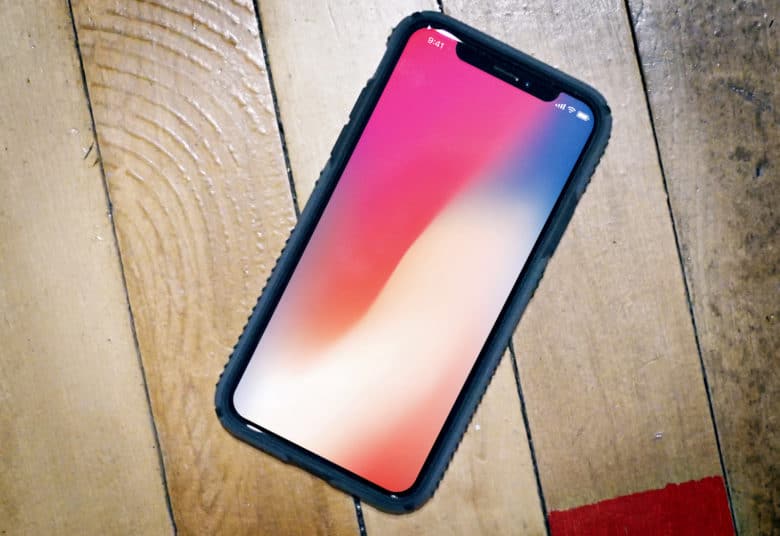
Apple media boss Phil Schiller says that even though Face ID on the iPhone X works nearly flawlessly at one point in the device’s development the entire thing seemed impossible.
Schiller sat down for an interview to talk about Apple’s latest products like the iPhone X, HomePod and even the iMac Pro which is coming out later this week.
Discussing the iPhone X’s development, Schiller says the device is the boldest thing Apple has done. Removing the home button and replacing it with Face ID was a colossal decision that the teams knew they couldn’t turn back from.
Pulling off the impossible
Schiller told T3 that when you look back at the proposals that the teams working on the iPhone X made, at the time it didn’t seem like they’d be achievable.
“At the time, at the beginning, it seemed almost impossible. Not just almost. It seemed impossible,” said Schiller. “And to pull off what feels impossible and make it possible – and not only that, but just something we love using – is just a great achievement. Clearly there was a point in the process where we had to commit to the fact that it would be a full top-to-bottom screen on the front with no home button, which means you’re counting on Face ID working as we’d hope, and being as good.”
Not only did Face ID have to replace the home button for unlocking the device, Apple also had to make new gestures for multitasking and going back to your home screen. Learning the new gestures takes a few minutes to get used to, but Schiller says most people find them very intuitive and natural.
Cook is all about collabing
Schiller also talked about Apple CEO Tim Cook’s management style. Steve Jobs was known for isolating teams and made group compete against each other. According to Schiller, Cook has pushed for a more collaborative work place. Then end result has birth popular products like AirPods and the Apple Pencil.
“And one of the great things Tim has done is to recognize the power of collaborative work at Apple; he encourages us all to really take advantage of that; and to not only work together, but to imagine things in our products that would not be possible had it not been for that collaboration. And those then turn into strengths that, as customers, we all benefit from.”
The iPad Pro and iMac Pro were also brought up in the interview. Schiller said that Apple doesn’t view the iPad Pro as a true PC replacement for all people, but it works as one for many users. Head to T3 to read the full interview.
Source: cult of mac










