 NEWS
NEWS
Bricked iPhones put Apple in Legal Hot Water Over Error 53
 04/07/2017
 4562
4562
The tech giant is facing legal action in the Federal Court of Australia over Error 53 -- a glitch that bricked iPhones repaired by non-Apple technicians.
If you've ever had your iPhone fixed by a third-party repairer, you may have seen it: the dreaded Error 53. How to fix error 53?
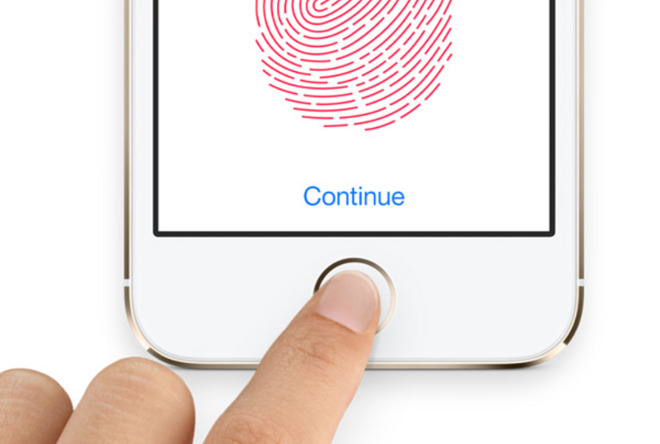
But the security check that was designed to test Touch ID on the iPhone before leaving the factory has now saddled Apple with a major court battle in Australia. And it could leave the tech manufacturer open to similar legal action around the world.
Australia's competition and consumer authority has commenced legal proceedings against Apple in the Federal Court of Australia, saying it violated Australian Consumer Law over customers' rights to repairs for devices bricked by Error 53.
The Guardian first uncovered the error in February 2016. iPhone 6 users who'd gone to non-Apple repairers to get their home button fixed were complaining that the iOS 9 update had wiped their device and left them with nothing but an "Error 53" message on their screen.
Apple said at the time the problem was "the result of security checks designed to protect our customers," later correcting the issue with a new iOS update. But legal experts warned that Apple could have been acting illegally by knowingly disabling devices unless users opted for Apple's own, more costly repairs.
Now, that legal action has come.
After an investigation, the Australian Competition and Consumer Commission alleges "Apple appears to have routinely refused to look at or service consumers' defective devices," if those devices had been repaired outside of Apple, "even where that repair was unrelated to the fault."
It is expected to be some months before the issue is resolved. Apple did not immediately respond to a request for comment.
Source: appleinsider










