NEWS

macOS Tahoe 26 Beta 5 Retires the Old Macintosh HD Icon

08/06/2025

1212

macOS Tahoe 26 Beta 5 Retires the Old Macintosh HD Icon


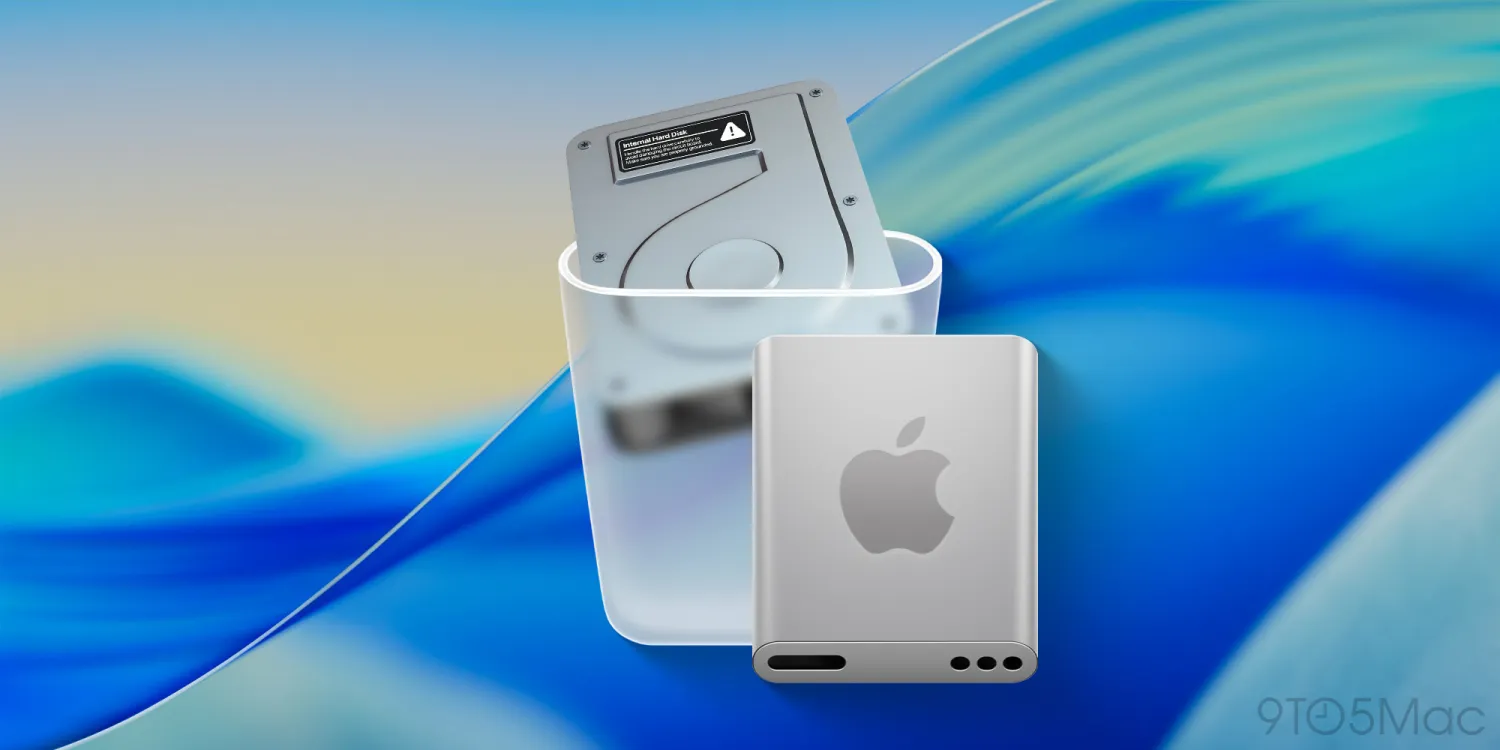
On today’s developer beta release of macOS Tahoe 26, Apple replaced the old Macintosh HD icon, which depicted an actual hard disk drive, with a new SSD-looking icon. Here’s what it looks like.


The old icon, a silver metal box with screws, vents, and a warning sticker, had a good run, considering Apple hasn’t shipped Macs with mechanical hard drives for a while.


But with today’s beta release, the old Macintosh HD icon has been replaced with a sleeker aluminum-looking enclosure with rounded edges, and a big Apple logo right in the center.
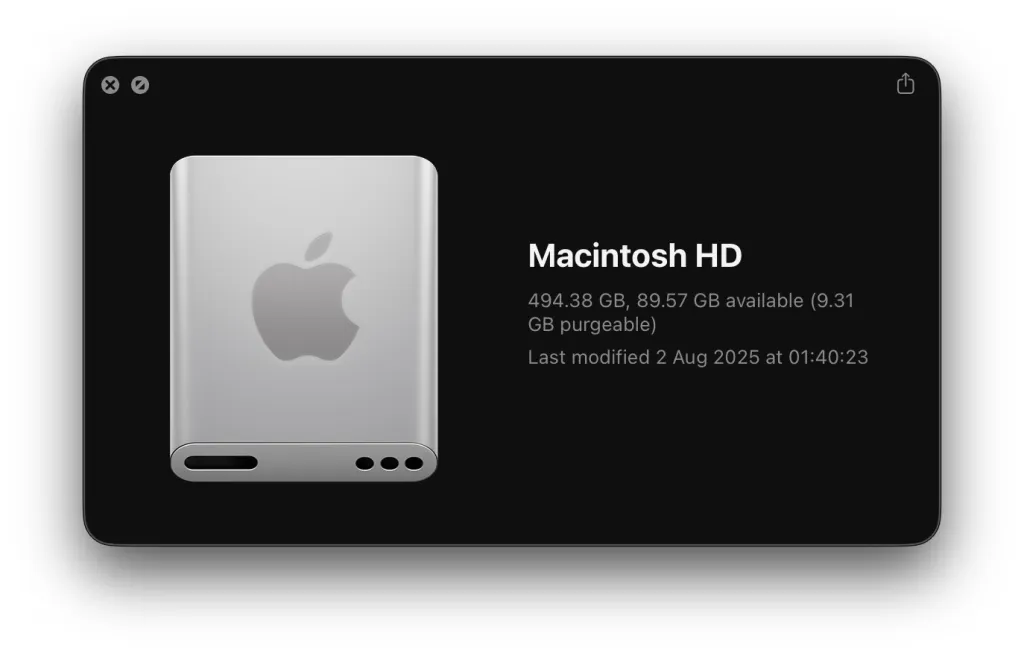
 

macOS Tahoe 26 Beta 5 Retires the Old Macintosh HD Icon


As of now, this seems like the only big icon change on the new macOS beta, but we’re digging through the system and will report back if we find anything else new. We did spot a new AirDrop icon on iOS 26 beta 5, despite it still being the same as before on macOS.


Source: 9to5mac

Windows
Mac OS
iOS
Linux
3uTools
Win 64-bit For this device
V9.0 2025-11-11
Download
Win 32-bit For this device
V9.0 2025-11-11
Download
3uTools
Intel Chip How to Identify Chip Type
V9.0 2025-12-02
Download
Apple Silicon
V9.0 2025-12-02
Download
How to Identify Chip Type
1.  Click the Apple icon in the top-left corner of the screen and select About This Mac.
2.  Check the Processor or Chip field to determine if it is "Intel" or "Apple".
Please use the 3uTools PC client to install the iOS client:
1、 Install either the Windows or Mac version of 3uTools on your computer
2、 Open the PC client and connect your device to the computer via USB cable
3、 After the connection is successful, wait for the computer to automatically install the mobile app for the device, or locate “Install Mobile App” on the computer and manually click to install.
3uTools
deb file
V3.01 2025-11-20
Download
rpm file
V3.01 2025-11-20
Download
Windows
Windows
iOS
iOS
Android
Android
TV
TV
3uAirPlayer
Win 64-bit For this device
V6.0.2 2025-11-19
Download
Win 32-bit For this device
V6.0.2 2025-11-19
Download
iOS Device Mirroring (No App Required)
1、 Install 3uAirPlayer on the Windows PC
2、 Open Control Center and select Screen Mirroring
3、 From the list, choose your PC to start mirroring
4、 Or connect your iOS device to the PC via USB to begin mirroring
Scan to get "3uAirPlayer" App
3uAirPlayer TV V1.0.18
2025-11-28
TV System Requirements: Android 7.0 or later
Download the TV installation package, copy it to a USB drive, insert it into your TV or set-top box, then select the file from the home screen to install.