TUTORIALS

Apple iOS 13: How to Automatically Close Safari Tabs

07/15/2019

7538

Apple iOS 13: How to Automatically Close Safari Tabs


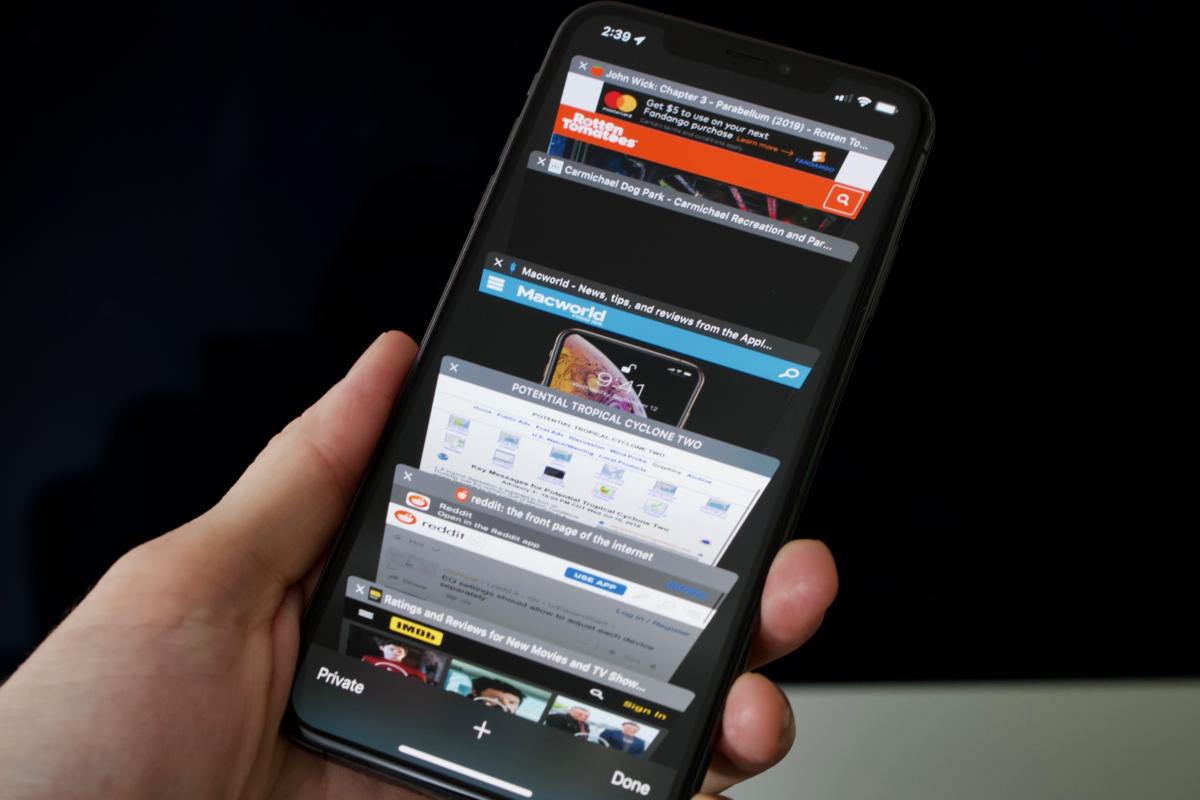
Quick—open up Safari on your iPhone and hit the View Tabs button in the bottom right.


If your phone is like mine, you’ve got a stack with dozens of tabs... leftover pages opened from social media posts, movie times from the film I saw weeks ago, search results, you name it. I don’t need any of that stuff anymore, but it’s kind of a pain to go swiping through all my open tabs every few weeks to clean out the cruft.


Fortunately, iOS 13 adds a new feature to Safari that can automatically close tabs after a period of time. It’s easy to set if you know where to look.


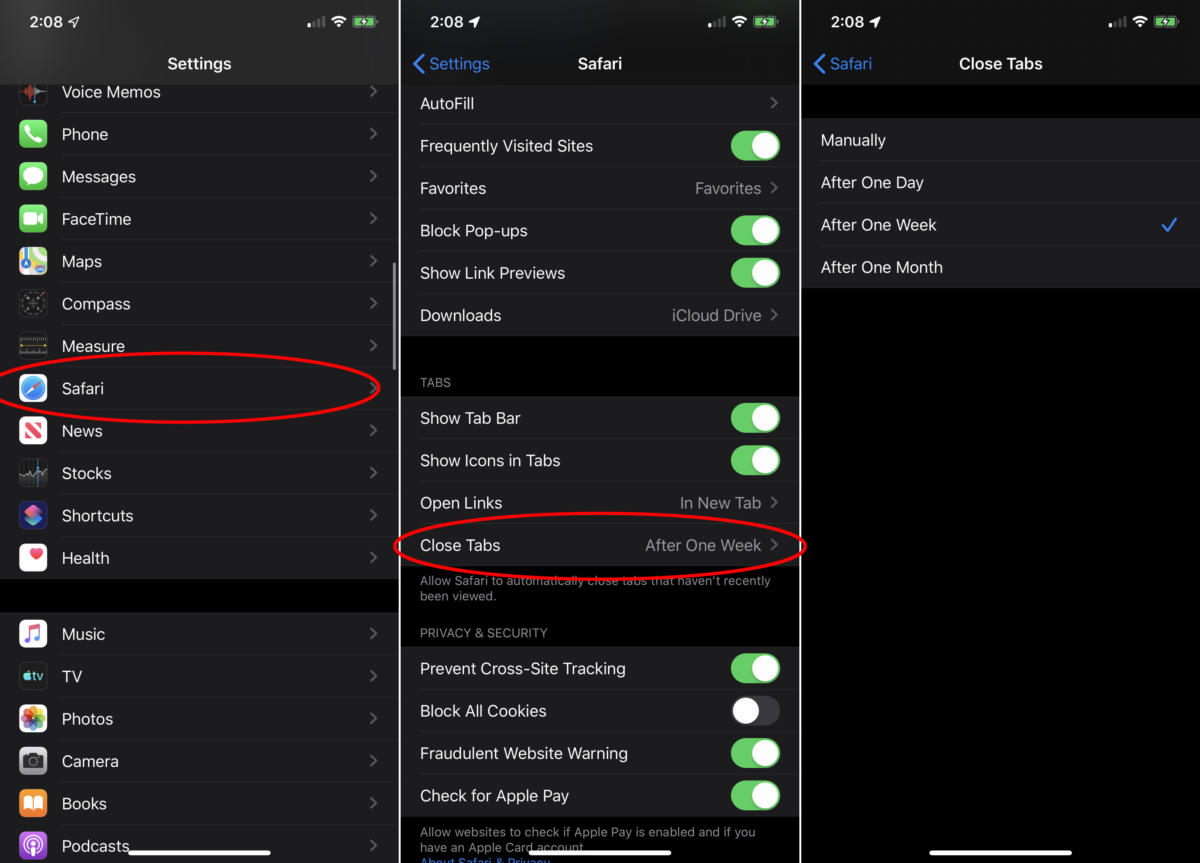
First, open the Settings app.


Then scroll down to Safari settings and tap on that.


There’s a lot in there, you want to scroll down to the Tabs section and tap on the Close Tabs selection.


By default, it is set to Manually, but you can change it to After One Day, After One Week, or After One Month.

Apple iOS 13: How to Automatically Close Safari Tabs


There's no correct setting, just choose whatever makes sense for the way you use your iPhone. I find I almost never need to reference something more than a week old, so the After One Week setting keeps my open tabs to a reasonable number without impacting my daily use.


Source: macworld

Windows
Mac OS
iOS
Linux
3uTools
Win 64-bit For this device
V9.0 2025-11-11
Download
Win 32-bit For this device
V9.0 2025-11-11
Download
3uTools
Intel Chip How to Identify Chip Type
V9.0 2025-12-02
Download
Apple Chip
V9.0 2025-12-02
Download
How to Identify Chip Type
1.  Click the Apple icon in the top-left corner of the screen and select About This Mac.
2.  Check the Processor or Chip field to determine if it is "Intel" or "Apple".
Please use the 3uTools PC client to install the iOS client:
1、 Install either the Windows or Mac version of 3uTools on your computer
2、 Open the PC client and connect your device to the computer via USB cable
3、 After the connection is successful, wait for the computer to automatically install the mobile app for the device, or locate “Install Mobile App” on the computer and manually click to install.
3uTools
deb file
V3.01 2025-11-20
Download
rpm file
V3.01 2025-11-20
Download
Windows
Windows
iOS
iOS
Android
Android
TV
TV
3uAirPlayer
Win 64-bit For this device
V6.0.2 2025-11-19
Download
Win 32-bit For this device
V6.0.2 2025-11-19
Download
iOS Device Mirroring (No App Required)
1、 Install 3uAirPlayer on the Windows PC
2、 Open Control Center and select Screen Mirroring
3、 From the list, choose your PC to start mirroring
4、 Or connect your iOS device to the PC via USB to begin mirroring
Scan to get "3uAirPlayer" App
3uAirPlayer TV V1.0.18
2025-11-28
TV System Requirements: Android 7.0 or later
Download the TV installation package, copy it to a USB drive, insert it into your TV or set-top box, then select the file from the home screen to install.