TUTORIALS

How to Play PS4 Games on iPhone and iPad?

04/28/2019

8271

How to Play PS4 Games on iPhone and iPad?


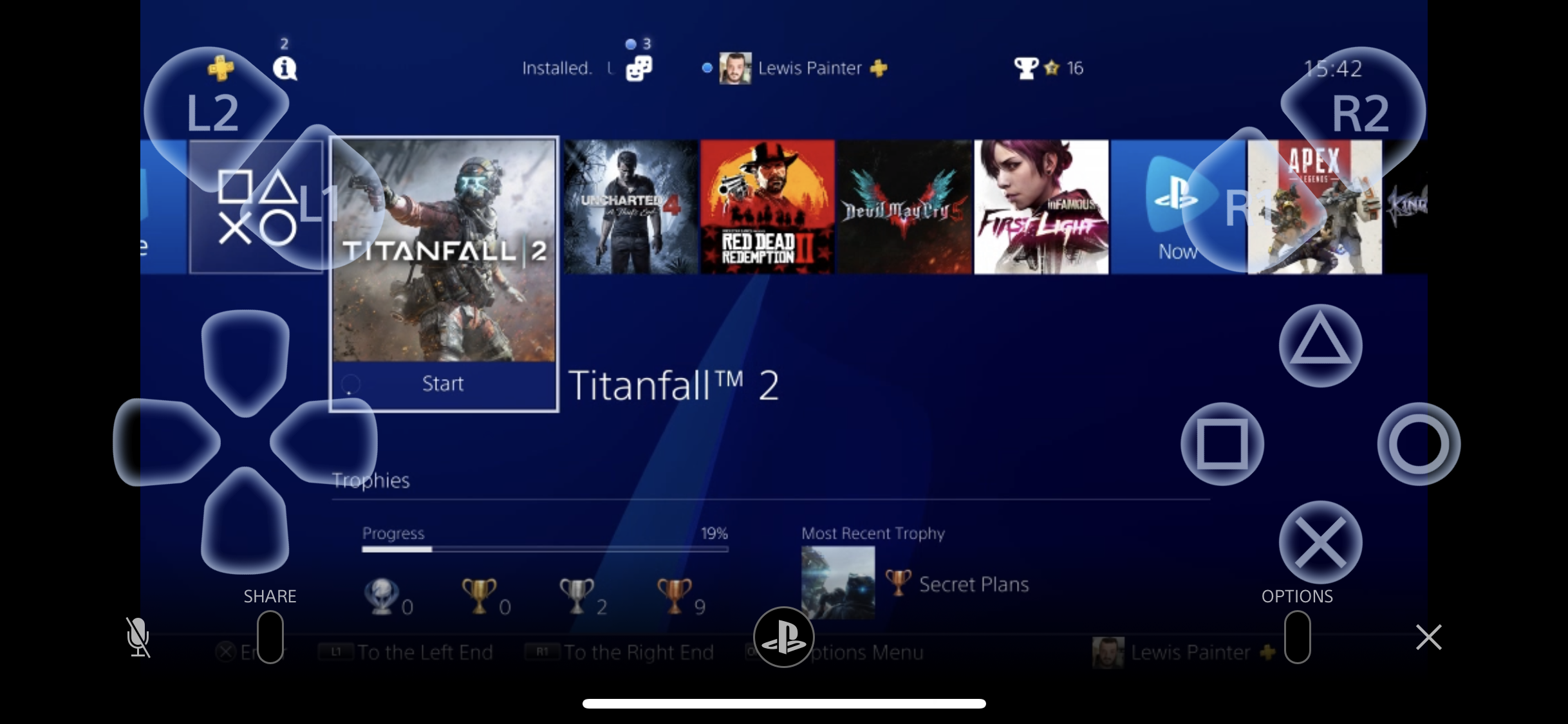
Playing PS4 games on iOS devices is definitely something that players have been craving for a long time. The dream has just come true earlier this year as the release of PS4 Remote Play. The good news is that setting up PS4 Remote Play on your iPhone or iPad is a relatively simple process. All you need is your iOS device and access to your PS4.


To play PS4 games on your iPhone or iPad, here are a few steps to go:


1. Download and install the PS4 Remote Play app on your iPhone or iPad.


2. Download and install the PS4 Remote Play app on your iPhone or iPad.


3. On your PS4, head to Settings > Remote Play Connection Settings and make sure "Enable Remote Play" is enabled.


4. Open the PS4 Remote Play app and sign in with your PlayStation Network account.


5. The app will then search for your PS4 via the internet – this is a bit hit and miss. If it finds it, you should then be able to connect to the PS4 and play games.


6. If the app can't locate your console, head to Settings > Remote Play Connection Settings on your PS4 and select "Add Device". A code should be displayed on-screen.


7. Tap "Register Manually" on the PS4 Remote Play app, and input the code displayed on your console.


8. The app should then be able to locate your PS4 and begin streaming.


Source: Macworld

Windows
Mac OS
iOS
Linux
3uTools
Win 64-bit For this device
V9.0 2025-11-11
Download
Win 32-bit For this device
V9.0 2025-11-11
Download
3uTools
Intel Chip How to Identify Chip Type
V9.0 2025-12-02
Download
Apple Chip
V9.0 2025-12-02
Download
How to Identify Chip Type
1.  Click the Apple icon in the top-left corner of the screen and select About This Mac.
2.  Check the Processor or Chip field to determine if it is "Intel" or "Apple".
Please use the 3uTools PC client to install the iOS client:
1、 Install either the Windows or Mac version of 3uTools on your computer
2、 Open the PC client and connect your device to the computer via USB cable
3、 After the connection is successful, wait for the computer to automatically install the mobile app for the device, or locate “Install Mobile App” on the computer and manually click to install.
3uTools
deb file
V3.01 2025-11-20
Download
rpm file
V3.01 2025-11-20
Download
Windows
Windows
iOS
iOS
Android
Android
TV
TV
3uAirPlayer
Win 64-bit For this device
V6.0.2 2025-11-19
Download
Win 32-bit For this device
V6.0.2 2025-11-19
Download
iOS Device Mirroring (No App Required)
1、 Install 3uAirPlayer on the Windows PC
2、 Open Control Center and select Screen Mirroring
3、 From the list, choose your PC to start mirroring
4、 Or connect your iOS device to the PC via USB to begin mirroring
Scan to get "3uAirPlayer" App
3uAirPlayer TV V1.0.18
2025-11-28
TV System Requirements: Android 7.0 or later
Download the TV installation package, copy it to a USB drive, insert it into your TV or set-top box, then select the file from the home screen to install.