TUTORIALS
What to Do If AirDrop Not Working on iPhone 8?
 01/24/2019
 6342
6342
AirDrop plays an important part in iOS device data sharing. With AirDrop, you can instantly share your photos, videos, documents, and more with the iOS users around you. But when you transfer files from iPhone to Mac, or between iPhones with Airdrop, you may encounter the issue of “AirDrop not working”. Please do not worry! Here are some tips that can help you fix this issue easily and efficiently.

1. Restart Your iPhone
Sometimes, restarting your iPhone can fix minor system glitches and errors. To restart iPhone 8, please kindly refer to the simple steps:
a. Press and hold the power button on your iPhone until the slide to power off slider appears on the display.
b. Swipe the red power icon from left to right to turn off your iPhone.
c. One minute later, press and hold the power button again until the Apple logo appears in the center of the screen.
2. Turn Bluetooth and WiFi off and back on again
Sometimes, turning Bluetooth and WiFi off and back on again will get a fresh connectivity between your iPhone and the other device.
3. Turn off Personal Hotspot on Your iPhone
If you turn on personal hotspot on your iPhone, you won’t be able to use other wireless features such as AirDrop. Thus please carefully check whether it is activated or not. If so, please turn it off.
4. Update iOS to Latest
If your iOS version is out of date, there would be some bugs coming with the iOS operating system. Therefore, to fix your issue, you can try to update to the most recent version of iOS.
5. Another Tool
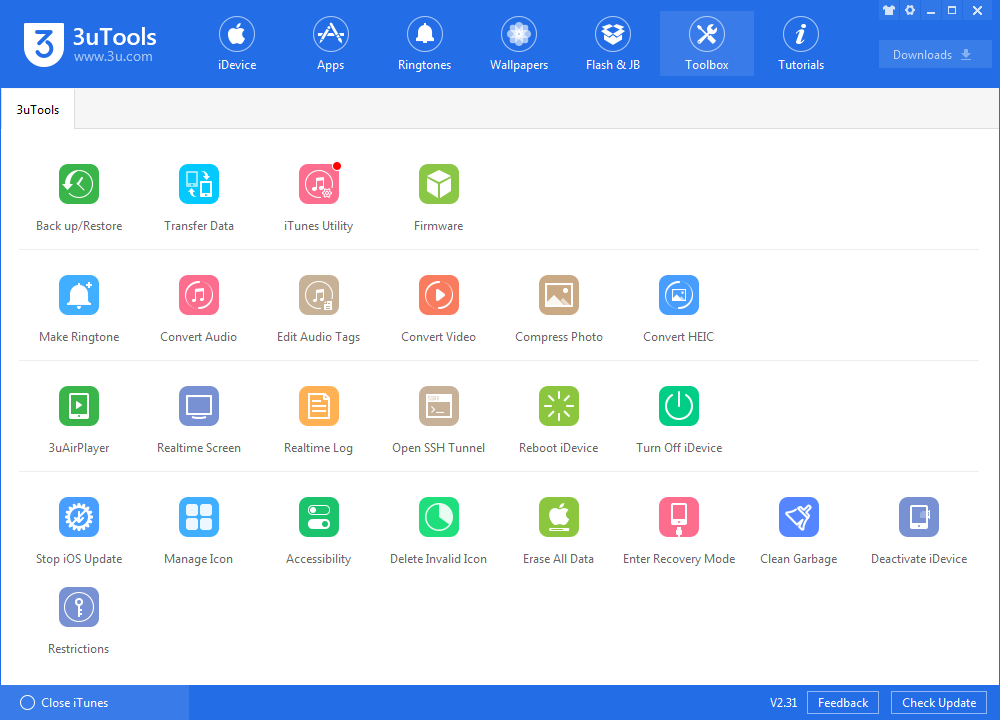
If your problem persists, you can try some Airdrop alternatives such as 3uTools. With it, you can transfer songs, pictures, contacts and other files between two iOS devices, or between Mac and iOS device more easily.