
TUTORIALS

iOS Tips: How to Sign Documents on iPhone?

07/20/2017

5016

Have you ever had a contract, agreement, or service form emailed to your iPhone or iPad that you need to sign quickly? Now you can digitally sign and return a document directly from the Mail app of iOS. The Mail signature feature lets you quickly sign a document attached to an email and send it back on it’s way without ever having to leave the mail app, the entire signing and returning process is very fast and easy thanks to the Markup feature set.

iOS Tips: How to Sign Documents on iPhone?


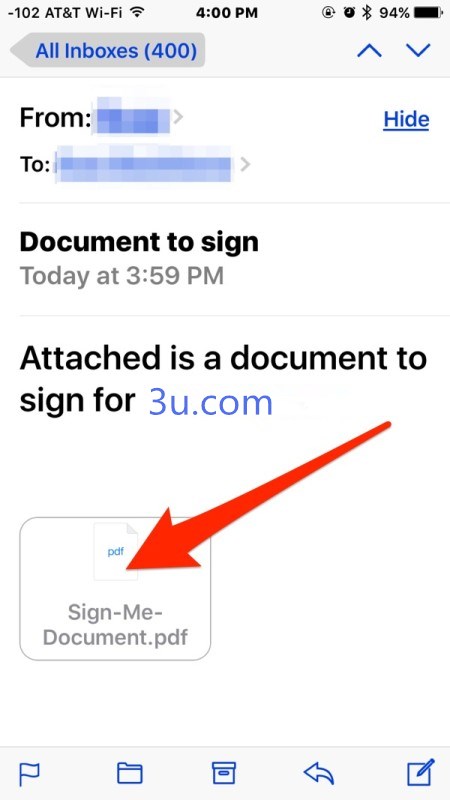
Step 1. Open the email containing the document to sign, tap on the document attachment as usual to preview it within the Mail app (the document can be PDF or otherwise) then click the toolbox icon.

iOS Tips: How to Sign Documents on iPhone?


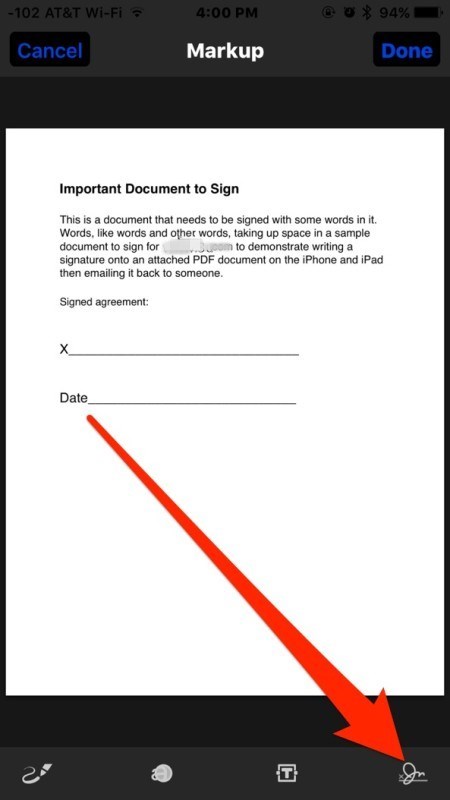
Step 2. Click the Signature button in the lower right corner of the Markup preview.

iOS Tips: How to Sign Documents on iPhone?


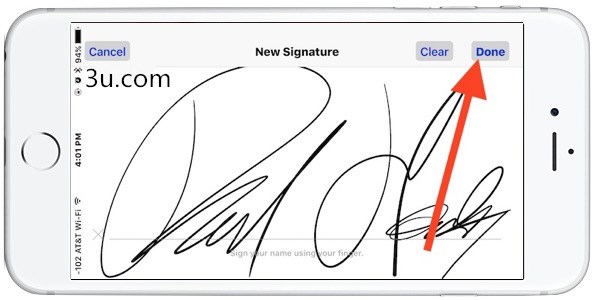
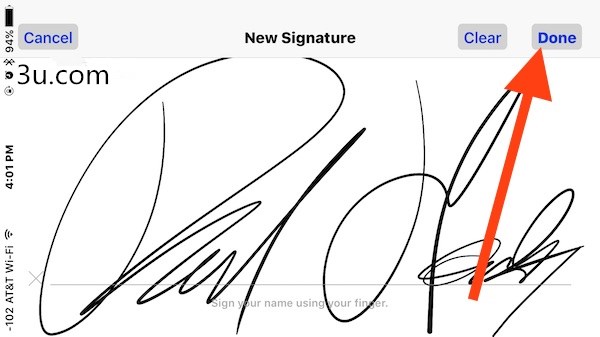
Step 3. Use a finger on the touch screen to sign the document as usual, then click “Done”.

iOS Tips: How to Sign Documents on iPhone?


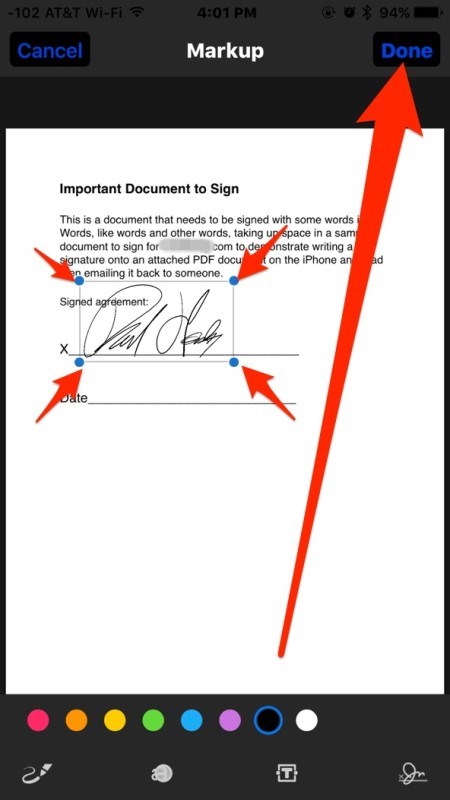
Step 4. Place the digital signature into the appropriate location on the document to sign, you can adjust the size of the signature if necessary by using the blue buttons to grow or shrink the signature, then tap on “Done” when finished to insert the signed document back into the same email as a reply.

iOS Tips: How to Sign Documents on iPhone?


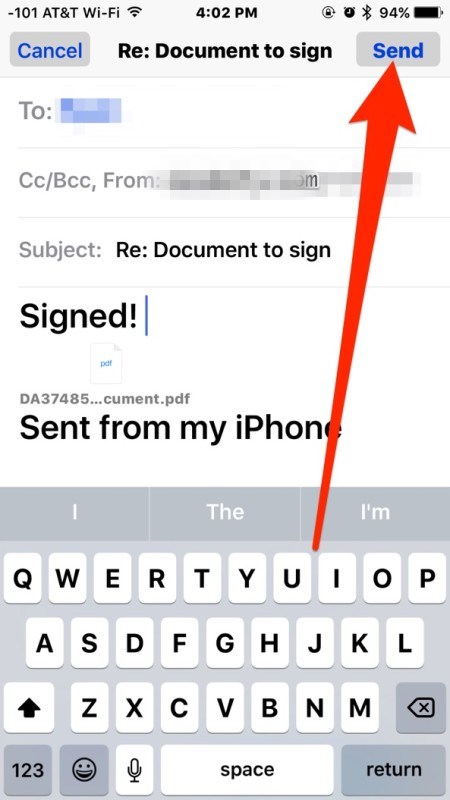
Step 5. Write the email reply as appropriate and click “Send” button to send the freshly signed document back on it’s way to the original sender.

iOS Tips: How to Sign Documents on iPhone?

Windows
Mac OS
iOS
Linux
3uTools
Win 64-bit For this device
V9.0 2025-11-11
Download
Win 32-bit For this device
V9.0 2025-11-11
Download
3uTools
Intel Chip How to Identify Chip Type
V9.0 2025-12-02
Download
Apple Chip
V9.0 2025-12-02
Download
How to Identify Chip Type
1.  Click the Apple icon in the top-left corner of the screen and select About This Mac.
2.  Check the Processor or Chip field to determine if it is "Intel" or "Apple".
Please use the 3uTools PC client to install the iOS client:
1、 Install either the Windows or Mac version of 3uTools on your computer
2、 Open the PC client and connect your device to the computer via USB cable
3、 After the connection is successful, wait for the computer to automatically install the mobile app for the device, or locate “Install Mobile App” on the computer and manually click to install.
3uTools
deb file
V3.01 2025-11-20
Download
rpm file
V3.01 2025-11-20
Download
Windows
Windows
iOS
iOS
Android
Android
TV
TV
3uAirPlayer
Win 64-bit For this device
V6.0.2 2025-11-19
Download
Win 32-bit For this device
V6.0.2 2025-11-19
Download
iOS Device Mirroring (No App Required)
1、 Install 3uAirPlayer on the Windows PC
2、 Open Control Center and select Screen Mirroring
3、 From the list, choose your PC to start mirroring
4、 Or connect your iOS device to the PC via USB to begin mirroring
Scan to get "3uAirPlayer" App
3uAirPlayer TV V1.0.18
2025-11-28
TV System Requirements: Android 7.0 or later
Download the TV installation package, copy it to a USB drive, insert it into your TV or set-top box, then select the file from the home screen to install.





