TUTORIALS
How to Check Carrier Status in 3uTools iDevice Verification Report?
 12/05/2018
 807874
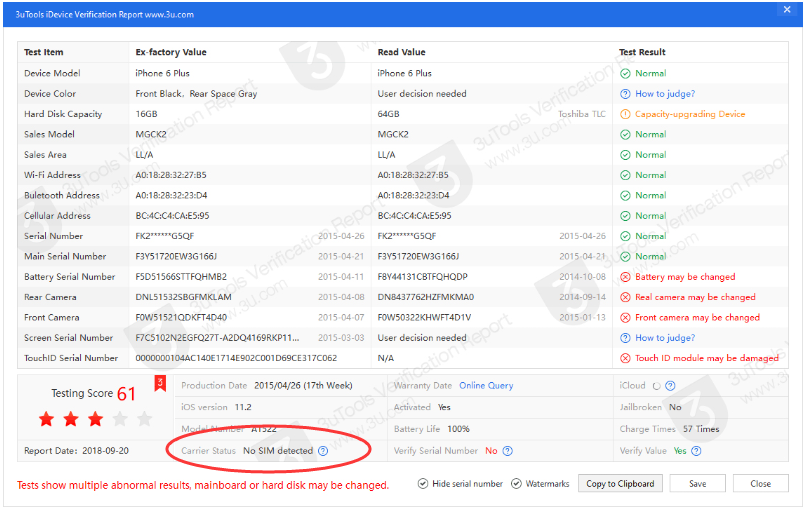
The latest 3uTools supports users to view verification report of your iOS device, but what is the mean of different carrier status? This tutorial is aimed to explain the different status of your device.
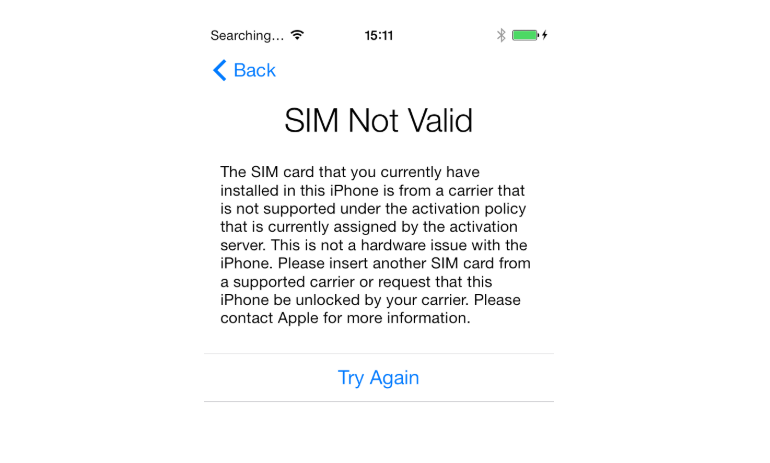
Carrier Locked iPhone
The carrier locked iPhone is tied to one carrier at least, that's means if you get a new iPhone from AT&T and T-Mobile in the United States, you probably find that you can't use the device with a Vietnam carrier. Carrier locked iPhones has a special lock software code, which prevents the device from connecting to any carrier network different from the original. The main reason why this lock software exists is to ensure you use your iDevice with a specific mobile company. They offer mobile devices with a discount, but if you get one of these phones you agree to specific terms of use.
The carrier locks are removable. But, getting to the point of entering the code to your iPhone is not the easiest task.
Click here to view "How to Unlock iPhone"?
SIM-free iPhone
The Sim-free iPhone is sometimes called An unlocked phone or contract-free phone. The SIM-free iPhone comes without a wireless contract commitment or carrier financing. You could insert a Sim card to activate your iOS device with random carriers.
How to check your Sim card carrier status in 3uTools?
If you want to check your carrier status more accurately in 3uTools, you are suggested to insert a Sim card with your local carrier, and please ensure the device without any code for unlocking the Sim card. We can't promise the result's accuracy in 3uTools if you insert a Sim card with an unlocking code.