 TUTORIALS
How to Back Up Your iPhone to Computer?
 09/30/2018
 26273
26273
We know how painful it is to start over whenyou lose a phone, which is why we’ve come up with some of the best resources for back it up.
Learning how to backup your iPhone to your computer is easier than you might think, with some great Apple tools that are perfect for getting the job done.
3uTools
As an all-in-one iOS manage tool, 3uTools can act as a great backup utility for your iPhone’s most important memories. Here’s how to get it to back up your iPhone to your computer.
Step 1: Open 3uTools on your PC and connect your iPhone with genuine USB cable.
Step 2: Navigate to Toolbox → Back up/Restore → Back up iDevice, you can change the Backup path on your PC. Then click Back up Now.
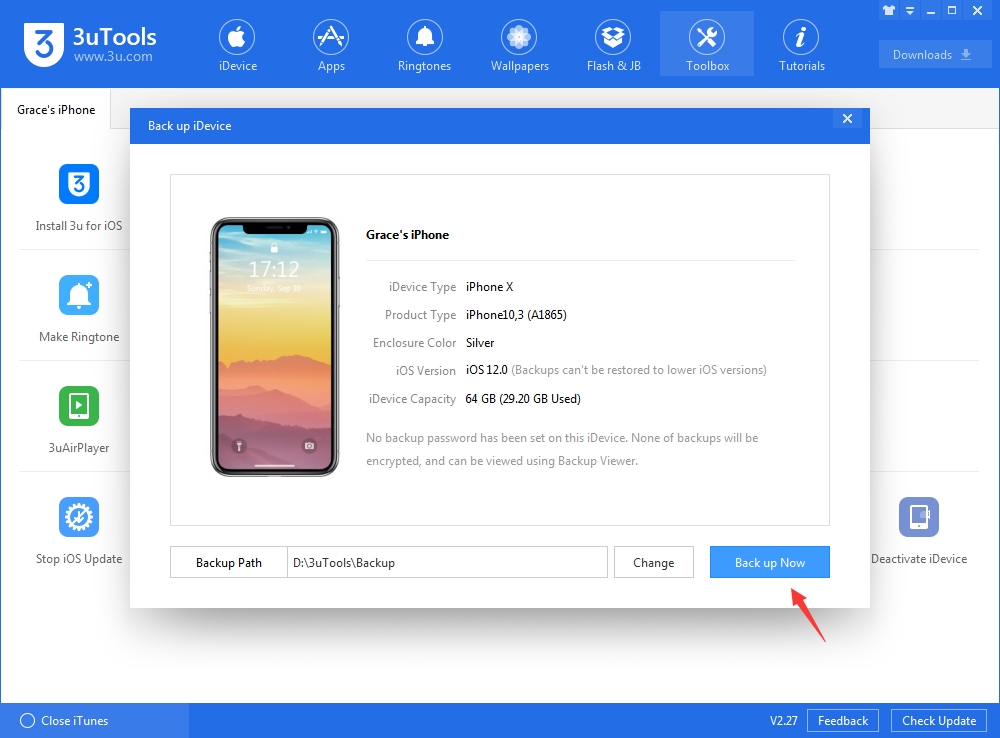
Step 3: When the backup process is complete, check Backup Management to confirm whether the backup was successful.
iCloud
Apple’s iCloud is a service that can handle backups manually or automatically and will whisk your files away to a server somewhere far away. Keep in mind that the free version is currently restricted to a mere 5GB of data meaning you likely won’t be able to back up all your photos and videos.
Step 1: Tap “Settings”, and select your name.
Step 2: Tap “iCloud”. If you haven’t used it before, you may wish to select which applications or files that your iCloud backup should focus on.
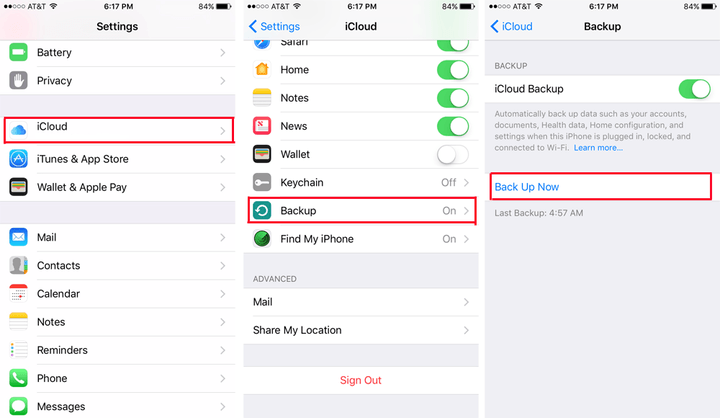
Step 3: Once you’ve done that, select “Backup” from the list of options.
Step 4: If you want iCloud to automatically backup your iPhone regularly, toggle the “iCloud Backup” option under the “Backup” heading. If you would rather back up manually or just want to trigger another backup right now, tap “Back Up Now.”
Step 5: When complete, confirm that the backup finished correctly by looking at the “Last backup” time.










