 TUTORIALS
How to Fix the “An iPhone Has Been Detected But It Could Not Be Identified” Error in iTunes?
 07/20/2017
 7265
7265
If you find iTunes is too complicated to use, you could make a better choice - 3uTools.
When your iPhone or iOS device has a flaky connection with Windows, it’s more than a little bit frustrating. With a little troubleshooting, however, you can banish the detected-but-not-identified error for good.
We uninstalled iTunes and every related helper application in a specific order, then reinstalled them fresh—and it fixed everything. Yes, it’s a bit long and annoying, but sometimes you have to bite the bullet and start from scratch.
First, download the newest edition of iTunes for Windows — we’ll need it in a moment.
Second, head over to the “Uninstall or change a program” menu in Windows located at Control Panel > Programs > Programs and Features (or you can just click Windows+R and type “appwiz.cpl”) a handy Control Panel shortcut, into the run dialog box.
Locate the entry for “iTunes” first. Right click on it and uninstall it.
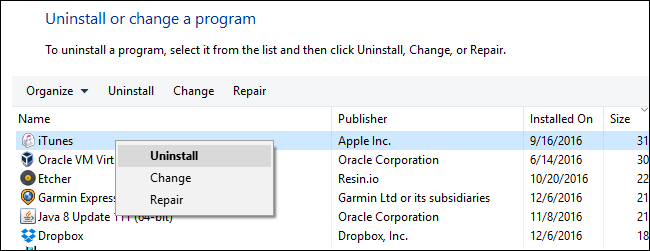
After uninstalling iTunes first, proceed to uninstall the following entries, in the order presented:
Apple Software Update
Apple Mobile Device Support
Bonjour
Apple Application Support
Once you have removed iTunes plus all the helper applications, restart your computer. After restarting your computer, launch the iTunes installer you downloaded a moment ago. The installer will not only reinstall iTunes but all the applications we just removed. Restart your computer once more to ensure everything squared away and then plug your iOS device into your PC via the USB cable—a now, fingers crossed, error free experience.










