 TUTORIALS
How to Enable Wi-Fi Calling on iPhone, iPad, or Apple Watch?
 04/10/2018
 7272
7272
Wi-Fi calling is a nifty feature that allows you to make phone calls on your iPhone even when it doesn’t have any cellular connectivity. Follow along as we walk you through how to enable Wi-Fi calling on your iPhone, iPad, and Apple Watch.

How to enable Wi-Fi calling on iPhone, iPad, or Apple Watch
These steps are pretty much the same on the iPhone and iPad. Enabling Wi-Fi calling on the iPhone will automatically enable it on the Apple Watch. With that being said, you’ll want to head over to Settings > Phone (on iPhone), FaceTime (on iPad).
From there you’ll want to head into Wi-Fi Calling and enable this feature.
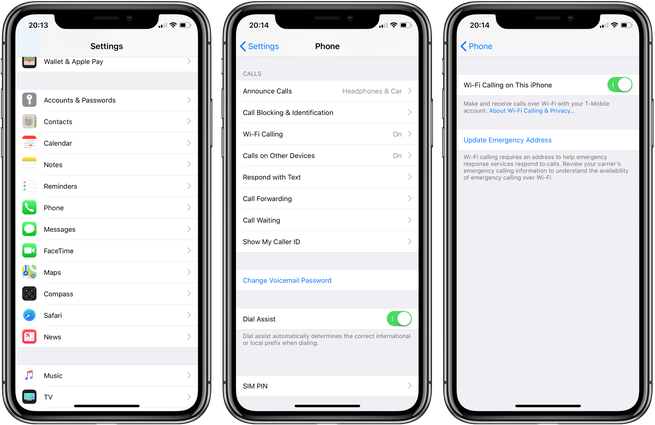
Wi-Fi calling is especially useful when roaming internationally. In most cases, carriers will allow you to call any number from your home country as long as you’re on Wi-Fi calling. As this doesn’t add any cost to the carrier and solely depends on your Wi-Fi connection, most carriers will allow you this luxury.
A good tip is that if you do plan on using Wi-Fi calling abroad, turn on airplane mode and then connect to Wi-Fi, that way if you walk away from a Wi-Fi network, the call will drop instead of handing off to the cellular network, which is expensive in most cases. This same technique may also apply to SMS messages as well, but you’ll want to check with your carrier.
To confirm Wi-Fi calling is working on your iPhone, you’ll see the something along the lines of “Wi-Fi” or “Wi-Fi calling” on the top left next to your carrier name. On the iPhone X, you’ll need to swipe down from the top right to invoke the Control Center to see the expanded status bar.










