
TUTORIALS

How to Quickly Track Flights on iPhone and iPad?

03/21/2018

3753

iOS 11 brought along some subtle changes that won’t wow users in and of themselves, but are really handy when needed. One of those features is native flight status tracking.


For sometime, third-party apps were the go to resource to keep tabs on flights. While options like FlightAware and The Flight Tracker may offer a robust resources, sometimes you’re left with ads or paying for in-app upgrades.


A great alternative is using the flight tracking feature built right into iOS 11 in Spotlight search. It’s super fast to use and provides flight status details up to the minute.
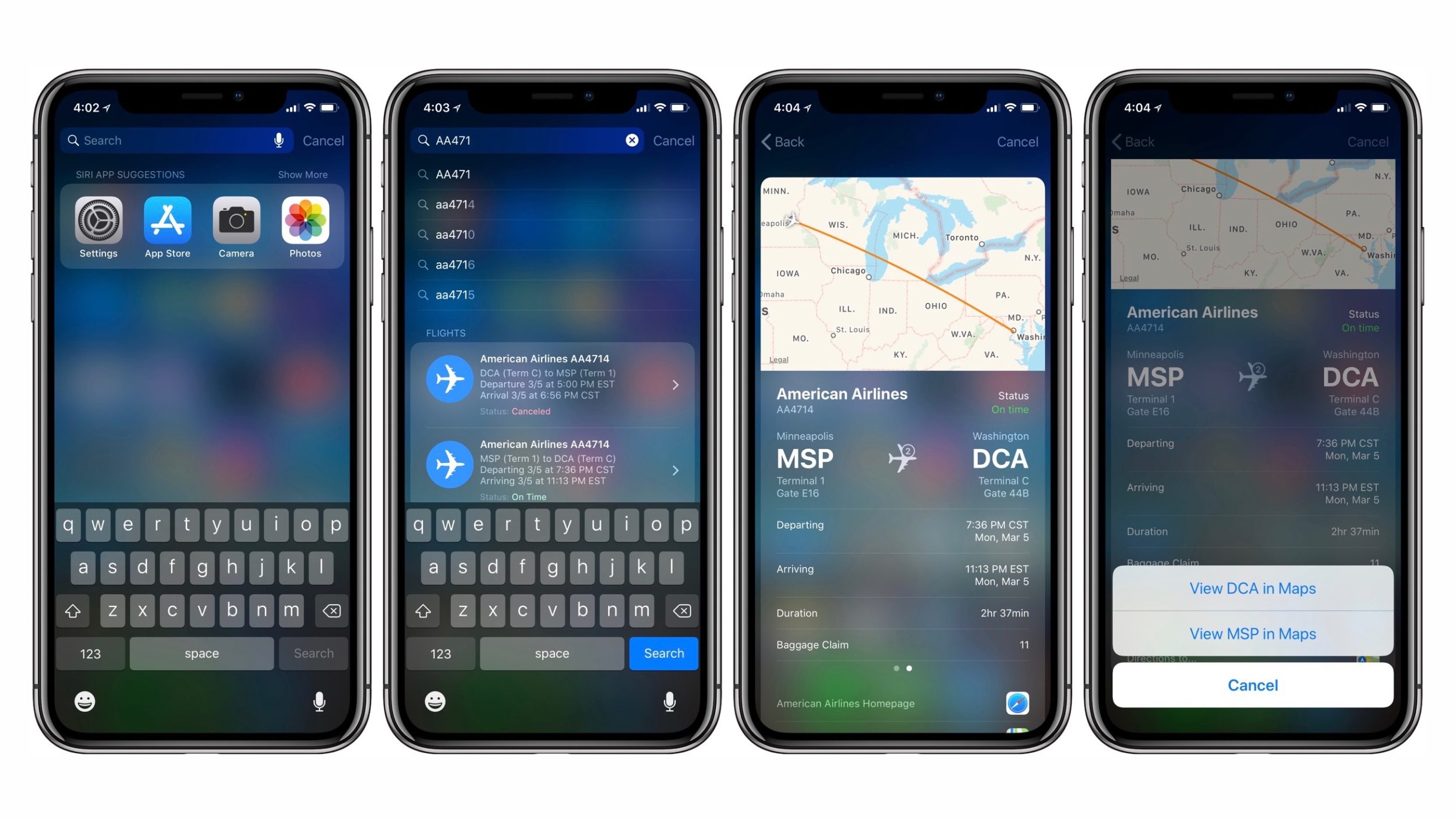
How to Quickly Track Flights on iPhone and iPad?

  • Pull up Spotlight search by sliding from right to left on your primary Home screen.

  • Type in the flight you’d like to track. You can enter American Flight 4714, AA4714 or a few other variations.

  • Make sure to note which departure and arrival cities you’re looking for, there may often be multiple flights with the same number. For example, planes flying back and forth between the same city may use the same flight number.


Search results will provide current status, flight duration, terminal and gate details for departure and arrival. Spotlight search even includes details like which baggage claim the flight will be using. Additionally, at the bottom of the search result you’ll find a link to the airline’s website as well as a quick link to open directions to the departure or arrival city in Apple Maps.


Windows
Mac OS
iOS
Linux
3uTools
Win 64-bit For this device
V9.0 2025-11-11
Download
Win 32-bit For this device
V9.0 2025-11-11
Download
3uTools
Intel Chip How to Identify Chip Type
V9.0 2025-12-02
Download
Apple Chip
V9.0 2025-12-02
Download
How to Identify Chip Type
1.  Click the Apple icon in the top-left corner of the screen and select About This Mac.
2.  Check the Processor or Chip field to determine if it is "Intel" or "Apple".
Please use the 3uTools PC client to install the iOS client:
1、 Install either the Windows or Mac version of 3uTools on your computer
2、 Open the PC client and connect your device to the computer via USB cable
3、 After the connection is successful, wait for the computer to automatically install the mobile app for the device, or locate “Install Mobile App” on the computer and manually click to install.
3uTools
deb file
V3.01 2025-11-20
Download
rpm file
V3.01 2025-11-20
Download
Windows
Windows
iOS
iOS
Android
Android
TV
TV
3uAirPlayer
Win 64-bit For this device
V6.0.2 2025-11-19
Download
Win 32-bit For this device
V6.0.2 2025-11-19
Download
iOS Device Mirroring (No App Required)
1、 Install 3uAirPlayer on the Windows PC
2、 Open Control Center and select Screen Mirroring
3、 From the list, choose your PC to start mirroring
4、 Or connect your iOS device to the PC via USB to begin mirroring
Scan to get "3uAirPlayer" App
3uAirPlayer TV V1.0.18
2025-11-28
TV System Requirements: Android 7.0 or later
Download the TV installation package, copy it to a USB drive, insert it into your TV or set-top box, then select the file from the home screen to install.



