TUTORIALS

How to Unlock Your iOS 10 Device With a Single Click (Like in iOS 9)?

12/07/2016

6957

In iOS 10, Apple made a small but fundamental change to the way touch ID users unlock their iPhone. If you’ re tired of seeing “Press home to open” or “Press home to unlock” every time to you grab your phone, here’ s how to switch it back to the way it was in iOS 9. ( Don't want miss this tips: How to Improve the Response Speed of Home Button on iPhone 7 )


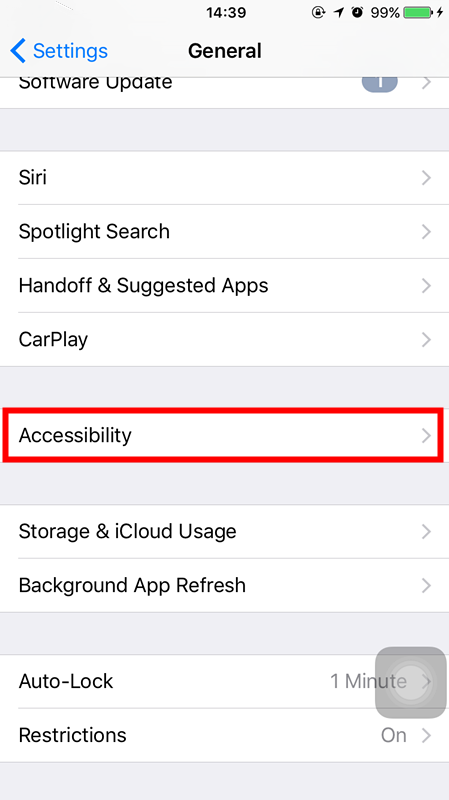
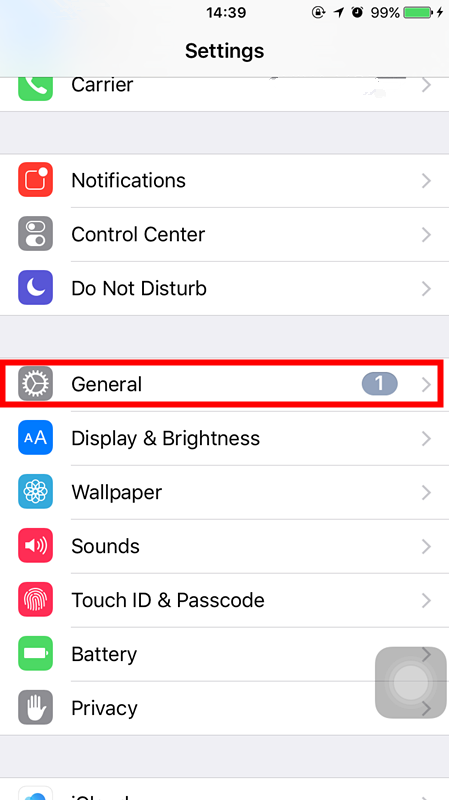
Changing the behavior of the Touch ID unlock is trivial if you know where to look. To change the functionality back to the iOS 9 style you’ re familiar with, simply launch Settings → General → Accessibility.
 

How to Unlock Your iOS 10 Device With a Single Click (Like in iOS 9)?How to Unlock Your iOS 10 Device With a Single Click (Like in iOS 9)?


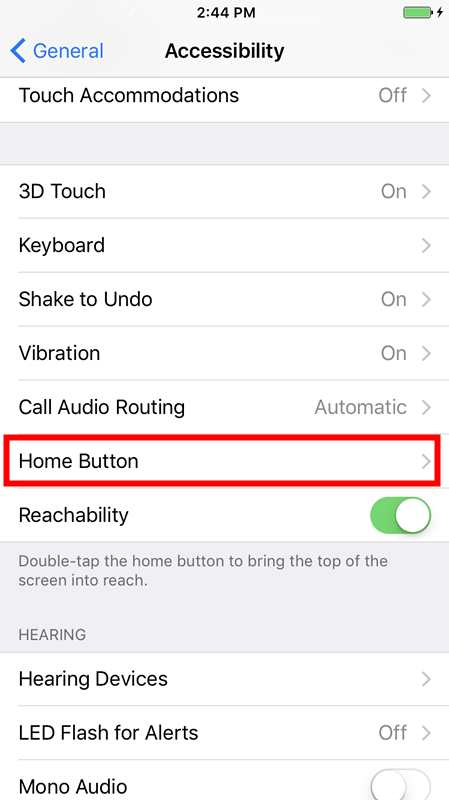
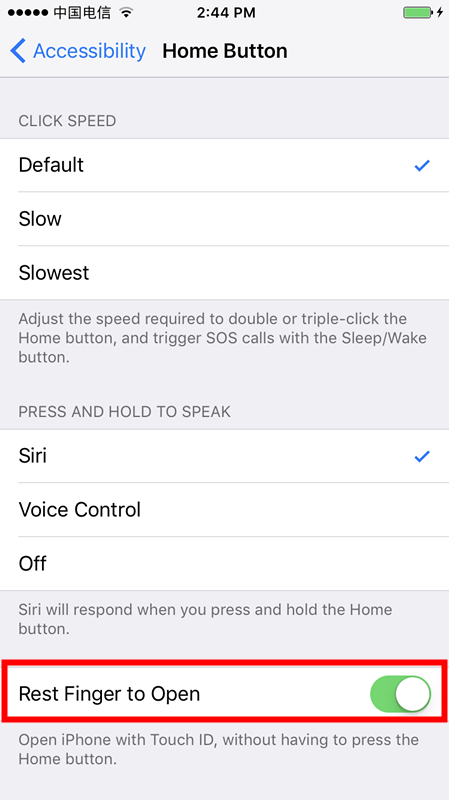
In the Accessibility menu, scroll quite a bit until you see the entry for “Home Button” and select it. In the Home Button menu you’ ll find an entry, turned off by default in iOS 10, labeled “Rest Finger to Unlock”. Toggle it on, as seen below.
 

How to Unlock Your iOS 10 Device With a Single Click (Like in iOS 9)?How to Unlock Your iOS 10 Device With a Single Click (Like in iOS 9)?


You can now press the Home button and, with a single press, both awake and unlock your iOS device.


While we can appreciate why Apple made the change (to facilitate access to secure apps from the lock screen), we also appreciate they left a method in to go back to the iOS 9 way of doing things.


Windows
Mac OS
iOS
Linux
3uTools
Win 64-bit For this device
V9.0 2025-11-11
Download
Win 32-bit For this device
V9.0 2025-11-11
Download
3uTools
Intel Chip How to Identify Chip Type
V9.0 2025-12-02
Download
Apple Chip
V9.0 2025-12-02
Download
How to Identify Chip Type
1.  Click the Apple icon in the top-left corner of the screen and select About This Mac.
2.  Check the Processor or Chip field to determine if it is "Intel" or "Apple".
Please use the 3uTools PC client to install the iOS client:
1、 Install either the Windows or Mac version of 3uTools on your computer
2、 Open the PC client and connect your device to the computer via USB cable
3、 After the connection is successful, wait for the computer to automatically install the mobile app for the device, or locate “Install Mobile App” on the computer and manually click to install.
3uTools
deb file
V3.01 2025-11-20
Download
rpm file
V3.01 2025-11-20
Download
Windows
Windows
iOS
iOS
Android
Android
TV
TV
3uAirPlayer
Win 64-bit For this device
V6.0.2 2025-11-19
Download
Win 32-bit For this device
V6.0.2 2025-11-19
Download
iOS Device Mirroring (No App Required)
1、 Install 3uAirPlayer on the Windows PC
2、 Open Control Center and select Screen Mirroring
3、 From the list, choose your PC to start mirroring
4、 Or connect your iOS device to the PC via USB to begin mirroring
Scan to get "3uAirPlayer" App
3uAirPlayer TV V1.0.18
2025-11-28
TV System Requirements: Android 7.0 or later
Download the TV installation package, copy it to a USB drive, insert it into your TV or set-top box, then select the file from the home screen to install.