
TUTORIALS

How to Save Email As PDF?

02/24/2018

5613

You can save an email as a PDF file in the built-in Mail app. It's really nice when you've got an email you want to save outside of your Mail app. 

How to Save Email As PDF?


Step1: Open the Mail app on your iPhone or iPad


Step2: Select an email message that you want to save as a PDF.


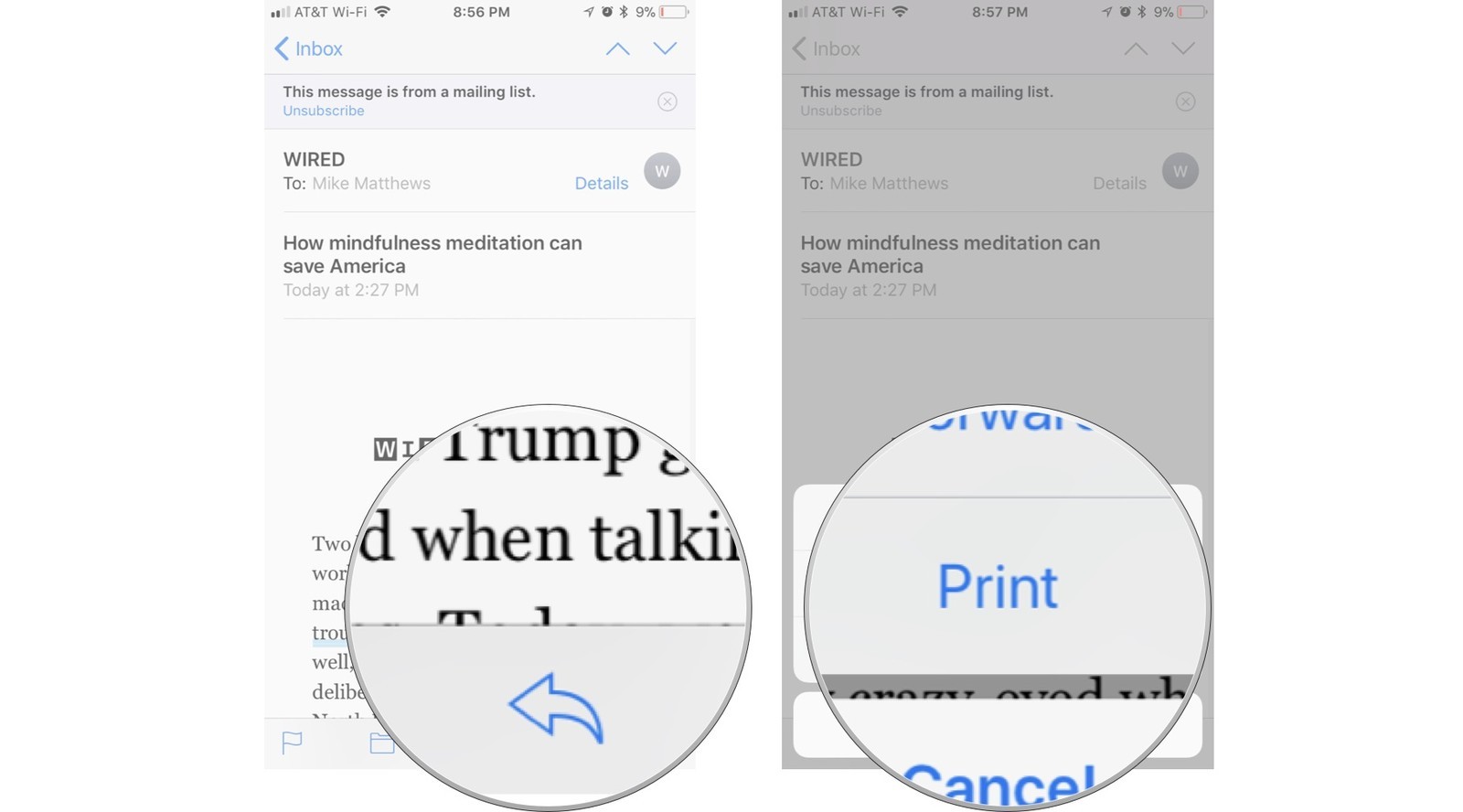
Step3: Click the action button. The action button looks like a reply arrow (it's also used to reply to or forward email messages).


Step4: Click Print to open the printer options.

How to Save Email As PDF?


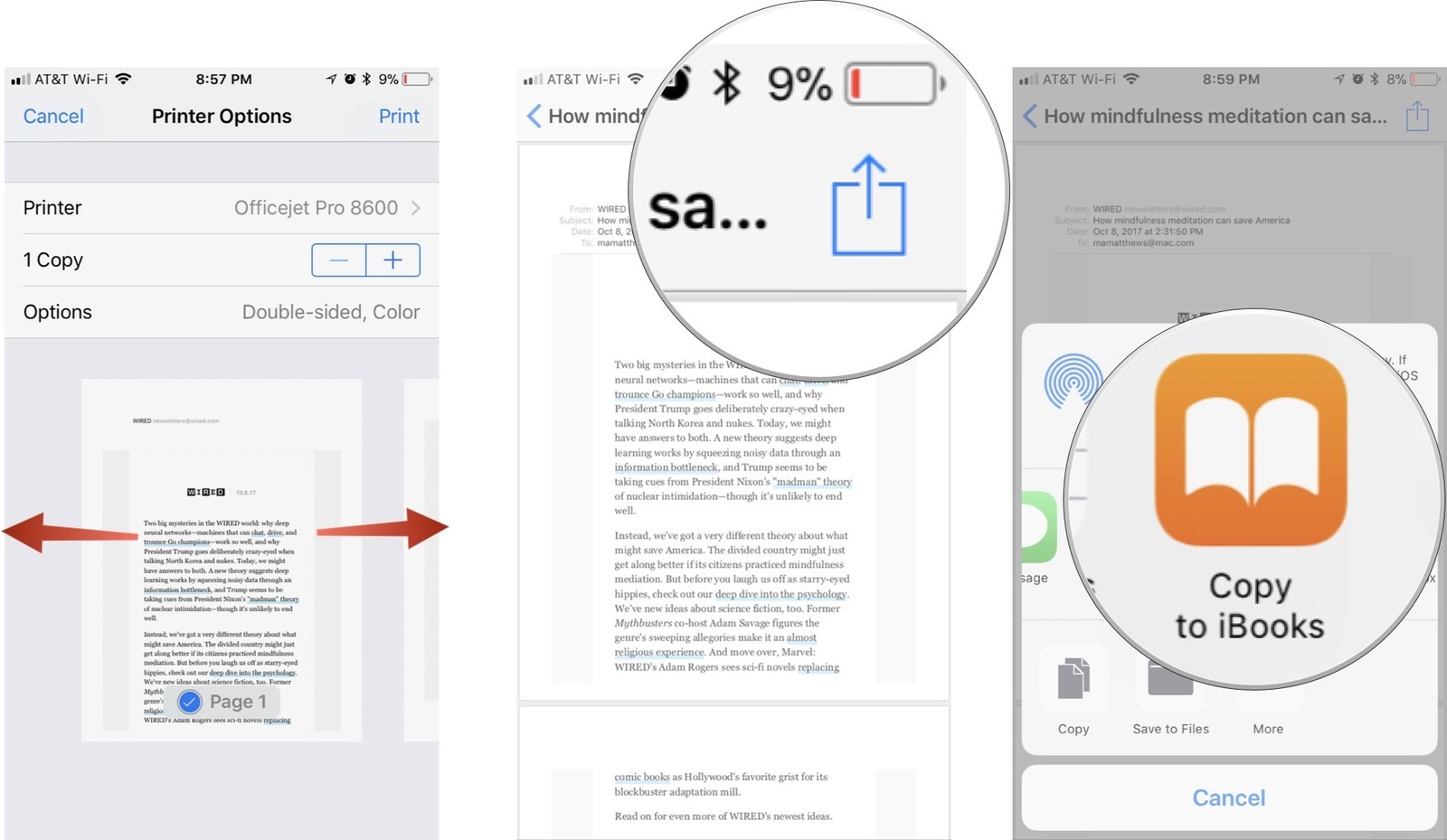
Step5: Pinch open the thumbnail image of the first page of your email. If your email runs for more than a page, you can pinch open any of the pages. The Printer Options will be replaced with the PDF version of your email message.


Step6: Click the Share button in the upper right corner of the screen.


Step7: Select the app you want to save or share your PDF-converted email to.
How to Save Email As PDF?


Thanks to the in-app sharing feature in the Mail app, you can do a number of things with your new PDF. You can save it to your Notes app, copy it to iBooks, and more. A lot of third-party apps support sharing and storing of PDF emails, too, like Messenger. The world is your oyster. Now go out there and turn some emails into PDFs.


Windows
Mac OS
iOS
Linux
3uTools
Win 64-bit For this device
V9.0 2025-11-11
Download
Win 32-bit For this device
V9.0 2025-11-11
Download
3uTools
Intel Chip How to Identify Chip Type
V9.0 2025-12-02
Download
Apple Chip
V9.0 2025-12-02
Download
How to Identify Chip Type
1.  Click the Apple icon in the top-left corner of the screen and select About This Mac.
2.  Check the Processor or Chip field to determine if it is "Intel" or "Apple".
Please use the 3uTools PC client to install the iOS client:
1、 Install either the Windows or Mac version of 3uTools on your computer
2、 Open the PC client and connect your device to the computer via USB cable
3、 After the connection is successful, wait for the computer to automatically install the mobile app for the device, or locate “Install Mobile App” on the computer and manually click to install.
3uTools
deb file
V3.01 2025-11-20
Download
rpm file
V3.01 2025-11-20
Download
Windows
Windows
iOS
iOS
Android
Android
TV
TV
3uAirPlayer
Win 64-bit For this device
V6.0.2 2025-11-19
Download
Win 32-bit For this device
V6.0.2 2025-11-19
Download
iOS Device Mirroring (No App Required)
1、 Install 3uAirPlayer on the Windows PC
2、 Open Control Center and select Screen Mirroring
3、 From the list, choose your PC to start mirroring
4、 Or connect your iOS device to the PC via USB to begin mirroring
Scan to get "3uAirPlayer" App
3uAirPlayer TV V1.0.18
2025-11-28
TV System Requirements: Android 7.0 or later
Download the TV installation package, copy it to a USB drive, insert it into your TV or set-top box, then select the file from the home screen to install.



