
TUTORIALS

Can’t Answer Incoming Calls on Your iPhone X? Here’s How to Fix it

02/07/2018

7425

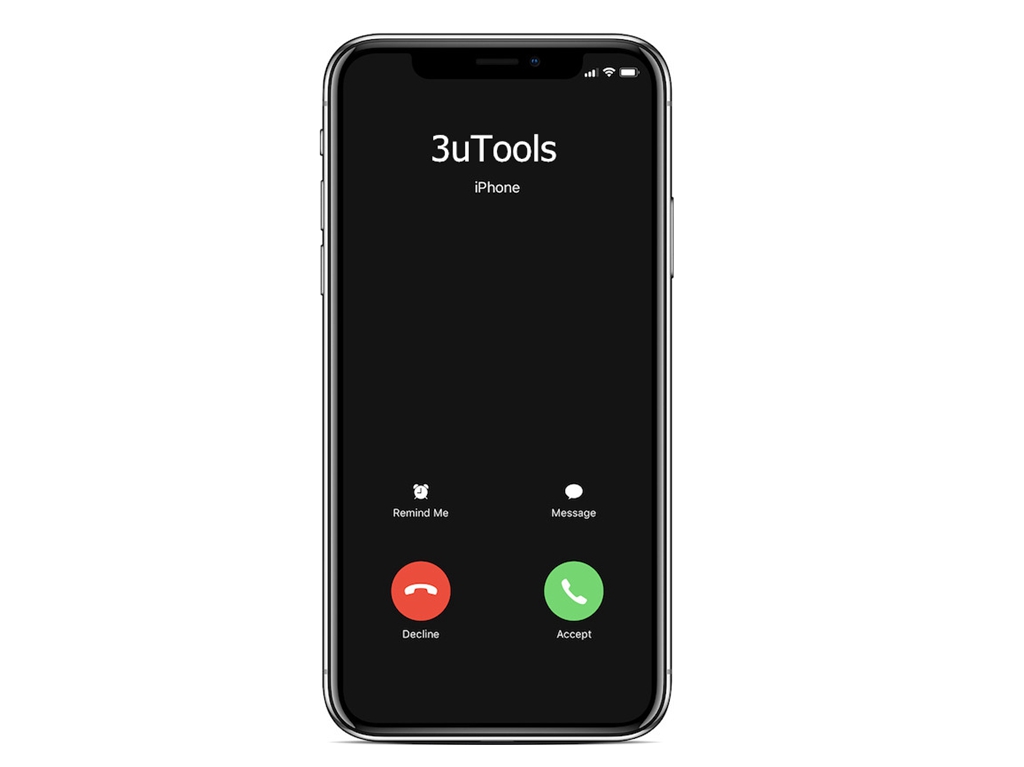
As we reported some iPhone X users seem to be facing an issue that is preventing them from answering incoming calls immediately due to a delay in the launch of the Phone app. Apple has acknowledged the issue and has said that it is investigating the issue. But in some cases, the issue can be resolved using some simple troubleshooting tips which we will explain below.

Can’t Answer Incoming Calls on Your iPhone X? Here’s How to Fix it

#1. Update to the latest iOS Software update


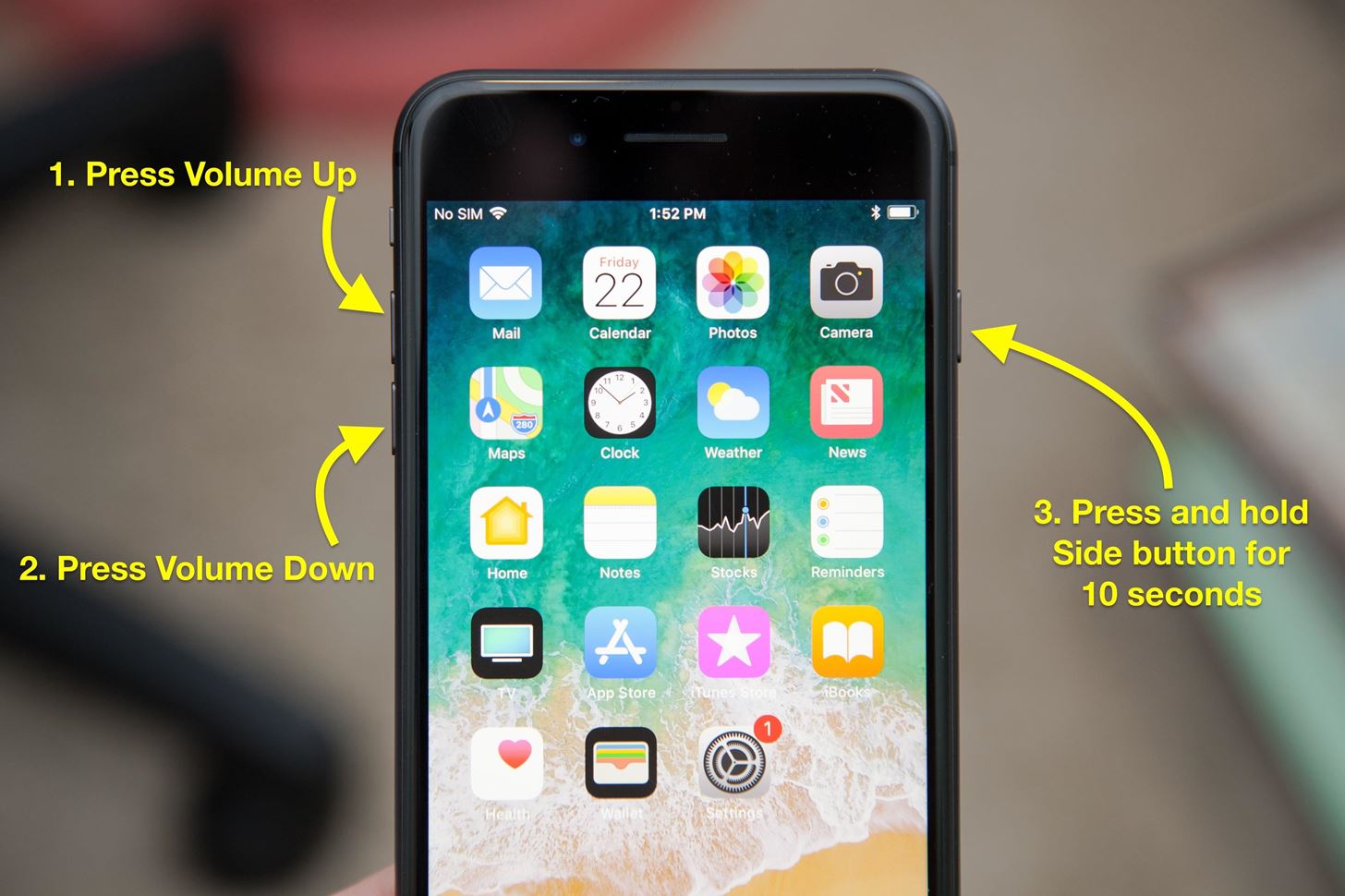
#2. Force Restart

Like all tech problems, there is no harm in starting off by force restarting your iPhone X. Read here about how to restart your iPhoneX.

Can’t Answer Incoming Calls on Your iPhone X? Here’s How to Fix it


#3. Reset Network Settings

 To reset network settings, open the Settings app and navigate to Settings > General > Reset and tap on Reset Network Settings.


#4. Restore and Setup as new iPhone

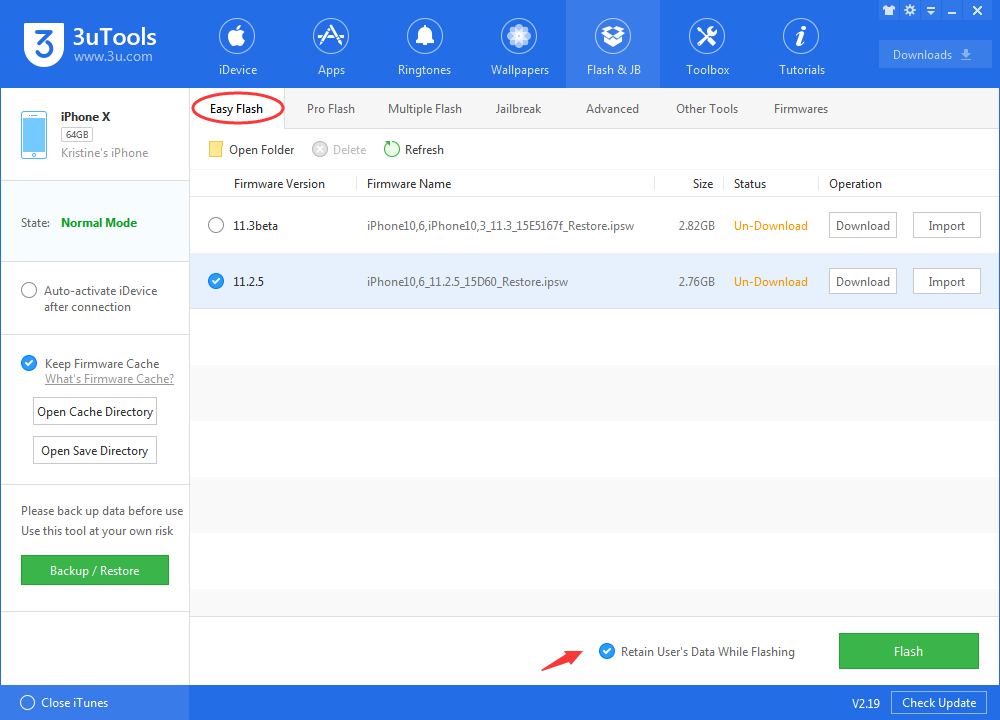
If none of these tips fix your issues, the last resort is to restore your iPhone X and set it up as a new device if you had restored the back up from your old iPhone while setting up your iPhone X. 


You are suggested to back up your iPhone X in 3uTools first.

Can’t Answer Incoming Calls on Your iPhone X? Here’s How to Fix it


#5. Make a Genius Bar Appointment

Even after performing all these steps, you're still having problems, then you might want to visit your nearest Apple Store to know of any possible hardware related issues. Visit Apple's Contact Support page to book an appointment.


Windows
Mac OS
iOS
Linux
3uTools
Win 64-bit For this device
V9.0 2025-11-11
Download
Win 32-bit For this device
V9.0 2025-11-11
Download
3uTools
Intel Chip How to Identify Chip Type
V9.0 2025-12-02
Download
Apple Chip
V9.0 2025-12-02
Download
How to Identify Chip Type
1.  Click the Apple icon in the top-left corner of the screen and select About This Mac.
2.  Check the Processor or Chip field to determine if it is "Intel" or "Apple".
Please use the 3uTools PC client to install the iOS client:
1、 Install either the Windows or Mac version of 3uTools on your computer
2、 Open the PC client and connect your device to the computer via USB cable
3、 After the connection is successful, wait for the computer to automatically install the mobile app for the device, or locate “Install Mobile App” on the computer and manually click to install.
3uTools
deb file
V3.01 2025-11-20
Download
rpm file
V3.01 2025-11-20
Download
Windows
Windows
iOS
iOS
Android
Android
TV
TV
3uAirPlayer
Win 64-bit For this device
V6.0.2 2025-11-19
Download
Win 32-bit For this device
V6.0.2 2025-11-19
Download
iOS Device Mirroring (No App Required)
1、 Install 3uAirPlayer on the Windows PC
2、 Open Control Center and select Screen Mirroring
3、 From the list, choose your PC to start mirroring
4、 Or connect your iOS device to the PC via USB to begin mirroring
Scan to get "3uAirPlayer" App
3uAirPlayer TV V1.0.18
2025-11-28
TV System Requirements: Android 7.0 or later
Download the TV installation package, copy it to a USB drive, insert it into your TV or set-top box, then select the file from the home screen to install.



