 TUTORIALS
How to Use iMovie on iPhone, iPad?
 02/02/2018
 6853
6853
With a little help from Apple’s iMovie, you can add quite a bit of polish to your clips, spiffing them up with titles, transitions, slow and fast motion, and even background music

Move video clips or photos
With your project open, touch and hold the video clip or photo in the timeline until it pops off the timeline.
Drag the video clip or photo to a new location in the timeline, and release.

Trim a video clip or photo
You can trim a video clip or photo in the timeline, drag either yellow trim handle to shorten or lengthen the clip or photo.
To learn more about how to manipulate photos in your movie, see Adjust effects in the viewer.
Rotate a clip
You can rotate a video clip in 90-degree increments, clockwise or counterclockwise.
With your project open, scroll the timeline until the clip you want to rotate appears in the viewer.
In the viewer, move your finger and thumb in a clockwise or counterclockwise twisting motion over the video image.
When the white arrow appears, the video clip has been rotated 90 degrees. It may take a moment for the clip to appear rotated in the viewer.
Repeat this gesture as many times as necessary to achieve the orientation you want.

Create a copy of a clip
You can create a copy of any video clip in the timeline for use in another place in your project. A duplicate clip is added to the timeline after the original clip. You can then move or edit the duplicate clip separately from the original.
Split a clip
When you split a clip, you can adjust the duration of each section, remove unwanted sections, or add different titles to each section.
With your project open, scroll the timeline to position the playhead where you want to split a video clip.
Tip: Make sure the playhead isn’t positioned at the very beginning of the clip.
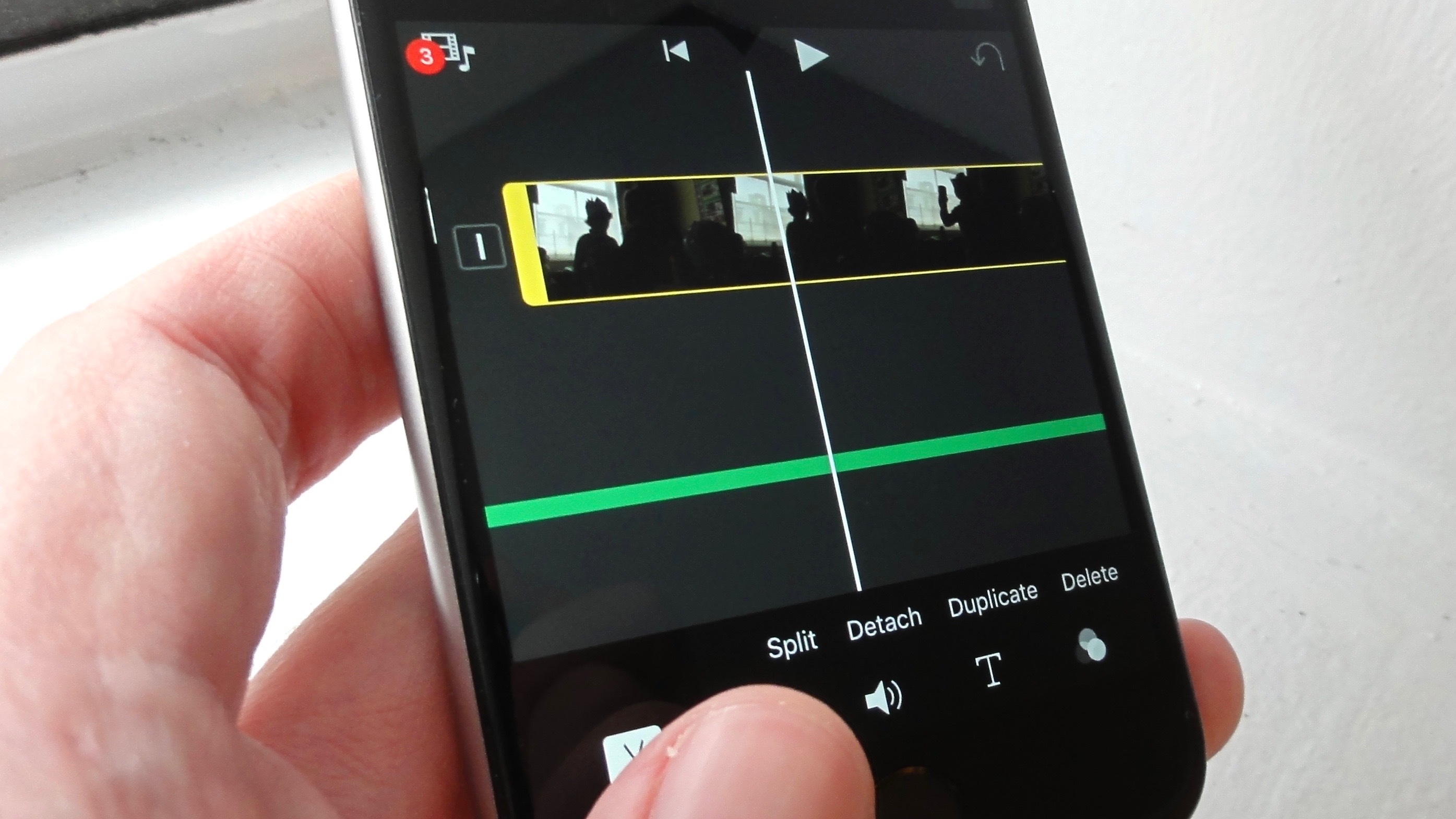
Do one of the following:
Tap a clip in the timeline to reveal the inspector at the bottom of the screen, tap the Actions button, then tap Split.
Tap the clip (it becomes outlined in yellow), then swipe down over the playhead to split the clip, as if you were using your finger to slice through it.
iMovie inserts a None transition (also known as a cut and shown by this icon ), between the two newly created clips. You can change this transition to a cross-dissolve or other transition. To learn how, see Modify transitions.










