TUTORIALS

How to Prevent Root Login Without a Password in MacOS High Sierra

02/07/2018

5101

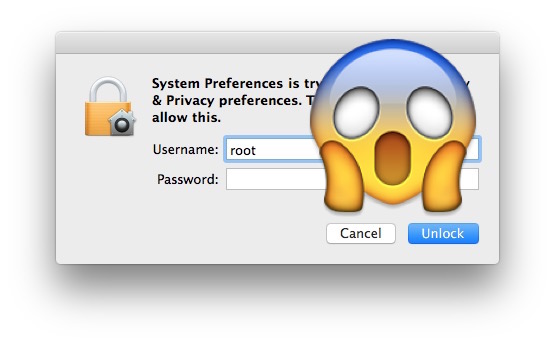
A significant security vulnerability has been discovered with macOS High Sierra, potentially allowing any person to log into a Mac with full root administrative capabilities without a password.


How to Prevent Root Login Without a Password in MacOS High Sierra

There are two approaches to preventing root login without a password on a MacOS High Sierra machine, you can use Directory Utility or the command line. 


Using Directory Utility to Lock Down Root


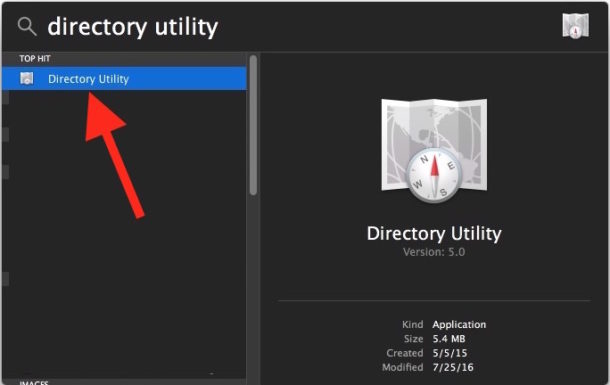
1. Open Spotlight on the Mac by hitting Command+Spacebar (or clicking the Spotlight icon in the upper right corner of the menubar) and type in “Directory Utility” and hit return to launch the app

How to Prevent Root Login Without a Password in MacOS High Sierra


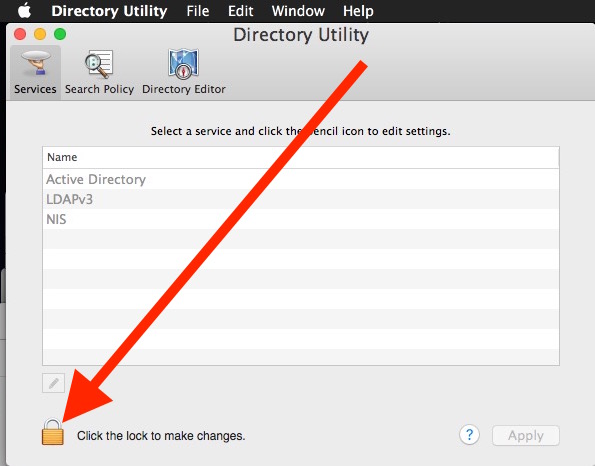
2. Click the little lock icon in the corner and authenticate with an admin account login

How to Prevent Root Login Without a Password in MacOS High Sierra


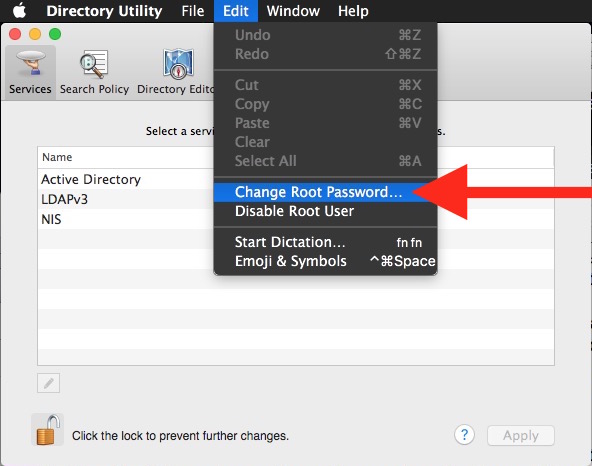
3. Now pull down the “Edit” menu and choose “Change Root Password…” 

How to Prevent Root Login Without a Password in MacOS High Sierra


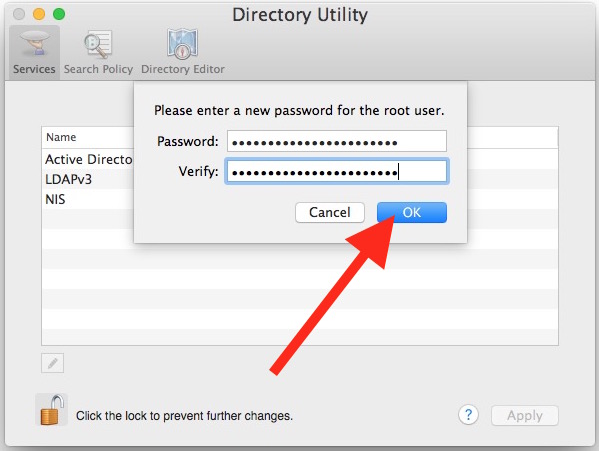
4. Enter a password for the root user account and confirm, then click “OK


How to Prevent Root Login Without a Password in MacOS High Sierra


5. Close out of Directory Utility


If the root user account is not yet enabled, choose “Enable Root User” and then set a password instead.


Essentially all you are doing is assigning a password to the root account, meaning that logging in with root will then require a password as it should. If you do not assign a password to root this way, amazingly, a macOS High Sierra machine accepts a root login without a password at all.


Using the Command Line to Assign a Root Password


Users who would prefer to use the command line in macOS can also set or assign a root password with sudo and the regular old passwd command.


1. Open the Terminal application, found in /Applications/Utilities/


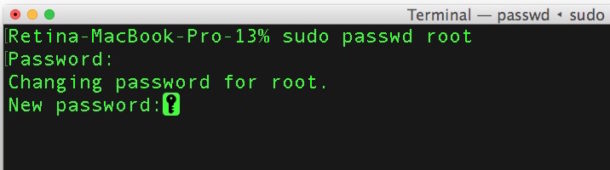
2. Type the following syntax exactly into the terminal, then hit the return key: sudo passwd root


3. Enter your admin password to authenticate and hit return


4. At “New password”, enter a password you won’t forget, hit return, and confirm it

How to Prevent Root Login Without a Password in MacOS High Sierra


Be sure to set the root password to something you will remember, or perhaps even matching your admin password.


Windows
Mac OS
iOS
Linux
3uTools
Win 64-bit For this device
V9.0 2025-11-11
Download
Win 32-bit For this device
V9.0 2025-11-11
Download
3uTools
Intel Chip How to Identify Chip Type
V9.0 2025-12-02
Download
Apple Silicon
V9.0 2025-12-02
Download
How to Identify Chip Type
1.  Click the Apple icon in the top-left corner of the screen and select About This Mac.
2.  Check the Processor or Chip field to determine if it is "Intel" or "Apple".
Please use the 3uTools PC client to install the iOS client:
1、 Install either the Windows or Mac version of 3uTools on your computer
2、 Open the PC client and connect your device to the computer via USB cable
3、 After the connection is successful, wait for the computer to automatically install the mobile app for the device, or locate “Install Mobile App” on the computer and manually click to install.
3uTools
deb file
V3.01 2025-11-20
Download
rpm file
V3.01 2025-11-20
Download
Windows
Windows
iOS
iOS
Android
Android
TV
TV
3uAirPlayer
Win 64-bit For this device
V6.0.2 2025-11-19
Download
Win 32-bit For this device
V6.0.2 2025-11-19
Download
iOS Device Mirroring (No App Required)
1、 Install 3uAirPlayer on the Windows PC
2、 Open Control Center and select Screen Mirroring
3、 From the list, choose your PC to start mirroring
4、 Or connect your iOS device to the PC via USB to begin mirroring
Scan to get "3uAirPlayer" App
3uAirPlayer TV V1.0.18
2025-11-28
TV System Requirements: Android 7.0 or later
Download the TV installation package, copy it to a USB drive, insert it into your TV or set-top box, then select the file from the home screen to install.