
TUTORIALS

How to Disable Tap to Wake Feature on iPhone X?

02/07/2018

4192

iPhone X is the first iPhone rocking a display that can be awoken with a tap, this feature won’t work on iPhone 8 and previous phones. But for some iPhone X users, they may annoy with this feature, so this tutorial is mainly introducing how to turn off the tap to wake feature on your iPhone X.


How to turn off tap to wake feature on iPhone X?


Note: This tutorial is not applicable on any other iPhone (or iPad) since the Tap to Wake feature is exclusive to the iPhone X.


1) Launch the Settings app.

2) Tap the section General.

3) Tap the sub-section Accessibility.

4) Slide the Tap to Wake switch to the OFF position to turn the feature off.


Now when you lock your iPhone X and try tapping the display, nothing will happen.
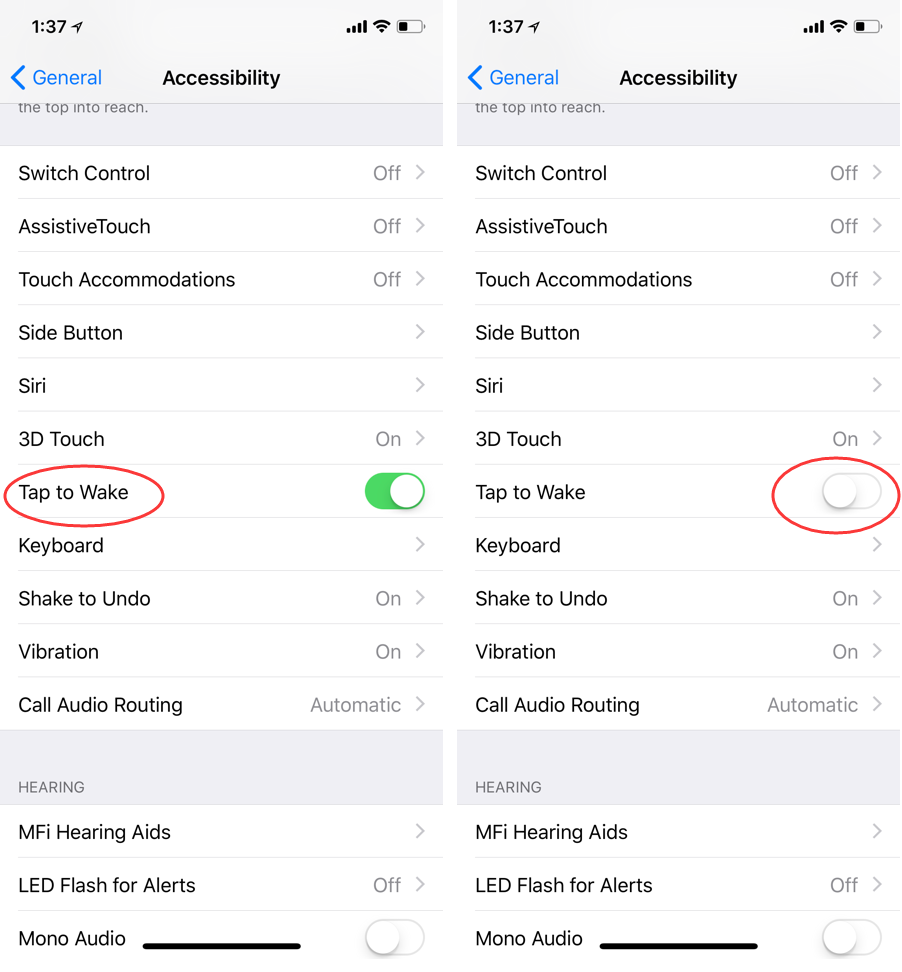
 

How to Disable Tap to Wake Feature on iPhone X?


There are several different ways to wake up your iPhone X

* Tap to Wake feature

* Button on the right of the phone

* Raise to Wake feature

* Feature Siri


If you disable tap to wake feature on iPhone X, it will help you save battery life also. 


Windows
Mac OS
iOS
Linux
3uTools
Win 64-bit For this device
V9.0 2025-11-11
Download
Win 32-bit For this device
V9.0 2025-11-11
Download
3uTools
Intel Chip How to Identify Chip Type
V9.0 2025-12-02
Download
Apple Chip
V9.0 2025-12-02
Download
How to Identify Chip Type
1.  Click the Apple icon in the top-left corner of the screen and select About This Mac.
2.  Check the Processor or Chip field to determine if it is "Intel" or "Apple".
Please use the 3uTools PC client to install the iOS client:
1、 Install either the Windows or Mac version of 3uTools on your computer
2、 Open the PC client and connect your device to the computer via USB cable
3、 After the connection is successful, wait for the computer to automatically install the mobile app for the device, or locate “Install Mobile App” on the computer and manually click to install.
3uTools
deb file
V3.01 2025-11-20
Download
rpm file
V3.01 2025-11-20
Download
Windows
Windows
iOS
iOS
Android
Android
TV
TV
3uAirPlayer
Win 64-bit For this device
V6.0.2 2025-11-19
Download
Win 32-bit For this device
V6.0.2 2025-11-19
Download
iOS Device Mirroring (No App Required)
1、 Install 3uAirPlayer on the Windows PC
2、 Open Control Center and select Screen Mirroring
3、 From the list, choose your PC to start mirroring
4、 Or connect your iOS device to the PC via USB to begin mirroring
Scan to get "3uAirPlayer" App
3uAirPlayer TV V1.0.18
2025-11-28
TV System Requirements: Android 7.0 or later
Download the TV installation package, copy it to a USB drive, insert it into your TV or set-top box, then select the file from the home screen to install.




