
TUTORIALS

Tips for Avoiding “Burn-in' on the iPhone X's Screen

02/08/2018

5541

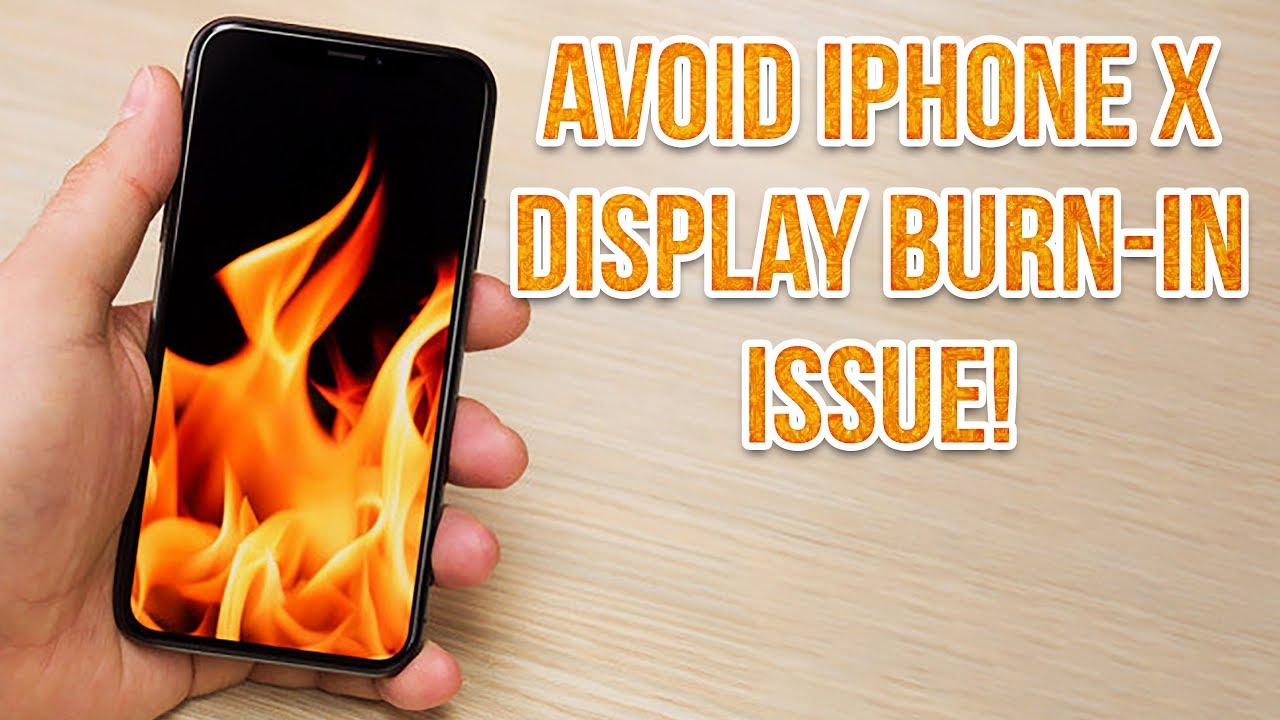
The biggest downside to using an OLED display is the possibility of burn-in, meaning that if you leave an image on the screen for too long, you run the risk of it being permanently retained on -- or burned into -- the screen over time.


To avoid burn-in, Apple recommends using the iPhone X with auto-brightness turned on, adjusting the auto-lock function to turn the screen off more quickly when you're not using it, and not showing the same image for long periods of time with the screen brightness turned all the way up.

Tips for Avoiding “Burn-in' on the iPhone X's Screen


Some little tips may help you a lot:


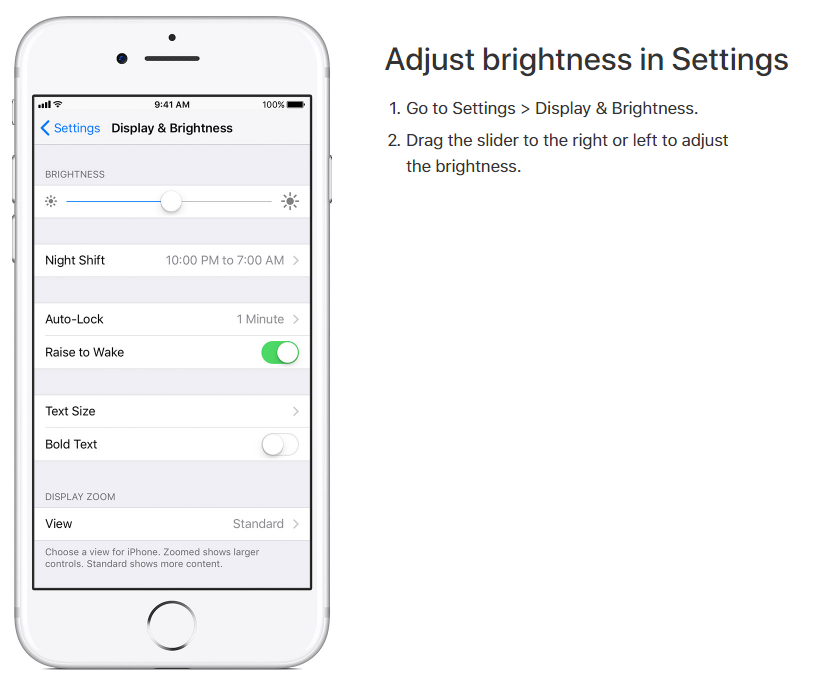
1. Adjust display brightness from Control Center or Settings.


2. Keep updating your iOS for your iPhone X, iPhone 8.


3. Change wallpaper frequently or use dynamic wallpapers directly. Fun Internal Wallpapers for iPhone X.


4. Play a video in full screen, avoiding status bar and unplay video area loading same content for a long time.


5. Shorten Auto-Lock time from Display & Brightness in Settings.


Tips for Avoiding “Burn-in' on the iPhone X's Screen


Source: apple


Windows
Mac OS
iOS
Linux
3uTools
Win 64-bit For this device
V9.0 2025-11-11
Download
Win 32-bit For this device
V9.0 2025-11-11
Download
3uTools
Intel Chip How to Identify Chip Type
V9.0 2025-12-02
Download
Apple Chip
V9.0 2025-12-02
Download
How to Identify Chip Type
1.  Click the Apple icon in the top-left corner of the screen and select About This Mac.
2.  Check the Processor or Chip field to determine if it is "Intel" or "Apple".
Please use the 3uTools PC client to install the iOS client:
1、 Install either the Windows or Mac version of 3uTools on your computer
2、 Open the PC client and connect your device to the computer via USB cable
3、 After the connection is successful, wait for the computer to automatically install the mobile app for the device, or locate “Install Mobile App” on the computer and manually click to install.
3uTools
deb file
V3.01 2025-11-20
Download
rpm file
V3.01 2025-11-20
Download
Windows
Windows
iOS
iOS
Android
Android
TV
TV
3uAirPlayer
Win 64-bit For this device
V6.0.2 2025-11-19
Download
Win 32-bit For this device
V6.0.2 2025-11-19
Download
iOS Device Mirroring (No App Required)
1、 Install 3uAirPlayer on the Windows PC
2、 Open Control Center and select Screen Mirroring
3、 From the list, choose your PC to start mirroring
4、 Or connect your iOS device to the PC via USB to begin mirroring
Scan to get "3uAirPlayer" App
3uAirPlayer TV V1.0.18
2025-11-28
TV System Requirements: Android 7.0 or later
Download the TV installation package, copy it to a USB drive, insert it into your TV or set-top box, then select the file from the home screen to install.





