
TUTORIALS

How to Use Apple’s Document Scanner in iOS 11?

09/28/2017

5794

One of the most useful tricks in Apple’s iOS 11 update is found inside the Notes app: it’s a document scanner.
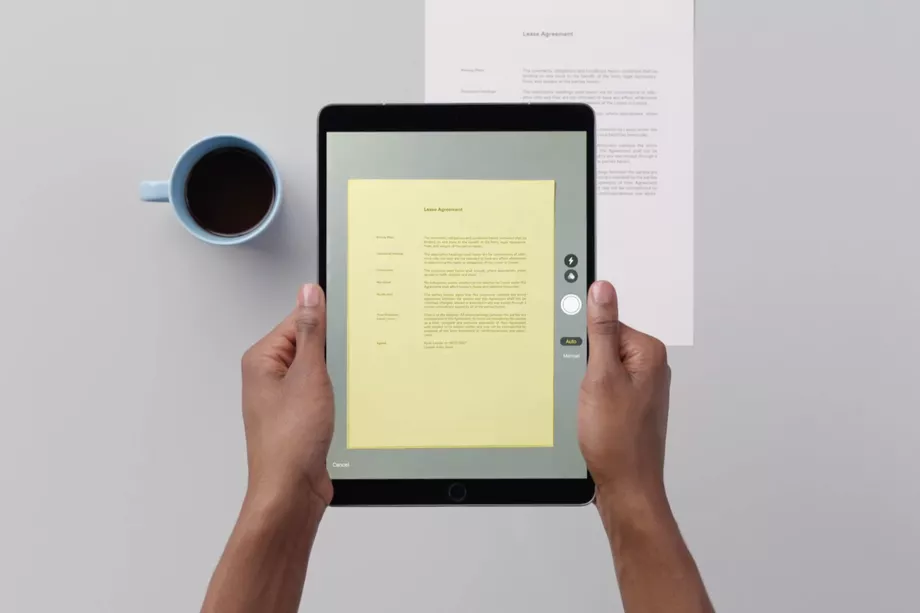

How to Use Apple’s Document Scanner in iOS 11?


Steps 

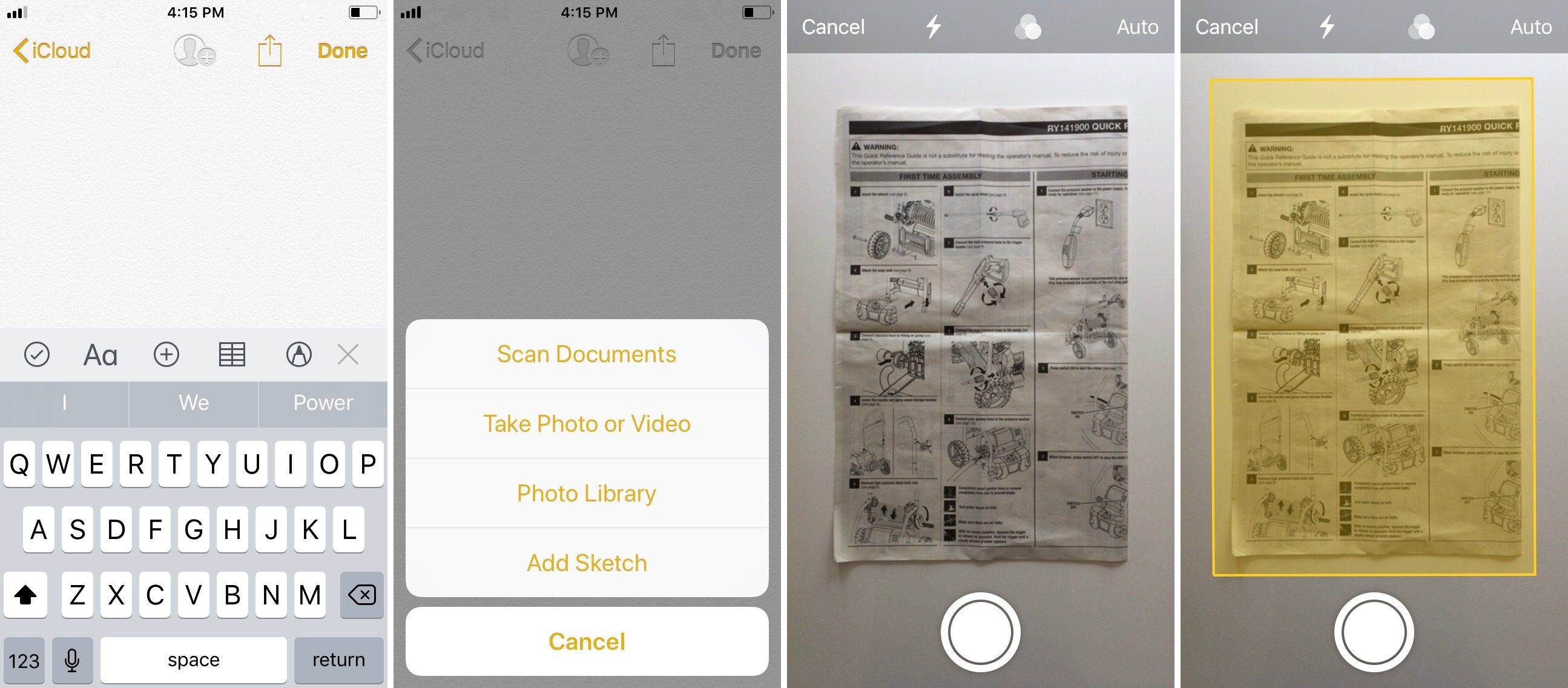
1. Open a new or existing note.

2. Tap the + icon and tap Scan Documents.

3. Place your document in the camera’s view.

4. Use the shutter button or one of the volume buttons to capture the scan.

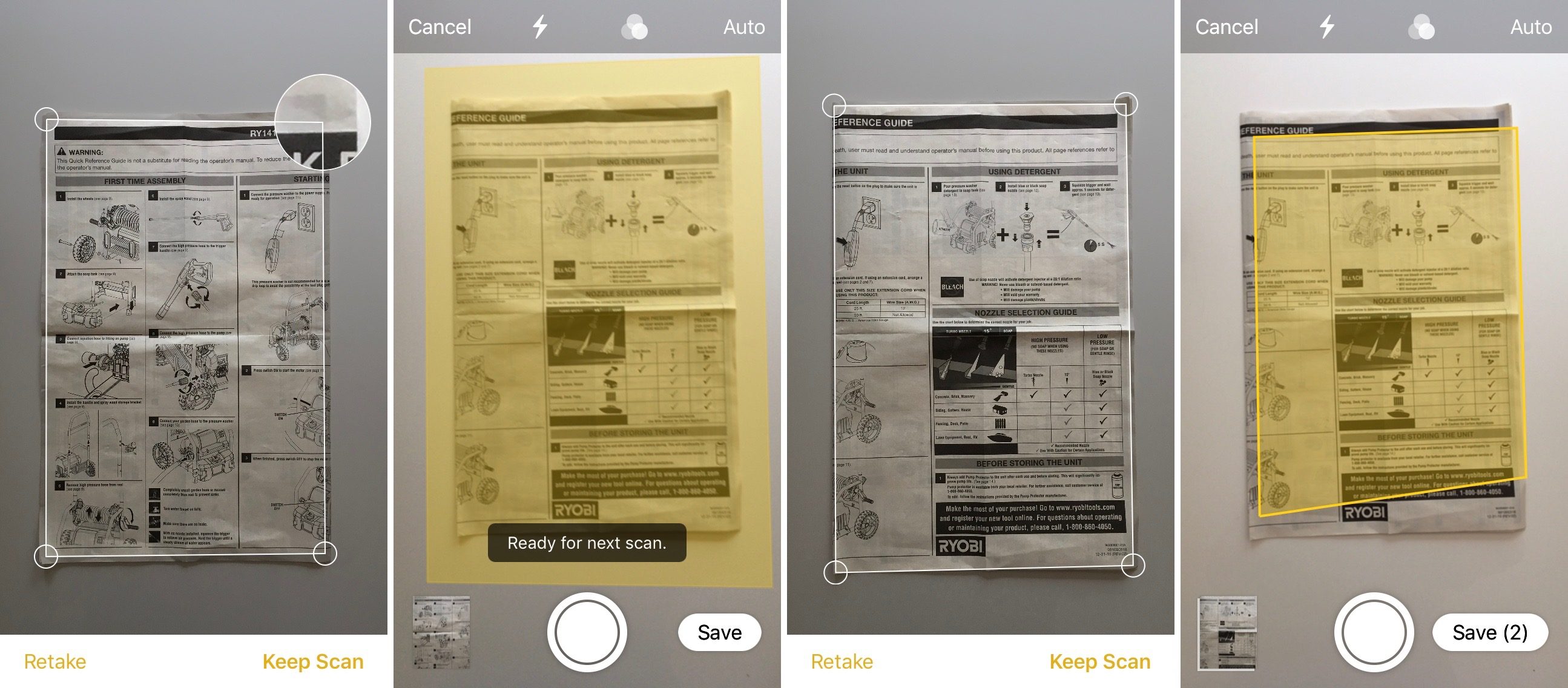
5. If needed, adjust the corners of the scan by dragging, then tap Keep Scan.

6. Tap Save when finished scanning or continue on to add more pages.
 

How to Use Apple’s Document Scanner in iOS 11?


This feature works really nicely for any size document, but is especially handy for large documents that can be goofy to scan with a traditional scanner. It seems to be easiest to adjust the frame of the scan by tapping a bit away from the magnifying glass in each corner and then dragging.

How to Use Apple’s Document Scanner in iOS 11? 


You also get the option to use the camera flash and filters when scanning.

How to Use Apple’s Document Scanner in iOS 11?  


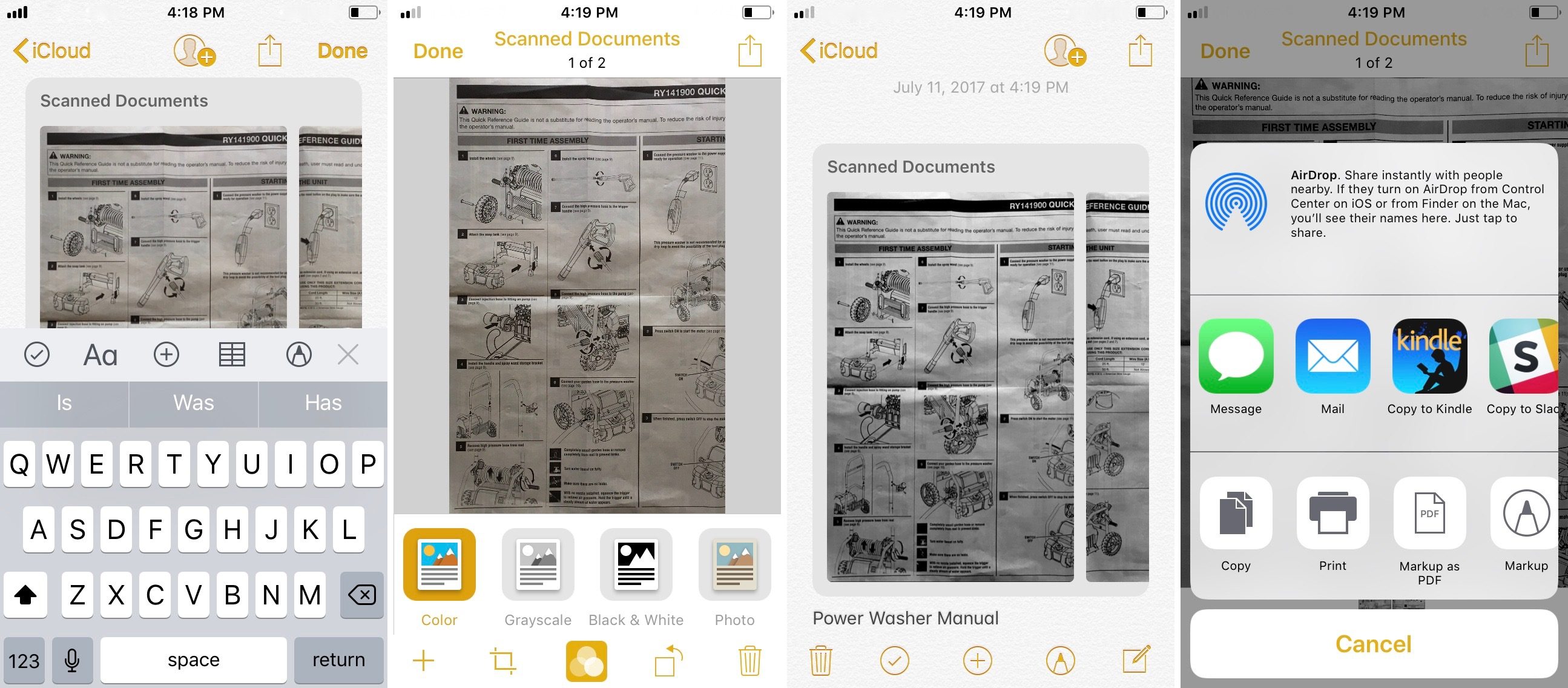
You can also edit your documents after you’ve scanned them. Tap on your scanned docs to bring up the editing toolbar to add more pages, change the filter, rotate, and crop.


Tapping the share button from within the scanned docs will allow you to markup, markup as PDF, print, copy, and share. 

Windows
Mac OS
iOS
Linux
3uTools
Win 64-bit For this device
V9.0 2025-11-11
Download
Win 32-bit For this device
V9.0 2025-11-11
Download
3uTools
Intel Chip How to Identify Chip Type
V9.0 2025-12-02
Download
Apple Chip
V9.0 2025-12-02
Download
How to Identify Chip Type
1.  Click the Apple icon in the top-left corner of the screen and select About This Mac.
2.  Check the Processor or Chip field to determine if it is "Intel" or "Apple".
Please use the 3uTools PC client to install the iOS client:
1、 Install either the Windows or Mac version of 3uTools on your computer
2、 Open the PC client and connect your device to the computer via USB cable
3、 After the connection is successful, wait for the computer to automatically install the mobile app for the device, or locate “Install Mobile App” on the computer and manually click to install.
3uTools
deb file
V3.01 2025-11-20
Download
rpm file
V3.01 2025-11-20
Download
Windows
Windows
iOS
iOS
Android
Android
TV
TV
3uAirPlayer
Win 64-bit For this device
V6.0.2 2025-11-19
Download
Win 32-bit For this device
V6.0.2 2025-11-19
Download
iOS Device Mirroring (No App Required)
1、 Install 3uAirPlayer on the Windows PC
2、 Open Control Center and select Screen Mirroring
3、 From the list, choose your PC to start mirroring
4、 Or connect your iOS device to the PC via USB to begin mirroring
Scan to get "3uAirPlayer" App
3uAirPlayer TV V1.0.18
2025-11-28
TV System Requirements: Android 7.0 or later
Download the TV installation package, copy it to a USB drive, insert it into your TV or set-top box, then select the file from the home screen to install.




