 TUTORIALS
How to Create Animojis without iPhone X Using Polygram?
 09/22/2017
 6203
6203
Animojis are a hot topic right now and for all the right reasons. Here’s how you can create Animojis using this new social network.
Animojis are a hot topic right now and for all the right reasons. Here’s how you can create Animojis using this new social network.
How Polygram works?
As you know, Animojis are animated 3D emojis based on the real facial expressions of the user. Although Apple will take credit for Animojis, Polygram has created its own version of animated emojis even before them.
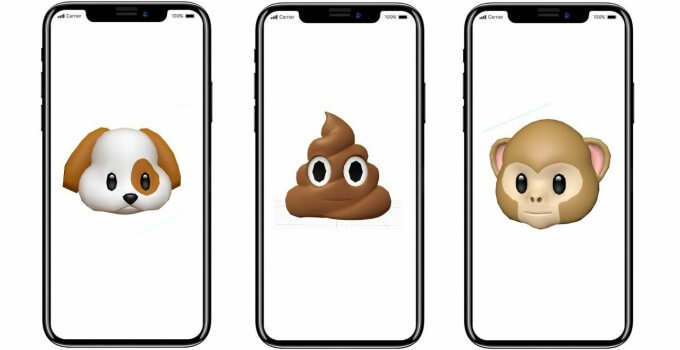
Polygram works and feels a lot like Snapchat but it has certain differences that set it apart from other social networks.
It analyzes your facial expressions in real-time and sends emojis with them.
Create Animojis with Polygram
iPhone X comes with hardware depth detection features which allows it to perform accurate facial recognition. This new advanced camera will be used utilized to bring emojis to life. Apple has created custom 3D models of certain emoji characters that can be animated simply by making faces at the camera.
Conversely, Polygram uses its own technology that analyzes video at the “pixel” level for accurate facial recognition.
It’s a simplistic version of Apple’s “Animojis” but its main upside is that it is hardware-independent. Here’s a video demonstration of this amazing app.
This allows you to run it on pretty much all iOS devices without caring about the processor and other hardware.
However, this app does require iOS 10 and later to work. Therefore, all iOS 9 devices will not be able to make use of it. You can download the app using this link.










