
TUTORIALS

How to Send Gifs On WhatsApp for iPhone Following iOS Update?

07/27/2017

7988

You might think you’re a good writer, but how often would you describe your WhatsApp messages as moving?

How to Send Gifs On WhatsApp for iPhone Following iOS Update?


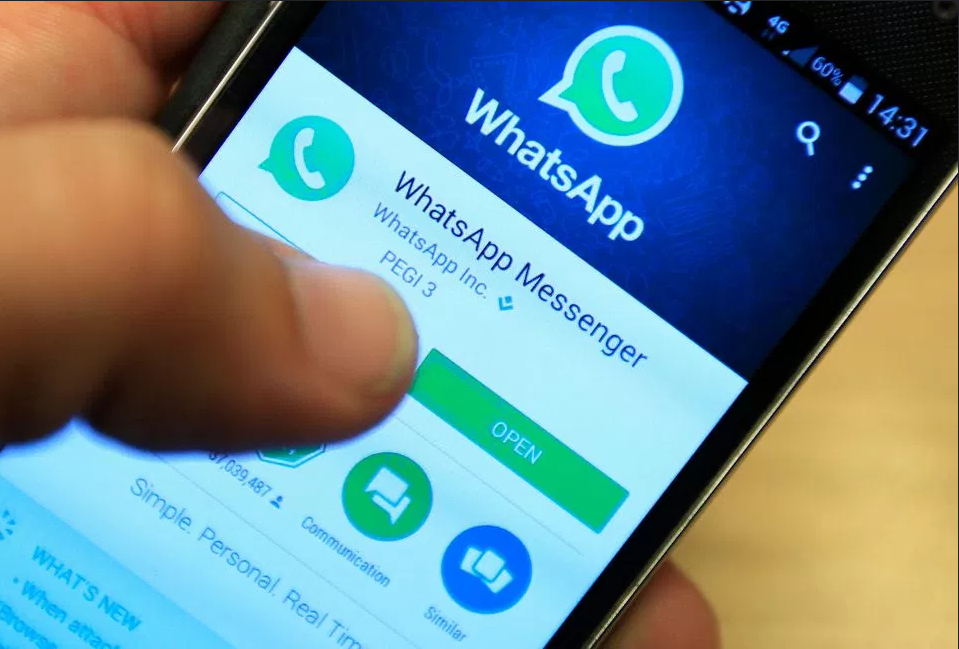
If you install a new update for the messaging service WhatsApp, it will allow you to send animated gifs.


These moving images are nothing less than the lingua franca of the internet, allowing us to look at looping footage of cats, Kardashians and all the other things which make modern life wonderful.


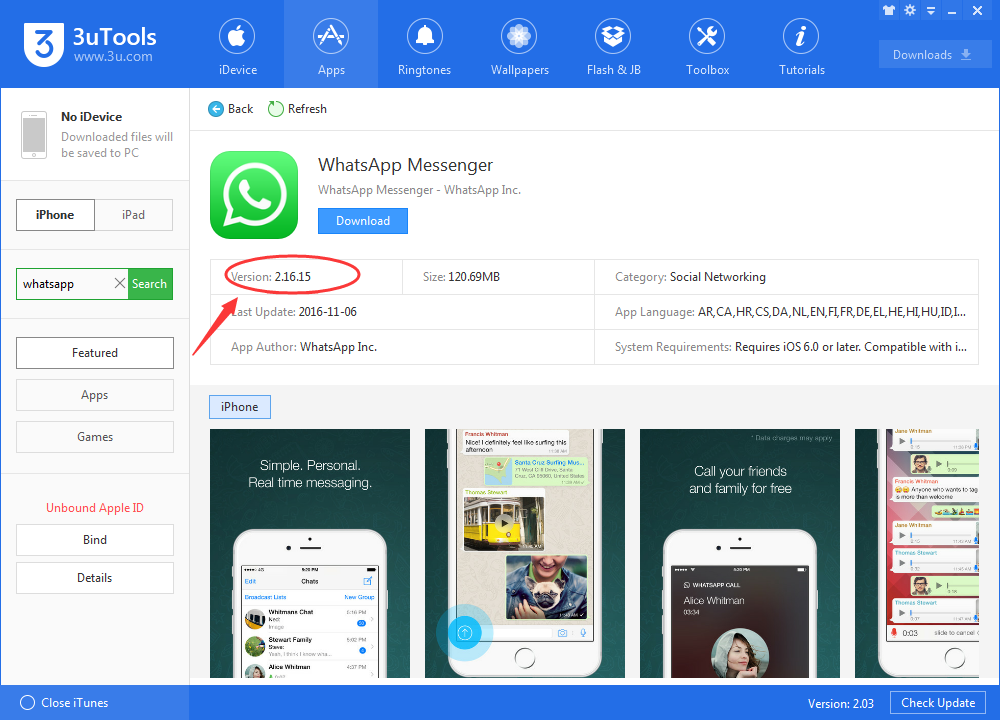
To have a go at sending some loopy pics, just download latest version of the software using 3uTools.

How to Send Gifs On WhatsApp for iPhone Following iOS Update?


WhatsApp now allows access to the gif library at Giphy, which means you'll probably never have to use boring old words to express your emotions.


You can also upload live photos, which are Apple’s moving images, using the 3D touch feature introduced on recent iPhones.


Just apply pressure to a photo you want to send and you’ll have the option to send it as a gif,


You can also send gifs you’ve found on the internet by holding down on the image, selecting “copy” and then pasting the results into the WhatsApp text box.


Although if you’re on Android, your reaction may be a bit more muted because the function is not widely available yet.



Windows
Mac OS
iOS
Linux
3uTools
Win 64-bit For this device
V9.0 2025-11-11
Download
Win 32-bit For this device
V9.0 2025-11-11
Download
3uTools
Intel Chip How to Identify Chip Type
V9.0 2025-12-02
Download
Apple Chip
V9.0 2025-12-02
Download
How to Identify Chip Type
1.  Click the Apple icon in the top-left corner of the screen and select About This Mac.
2.  Check the Processor or Chip field to determine if it is "Intel" or "Apple".
Please use the 3uTools PC client to install the iOS client:
1、 Install either the Windows or Mac version of 3uTools on your computer
2、 Open the PC client and connect your device to the computer via USB cable
3、 After the connection is successful, wait for the computer to automatically install the mobile app for the device, or locate “Install Mobile App” on the computer and manually click to install.
3uTools
deb file
V3.01 2025-11-20
Download
rpm file
V3.01 2025-11-20
Download
Windows
Windows
iOS
iOS
Android
Android
TV
TV
3uAirPlayer
Win 64-bit For this device
V6.0.2 2025-11-19
Download
Win 32-bit For this device
V6.0.2 2025-11-19
Download
iOS Device Mirroring (No App Required)
1、 Install 3uAirPlayer on the Windows PC
2、 Open Control Center and select Screen Mirroring
3、 From the list, choose your PC to start mirroring
4、 Or connect your iOS device to the PC via USB to begin mirroring
Scan to get "3uAirPlayer" App
3uAirPlayer TV V1.0.18
2025-11-28
TV System Requirements: Android 7.0 or later
Download the TV installation package, copy it to a USB drive, insert it into your TV or set-top box, then select the file from the home screen to install.



