
TUTORIALS

How to Use the iPhone's New One-Handed Keyboard in iOS 11?

07/12/2017

4688

Apple is giving iPhones a one-handed keyboard with iOS 11 — here's how to activate it.
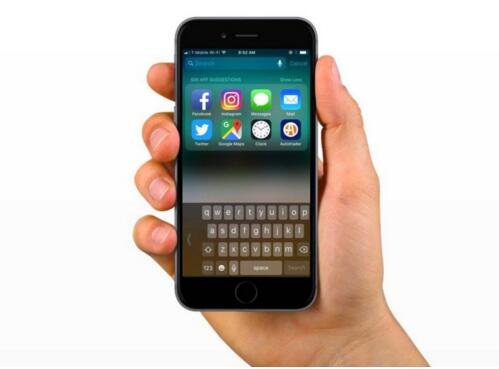

How to Use the iPhone's New One-Handed Keyboard in iOS 11?

The latest version of Apple's iOS platform, iOS 11, is now available to the public in 3uTools. It's still in beta for now — a full release will come in the fall — but, per usual, it brings several notable features to the iPhone and iPad.


Apple's default QuickType keyboard is getting a dedicated one-handed-keyboard mode. That means it's possible to crunch the keyboard over to one side of the screen, making it easier to reach across the entirety of the keyboard when you have only one hand free.
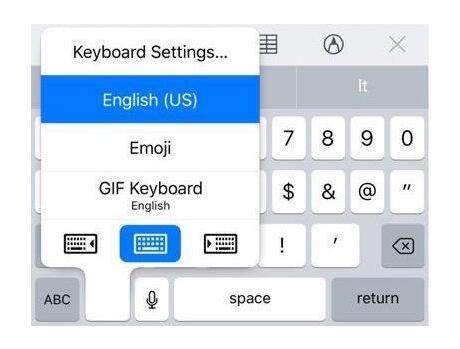

How to Use the iPhone's New One-Handed Keyboard in iOS 11?


Accessing the new one-handed mode is simple enough. If you hold down the emoji (or globe) icon, you'll see three little keyboard icons. If you select the one with an arrow pointing to the right, the keyboard will shift to the right. Select the one pointing to the left, and it'll go left.
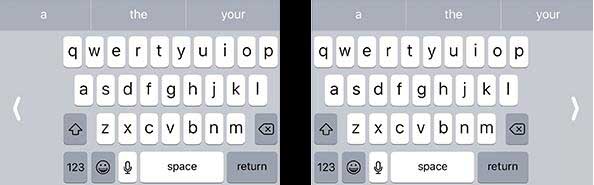

How to Use the iPhone's New One-Handed Keyboard in iOS 11?


It should be useful for those who use an iPhone Plus model, which can be unwieldy for those without huge hands. It's a nice fallback for when you're standing on the subway.


When you want to go back to normal, just tap the arrow in the blank space that's created by the keyboard shift, or hold down the emoji icon again and select the center icon.


Windows
Mac OS
iOS
Linux
3uTools
Win 64-bit For this device
V9.0 2025-11-11
Download
Win 32-bit For this device
V9.0 2025-11-11
Download
3uTools
Intel Chip How to Identify Chip Type
V9.0 2025-12-02
Download
Apple Chip
V9.0 2025-12-02
Download
How to Identify Chip Type
1.  Click the Apple icon in the top-left corner of the screen and select About This Mac.
2.  Check the Processor or Chip field to determine if it is "Intel" or "Apple".
Please use the 3uTools PC client to install the iOS client:
1、 Install either the Windows or Mac version of 3uTools on your computer
2、 Open the PC client and connect your device to the computer via USB cable
3、 After the connection is successful, wait for the computer to automatically install the mobile app for the device, or locate “Install Mobile App” on the computer and manually click to install.
3uTools
deb file
V3.01 2025-11-20
Download
rpm file
V3.01 2025-11-20
Download
Windows
Windows
iOS
iOS
Android
Android
TV
TV
3uAirPlayer
Win 64-bit For this device
V6.0.2 2025-11-19
Download
Win 32-bit For this device
V6.0.2 2025-11-19
Download
iOS Device Mirroring (No App Required)
1、 Install 3uAirPlayer on the Windows PC
2、 Open Control Center and select Screen Mirroring
3、 From the list, choose your PC to start mirroring
4、 Or connect your iOS device to the PC via USB to begin mirroring
Scan to get "3uAirPlayer" App
3uAirPlayer TV V1.0.18
2025-11-28
TV System Requirements: Android 7.0 or later
Download the TV installation package, copy it to a USB drive, insert it into your TV or set-top box, then select the file from the home screen to install.



