 TUTORIALS
How to Unlock iPhone?
 04/10/2017
 230454
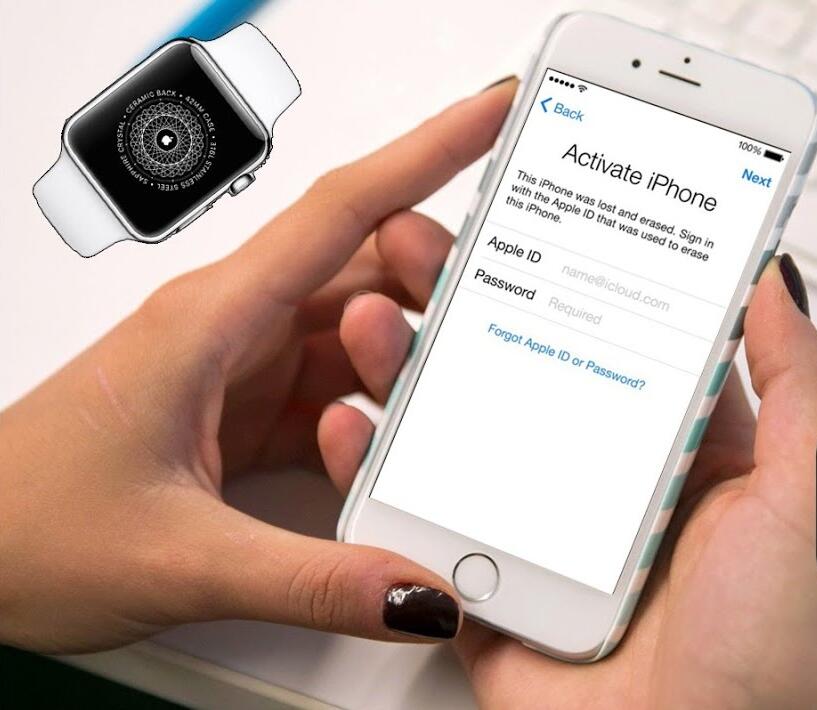
A lot of iPhone users frequently ask me how to unlock their iPhone’s activation lock, some people even think 3uTools can help them unlock their iDevice via flash. You should know that 3uTools as an iOS software tool, it can’t help you remove or bypass iCloud(Apple ID).
You can unlock your iPhone, so you can use it with different carriers. An unlocked phone is sometimes called a SIM-Free or contract-free phone.
Use the steps below to contact your carrier and unlock your account. Then follow the steps to finish unlocking your iPhone.
Contact your carrier:
1. See if your carrier offers unlocking. Only your carrier can unlock your iPhone.
2. Contact your carrier and request an unlock. Your account might need to meet requirements for unlocking. After you submit the request, it might take a few days to complete. To get your request's status, contact your carrier.
3. After your carrier confirms that they unlocked your iPhone, follow the steps below.
If you have a SIM card from a carrier other than your current carrier:
Use these steps to finish unlocking your iPhone:
1. Remove your SIM card and insert the new one.
2. Set up your iPhone again.
If you don't have another SIM card to use:
Use these steps to finish unlocking your iPhone:
1. Back up your iPhone using 3uTools.
2. After you make a backup, erase your iPhone.
3. Restore your iPhone from the backup you just made.
You might see this message in iTunes or on your device: "The SIM card inserted in this iPhone does not appear to be supported. Only compatible SIM cards from a supported carrier may be used to activate iPhone. Please insert the SIM card that came with your iPhone or visit a supported carrier store."
If you see this message, use these steps:
1. Restore your iPhone to factory settings.
2. Contact your carrier to make sure that they applied the unlock in their system.
3. Restore your iPhone from a backup.










