 TUTORIALS
How to Back up and Restore on 3utools?
 07/11/2019
 703276
Part 1: Back up
Which data you are not able to back up?
3uTools can help you backup almost all data, but here is a list of content that you can not back up.
1. Contents in the iTunes Store & App Store (including all the Apps), and the PDF downloaded to your iBooks (you can choose to back up these contents in your iTunes).
2. Data you synced from iTunes, such as MP3, CD, video, books & photos.
3. The photos stored in iCloud, such as My Photo Stream & iCloud photo album.
4. Touch ID Setting.
5. Apple Pay information & settings.
6. "Activity History", "Health", "Keychain" data (if you want to back up them, you only choose encrypted backup).
Back up Operations:
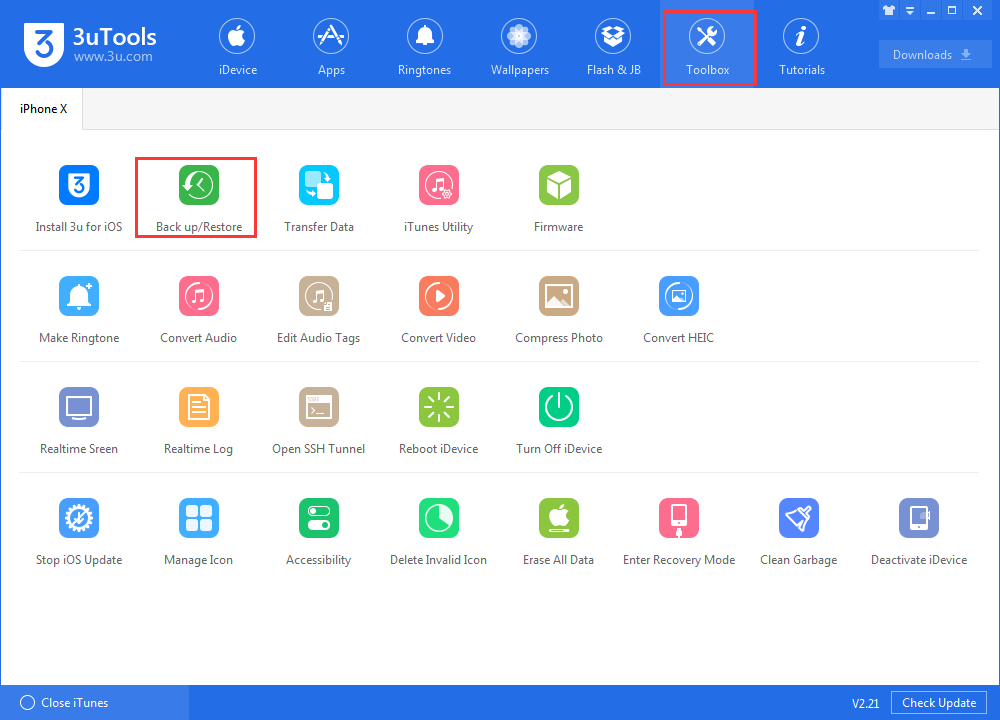
Step 1 Connect the iDevice to the PC, find "Back up/Restore" in 3uTools.
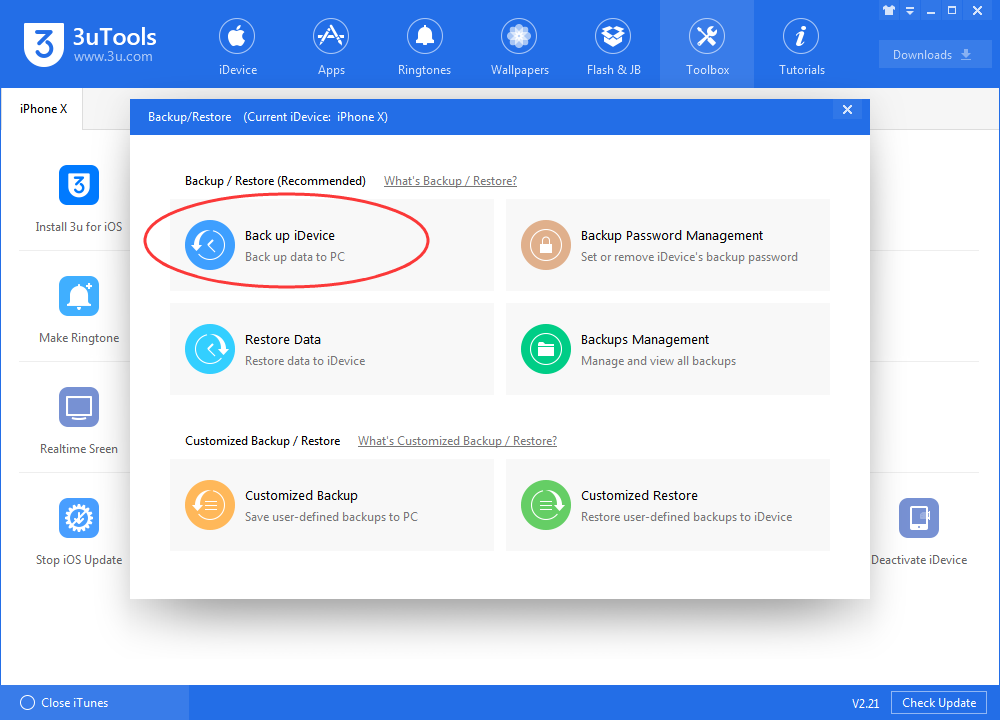
Let's do a whole back up for your device.
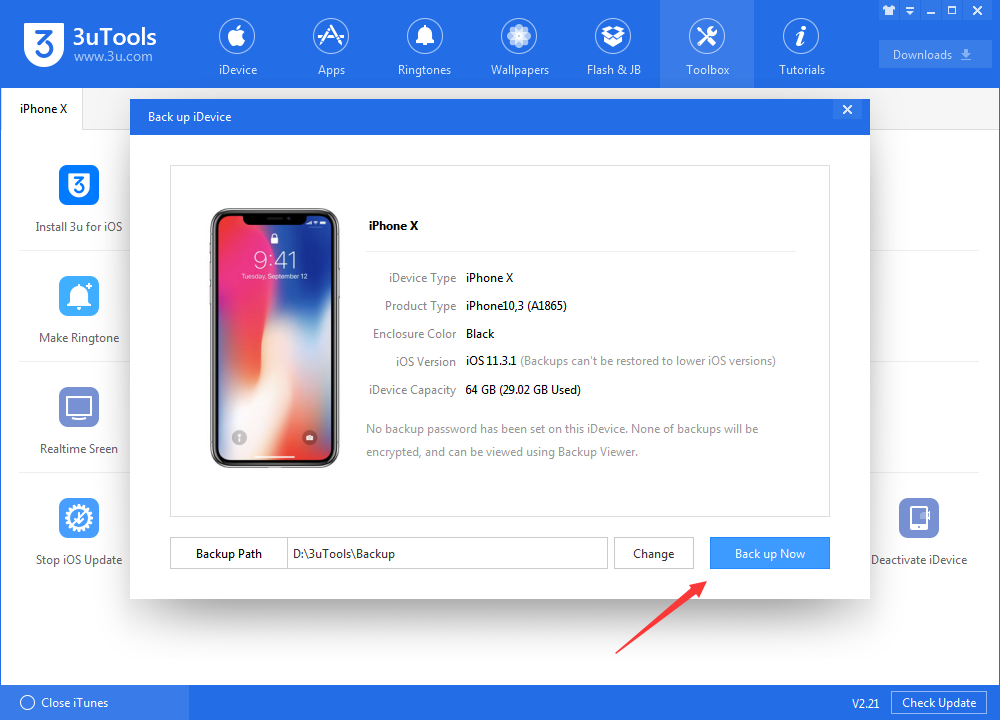
Step 2 Wait for Backup Complete
The more data need to be backed up, the more time will be needed (sometimes it may cost hours), please wait patiently for the backup completed.
Part 2: Restore
1. Restore feature allows you to restore all the backup data & settings you backed up;
2. if you have set a password, the restore cannot proceed without the password;
3. When you restore the data, the backup data size cannot exceed the iDevice storage space;
4. Backup saved from the higher iOS version iDevice cannot be restored to a lower iOS version iDevice.
Restore Operations:
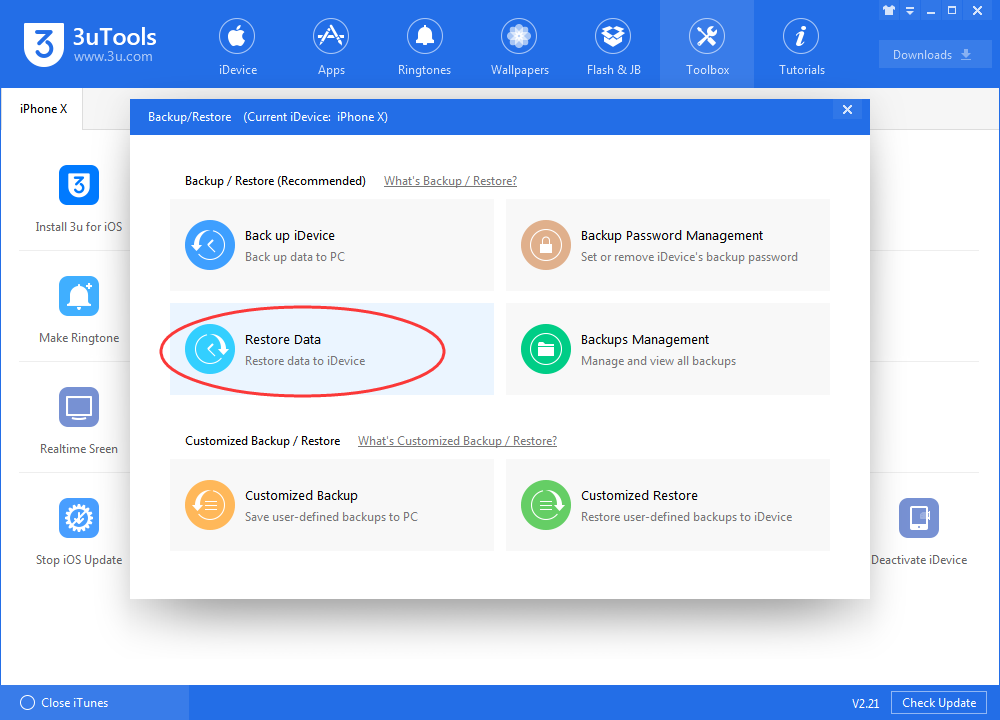
Step 1 Connect the iDevice to the PC, then click the "Back up/Restore" from Toolbox and click the "Restore".
The more data need to be restored, the more time will be needed, please wait patiently for the restore complete.
Step 2: If you have back up multiple times, choose a backup you want to restore now
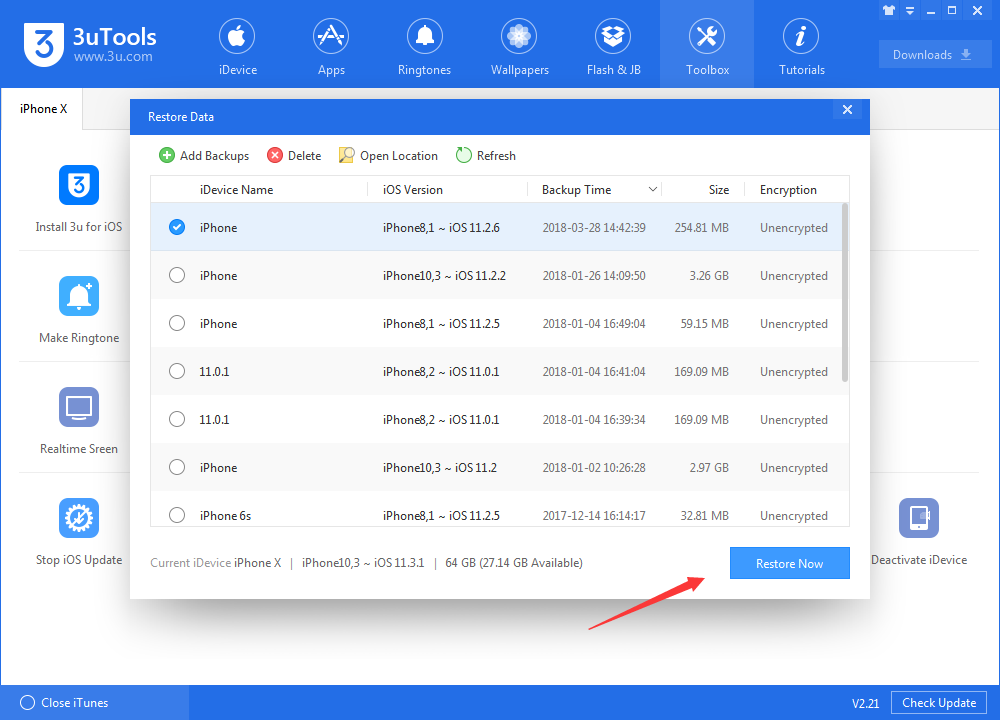
Step 3: After data files were restored successfully, please don’t unplug iDevice. Please wait for the iDevice to reboot and then choose if you need to restore apps.
3uTools will download and install the apps you have restored to your iDevice, you may view more details in Downloads.










