TUTORIALS
Fix Kwai Crash When Adding 3uAirPlayer Virtual Camera
 03/05/2026
 1681
1681
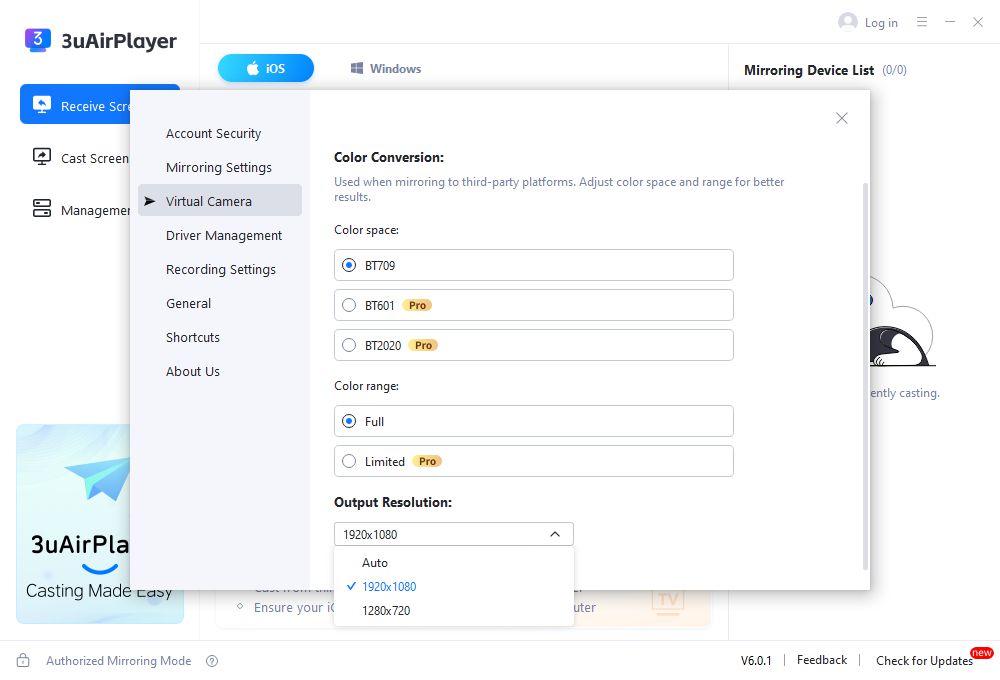
This type of crash is usually caused by a resolution compatibility conflict. You can fix it by manually adjusting the output resolution of the 3uAirPlayer virtual camera. Follow the steps below:
Solution: Manually set the virtual camera output resolution
a. Open 3uAirPlayer, then click “Virtual Camera” in the left sidebar.
b. Locate “Output Resolution”, and change the default “Auto” mode to a specific resolution (recommended: 1920×1080 or 1280×720, depending on your streaming needs).
c. Save the settings and close 3uAirPlayer. Restart Kwai, then add “3uAirPlayer Camera” again. The crash should be resolved.