 TUTORIALS
OBS Window Capture Shows No Video for Screen Mirroring
 03/05/2026
 1769
1769
When using the Window Capture feature in OBS to capture a screen mirroring window (3uAirPlayer), if the video does not display or appears abnormal, you can fix it by adjusting the capture method. The detailed steps are as follows:

Step 1: Open OBS Window Capture Settings
In the Sources area on the main OBS interface, locate the already added Window Capture source.
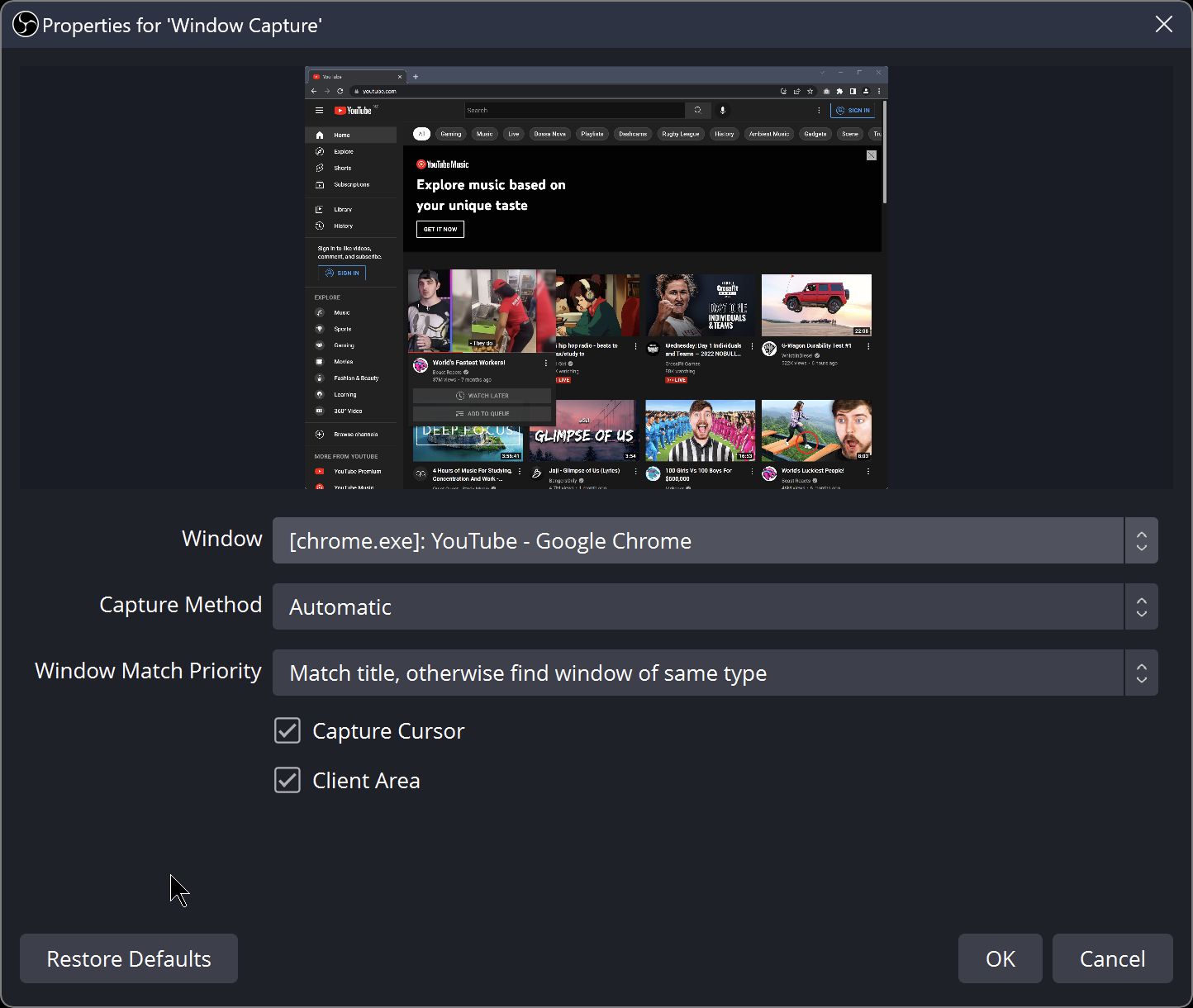
Right-click the source and select Properties (or double-click the source directly) to open the Window Capture Settings window.
Step 2: Adjust Capture Method
In the Window Capture Settings window, locate the Capture Method dropdown menu:
a. If the current option is not Windows 10 (1903 or newer), switch it to this option.
b. You can also check “Borderless Mode” to optimize the video display quality.
Step 3: Confirm and Apply Settings
After making the changes, click OK to apply the settings.
Return to the OBS preview interface, and the screen mirroring window should now display normally, resolving the issue of no video in Window Capture.
Explanation
The rendering mechanism of screen mirroring windows differs from ordinary windows, and older capture methods (such as BitBlt) have limited compatibility.
The Windows 10 (1903 or newer) capture method is optimized for higher version Windows systems and special windows, allowing OBS to correctly detect and capture the screen mirroring window’s video data, thereby resolving display abnormalities.










