 TUTORIALS
Main Control Device Connection Fails: Firewall Issue Solution
 06/25/2026
 785
785
What to do if the local network connection between this device and the receiver is abnormal?
If you encounter a LAN connection issue between this device and the receiving device, follow the steps below to troubleshoot:
1. Different network sources (most common)
Issue: The computer is connected to the modem, while the mobile device is connected to the router Wi-Fi.
Solution: Connect the computer to the same router network as the mobile device.
2. Router isolation enabled
Symptoms: The phone and computer are connected to the same Wi-Fi but cannot communicate.
Solution:
-
Log in to the router admin page:
192.168.1.1or192.168.0.1(check the label on the router) -
Disable isolation:
Go to Wireless Settings or Security Settings → find AP Isolation / Client Isolation → disable it → restart the router
Note: Menu paths may vary by router brand.
3. Firewall blocking the connection
Symptoms: The phone can ping the computer’s IP, but cannot connect to the app.
Solution (Windows):
-
Press
Win + R→ entercontrol→ open Control Panel -
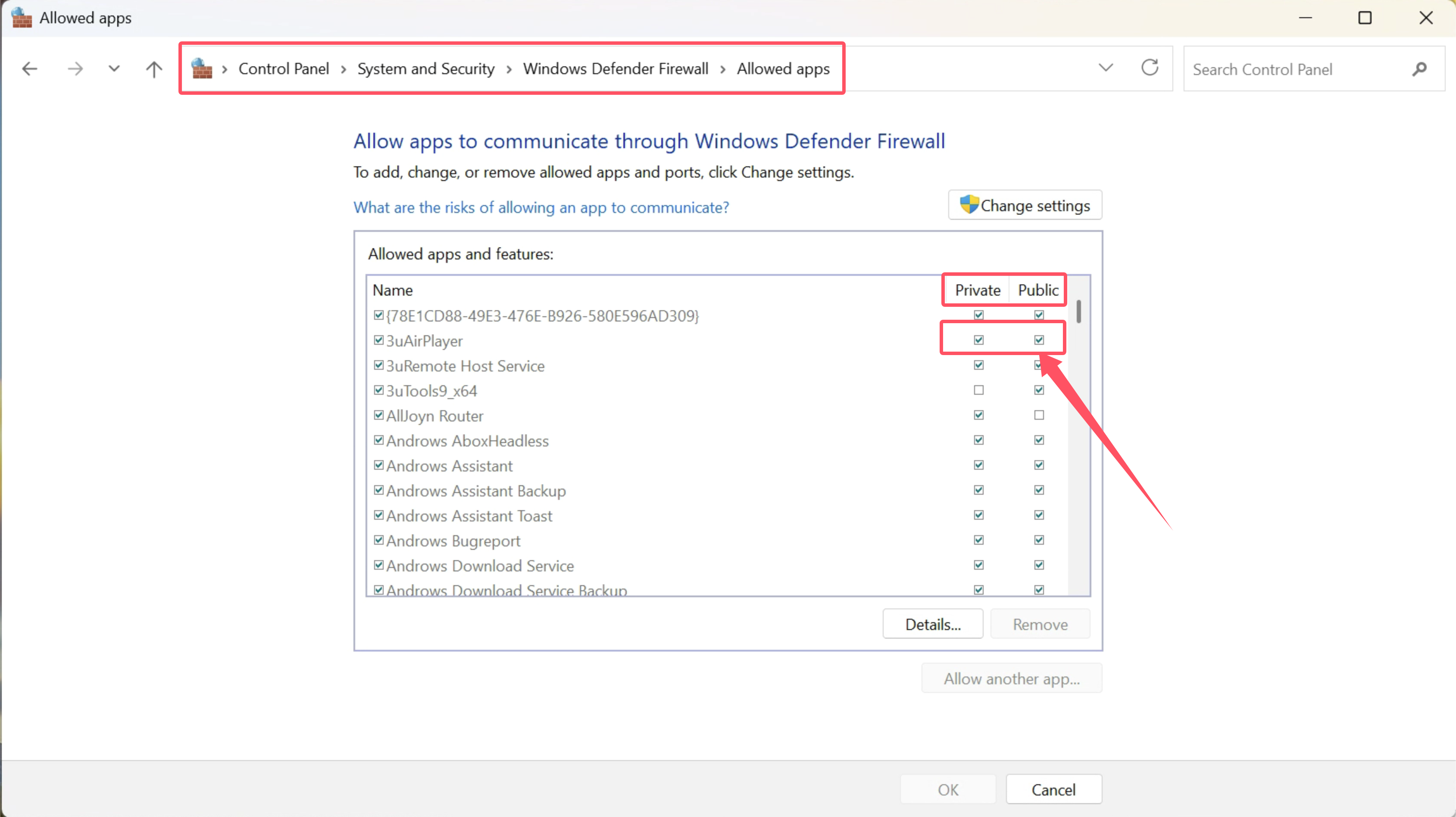
Go to System and Security → Windows Defender Firewall
-
Click Allow an app through firewall
-
Locate this app → check both Private and Public
-
Save changes and restart the app
4. VPN or virtual machine interference
Symptoms: Multiple IP addresses appear, or the IP is abnormal.
Solution:
-
Disconnect all VPNs
-
Exit all virtual machine software (e.g., VMware, VirtualBox)
-
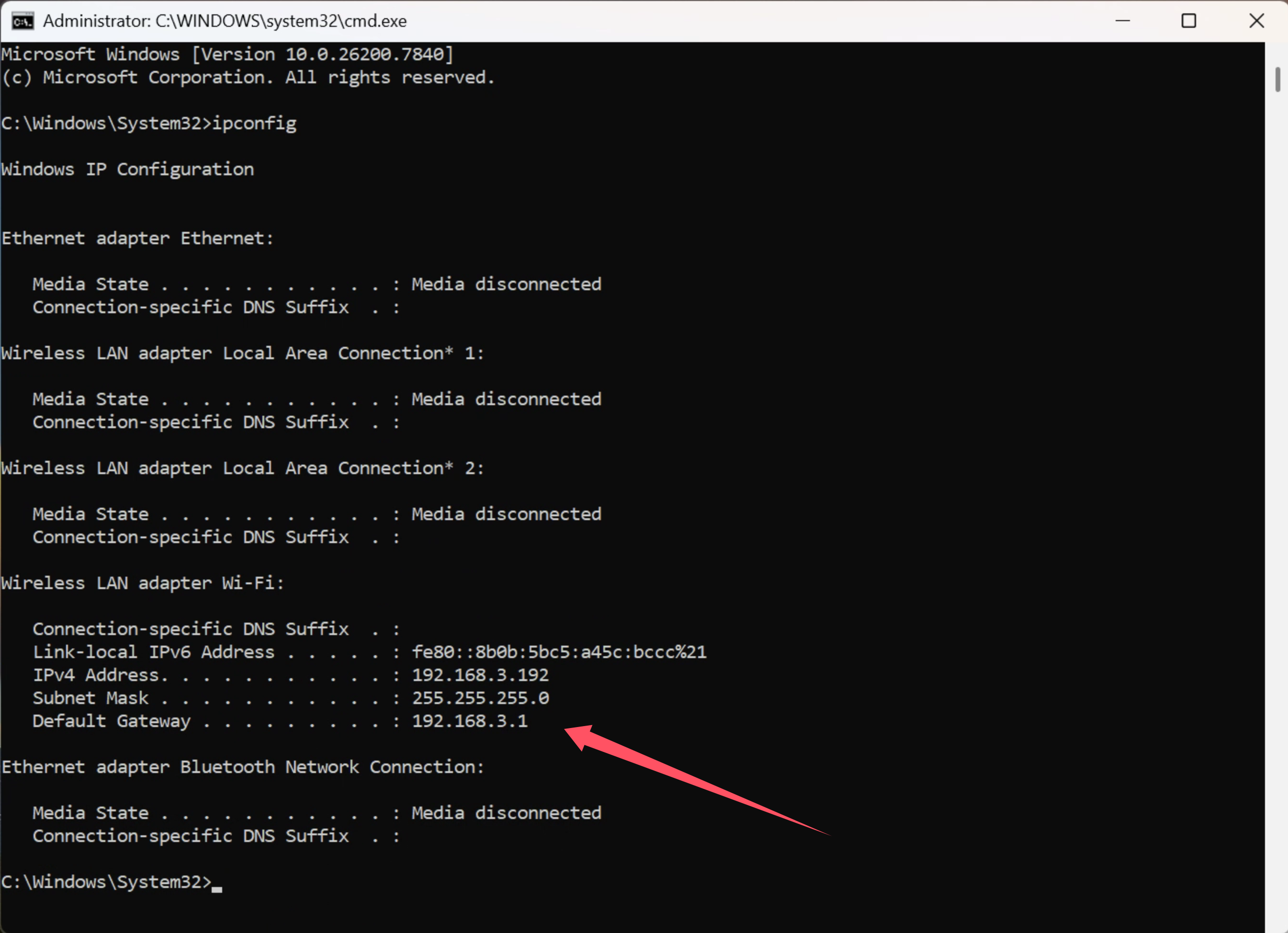
Check IP address:
-
Press
Win + R→ entercmd→ runipconfig -
Confirm a valid LAN IP (e.g.,
192.168.x.x)
-
5. Multiple network adapters causing IP conflicts
Symptoms: The computer is connected via both Ethernet and Wi-Fi, or has virtual adapters.
Solution:
-
Prefer Wi-Fi → unplug Ethernet cable
-
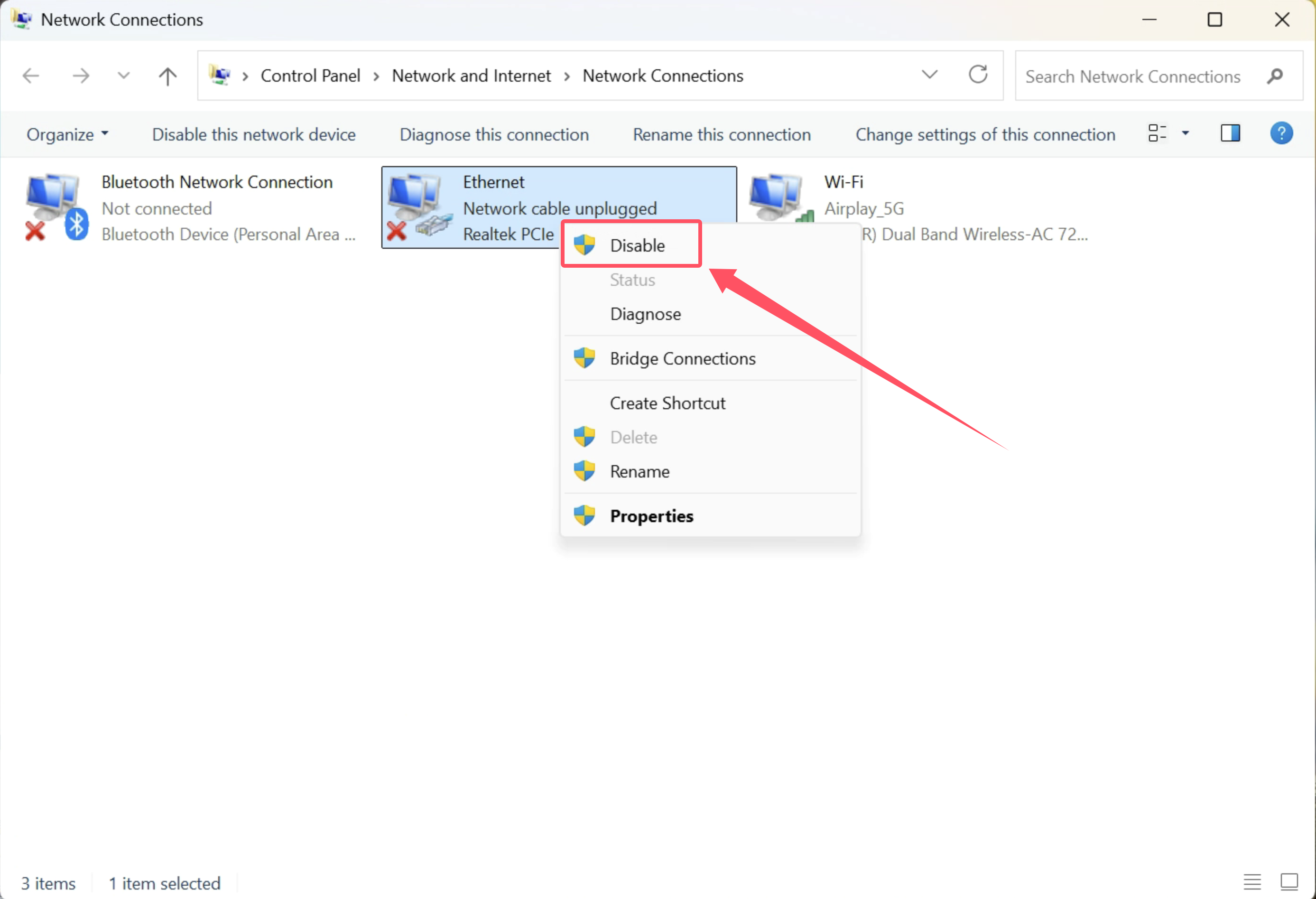
Disable unused adapters:
-
Press
Win + R→ enterncpa.cpl -
Right-click and disable unused adapters (e.g., Ethernet, VMware)
-
Keep only the active network connection
-
Final troubleshooting steps
If the issue persists, perform the following:
1. Restart all devices
-
Restart phone, computer, and router (power off for 30 seconds)
2. Verify IP addresses
-
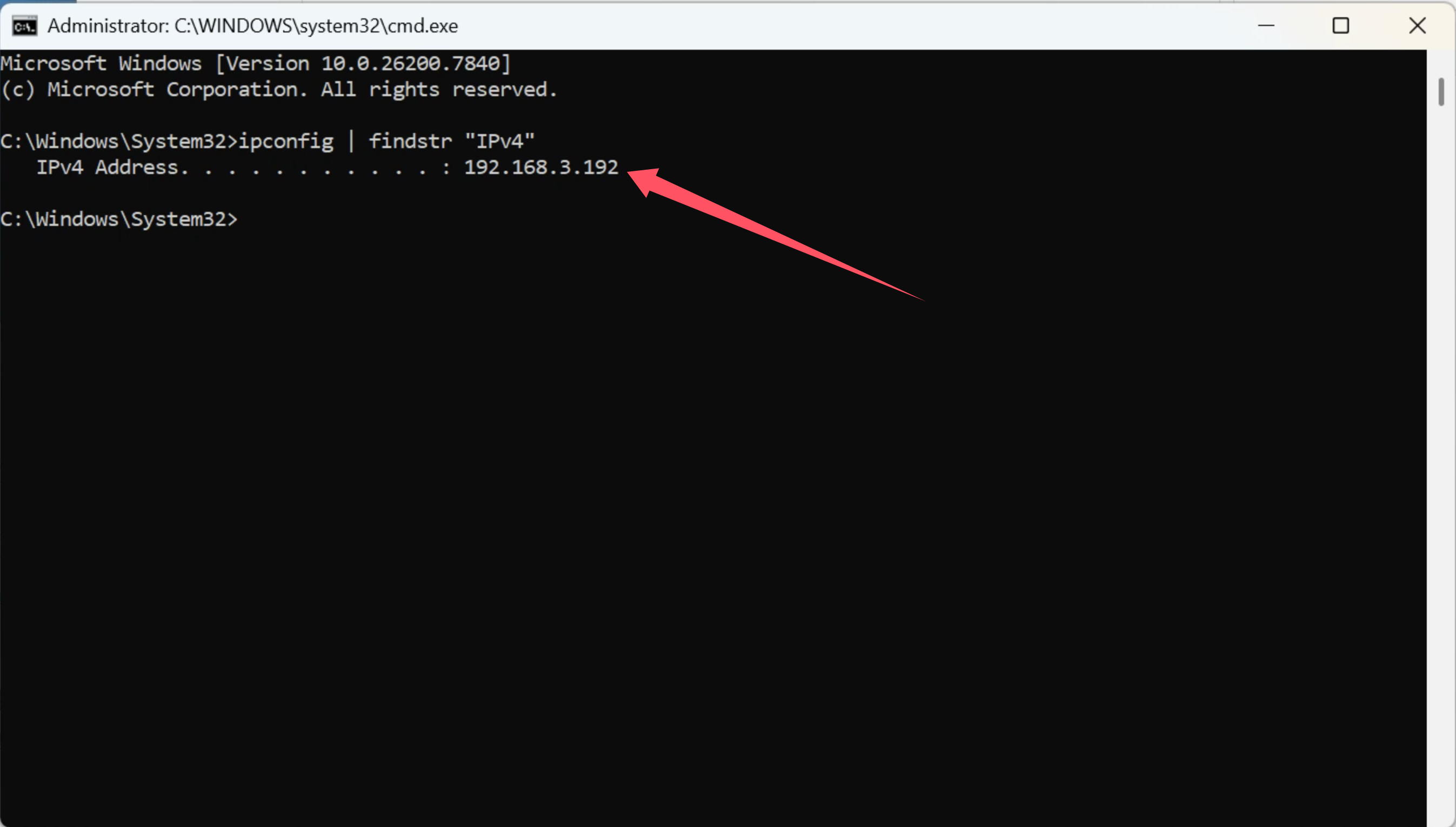
On computer:
Win + R→cmd→ runipconfig | findstr "IPv4"
Record the IP (e.g.,192.168.1.100) -
On phone:
Check IP in Wi-Fi settings
Ensure both devices are on the same subnet (e.g.,192.168.1.x)
3. Test connectivity
-
Install PingTools on the phone
-
Enter the computer IP to test connectivity
If all steps fail, the issue may be related to network environment restrictions or device-specific configurations.










