 TUTORIALS
What Are the System Administrator Username and Password?
 01/03/2025
 27585
27585
Understanding System Administrator Accounts and Passwords in 3uRemote
When adding devices to the 3uRemote device list using the System Administrator Account verification method, other devices in the list will see a pop-up requiring the System Administrator account and password to initiate remote control.
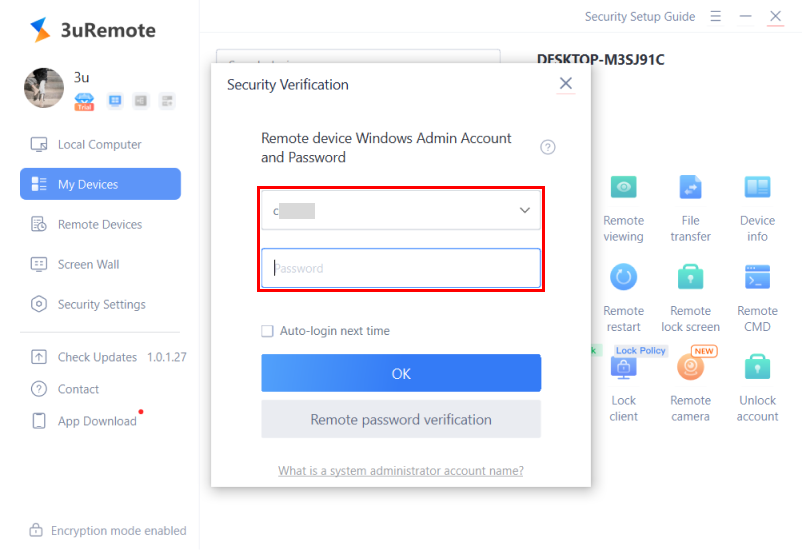
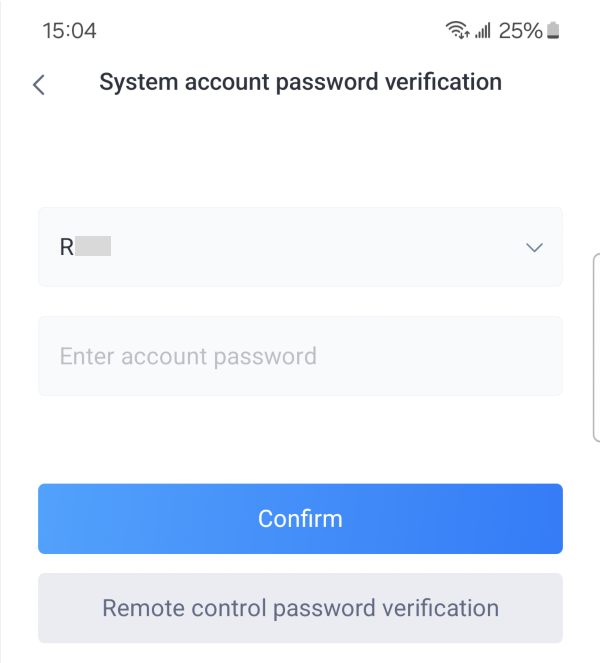
Many users may feel confused about what the System Administrator username and password are or which credentials to use. Let's clarify this below:
What is a System Administrator Account and Password?
In a Windows system:
- The System Administrator Account refers to the username you use to log in to your computer.
- The System Administrator Password is the key you use to access this account.
By default:
- The administrator account is named "Administrator" in Windows.
- In most cases, there is no password set for this account initially.
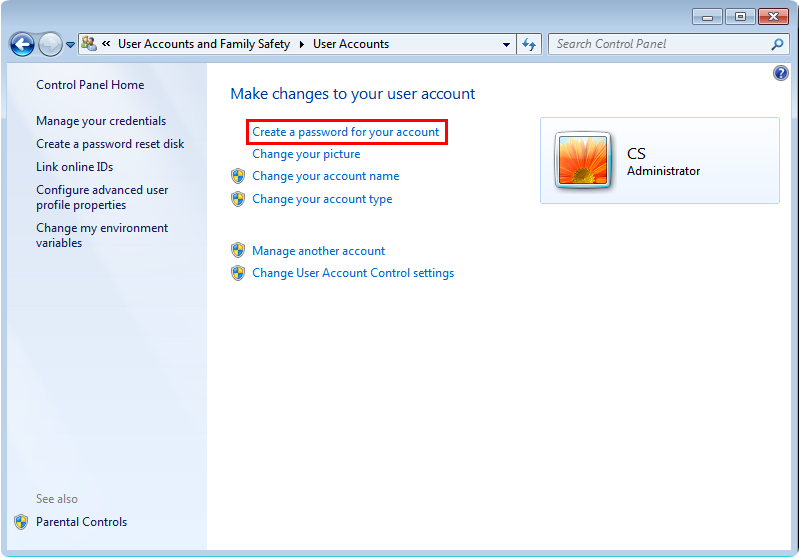
Setting a password for your administrator account helps enhance security by providing credentials for accessing and managing your computer.
Why Do You Need to Enter the System Administrator Password?
When you use 3uRemote and choose Administrator Account Verification:
- You ensure that only trusted devices can access your computer.
- Other devices in the list will need to enter the Administrator username and password of the controlled device before initiating remote control.
This added layer of security ensures that unauthorized users cannot access your computer.
Setting Up a System Administrator Account and Password
For secure use of 3uRemote, create a System Administrator Account and set a password on your Windows PC.
Follow the tutorial here: Windows Administrator Account Password Setup Guide
How to Use System Administrator Verification in 3uRemote?
- Create an account and password for your computer (Create one if it’s not already set).
- While adding your device to the 3uRemote list, choose Administrator Account Verification.
- When another device attempts to control your computer, the username and password entered should match the Administrator account and password you’ve created on your computer.
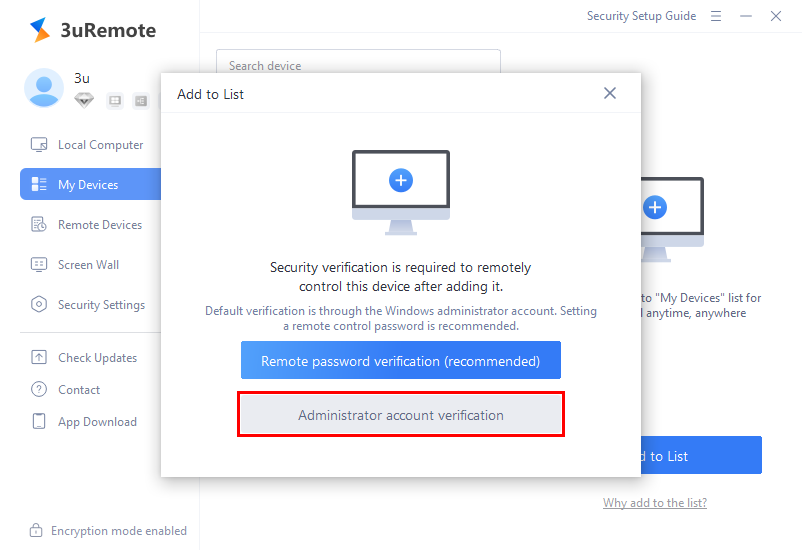
By following these steps, you can securely integrate and manage devices with 3uRemote.










