
TUTORIALS

How to Force Close Apple Watch Apps in WatchOS 3

07/18/2017

4191

Just like with any other platform, sometimes Apple Watch apps will freeze or have bugs. Thankfully, watchOS 3 includes a quick way to force-quit an app from your wrist, allowing it to start fresh.
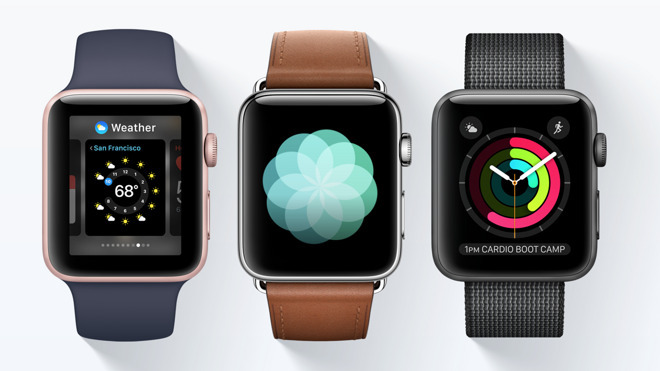

How to Force Close Apple Watch Apps in WatchOS 3


With limited buttons and screen real estate, force closing an app on the Apple Watch is not quite as simple as it is on an iPhone, iPad, Mac, or even Apple TV. But it's still possible with a pair of button presses.


With the problematic app in question open, simply hold the side button for about two seconds. This pulls up the usual "power off" screen.


From here, press and hold the Digital Crown in for another couple of seconds. The buggy app will then immediately close, returning the user to the Apple Watch's "honeycomb" home screen.


To restart the app, tap on it from the home screen. It should now have a fresh start and will hopefully let you bypass any crashes or glitches.


For more, see everything you need to know about watchOS 3 for Apple Watch.


Windows
Mac OS
iOS
Linux
3uTools
Win 64-bit For this device
V9.0 2025-11-11
Download
Win 32-bit For this device
V9.0 2025-11-11
Download
3uTools
Intel Chip How to Identify Chip Type
V9.0 2025-12-02
Download
Apple Chip
V9.0 2025-12-02
Download
How to Identify Chip Type
1.  Click the Apple icon in the top-left corner of the screen and select About This Mac.
2.  Check the Processor or Chip field to determine if it is "Intel" or "Apple".
Please use the 3uTools PC client to install the iOS client:
1、 Install either the Windows or Mac version of 3uTools on your computer
2、 Open the PC client and connect your device to the computer via USB cable
3、 After the connection is successful, wait for the computer to automatically install the mobile app for the device, or locate “Install Mobile App” on the computer and manually click to install.
3uTools
deb file
V3.01 2025-11-20
Download
rpm file
V3.01 2025-11-20
Download
Windows
Windows
iOS
iOS
Android
Android
TV
TV
3uAirPlayer
Win 64-bit For this device
V6.0.2 2025-11-19
Download
Win 32-bit For this device
V6.0.2 2025-11-19
Download
iOS Device Mirroring (No App Required)
1、 Install 3uAirPlayer on the Windows PC
2、 Open Control Center and select Screen Mirroring
3、 From the list, choose your PC to start mirroring
4、 Or connect your iOS device to the PC via USB to begin mirroring
Scan to get "3uAirPlayer" App
3uAirPlayer TV V1.0.18
2025-11-28
TV System Requirements: Android 7.0 or later
Download the TV installation package, copy it to a USB drive, insert it into your TV or set-top box, then select the file from the home screen to install.




