TUTORIALS
How to Recognize the Model Number of Your iPhone?
 11/10/2016
 27574
27574
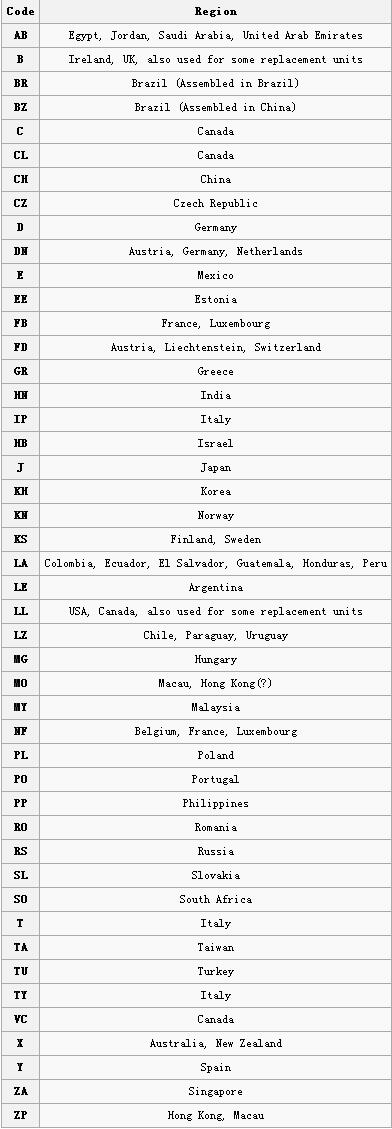
All Apple iOS devices have a country code which looks something like this: MC605LL/A. The MC605 is an iPhone 4, black, 32GB. Open the “Settings” of your iPhone→click the button “General”→click the button”About”, then you can find your iPhone’s model number. Taking the iPhone4 we mentioned above as an example, the two letters “LL” refers to this iPhone’s region code. The list below offers you with an overview of all these region codes.
The model number is probably used to distinguish the same device by region.(different charger, packaging language, etc.).
You are not able to know your iPhone’s specialized carrier or whether your iPhone is locked or not by means of viewing your iPhone’s model number, but you can probably know where the iPhone is planned to be sold via the region code.
What calls for special attention is that my iPhone4 had a region code MC605FD/A (locked) and it is under the warranty date. I sent my iPhone to a Swiss Apple retailer store to exchange it with a MC605B/A. I guarantee that the staff locked it with my SIM card at the Genius Bar, because i gave him the wrong SIM on purpose. And hope that he will negligently return an unlocked phone to me. Then he started to activate this phone and he got the reminder “wrong” provider. He has no choice but to get another replaceable phone and lock it to the “correct” provider again, because all of us present saw the previous error. This shows that even locked phone are originally unlocked and get locked to the carrier of the first inserted SIM.--http
The list below illustrates the feasible model number: