 TUTORIALS
How to Unlock a Disabled iPhone/iPad on 3uTools?
 07/07/2021
 130414
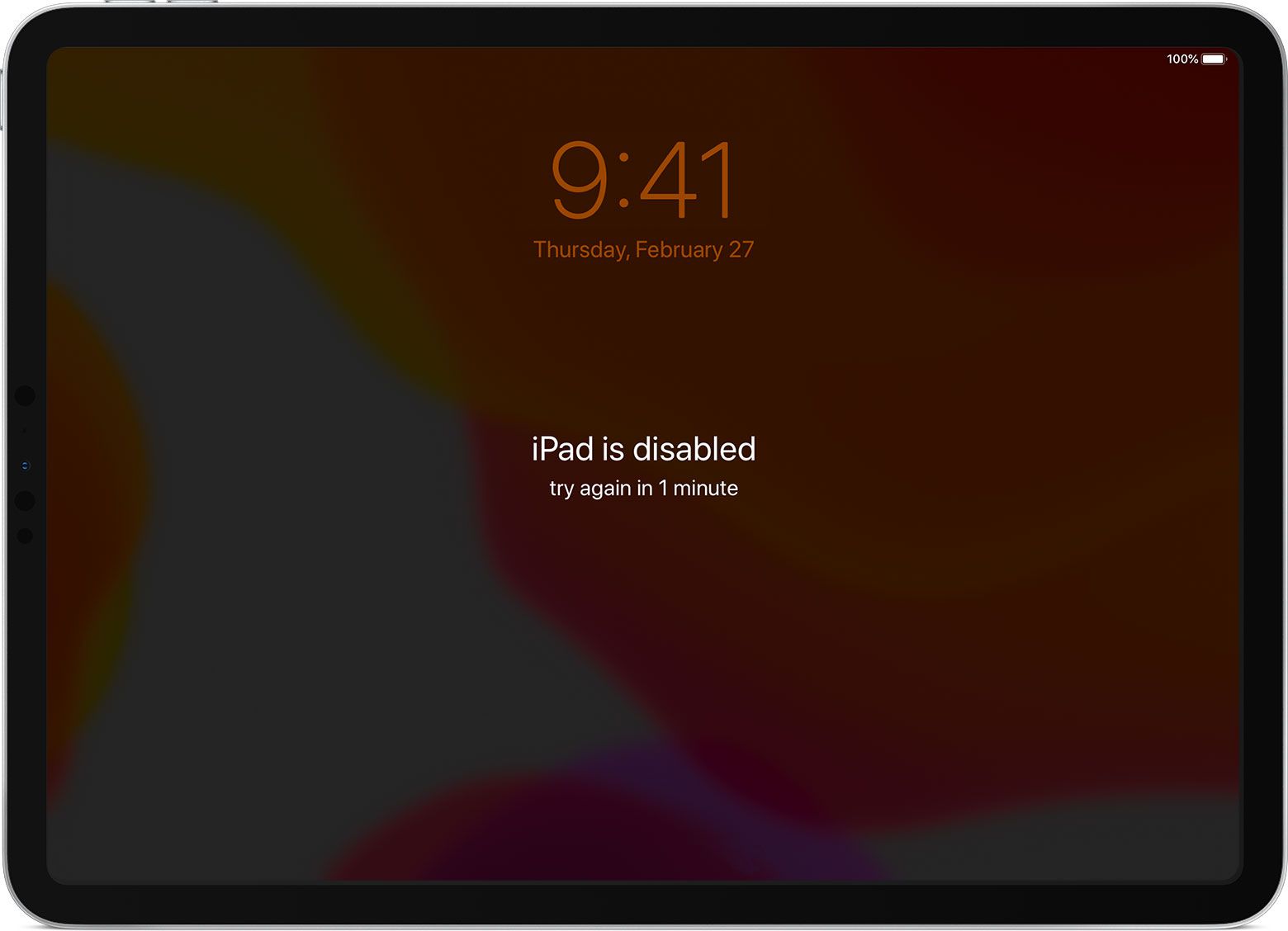
If the iOS device enters the wrong password too many times, the device will be disabled. After the device is disabled, the device will be unusable. If it is an iPhone4, you can directly use the 3uTools to cancel the disabled iPhone. Other iOS devices can only clear the disabled state by flashing the iPhone or iPad.
How to use 3uTools to unblock the iPhone/iPad?
Tips:
1. If your device is disabled, it cannot connect to the PC of 3uTools, you need to put the device into Recovery mode or DFU mode to connect on;
2. If your device is disabled, 3uTools will not be able to read the data and backup your iDevice;
3. If you want to deactivate the device, please do not check the "Retain user data" in 3uTools; if you check the "Retain user data ", the device will still be disabled after the flashing is completed.
Operation method:
1. Open 3uTools and use the data cable to connect the mobile device to the computer; the device in the disabled state cannot be directly connected to 3uTools, you need to enter the recovery mode to connect the device, please manually enter the recovery mode;
How to enter the recovery mode: press and hold the Home + shutdown button at the same time, wait for the screen to go dark and then turn on, then release the power button, continue to press the Home button for 10 seconds (if it is iPhone7, please use the volume down button instead of the Home button, iPhone8/ X Please click to view the details to enter the tutorial)
2. Click on the "Flash&Jailbreak" above to enter the "Easy Flash" interface, and the firmware will be automatically matched if the connection is successful;
3. Select the iOS version you want to flash in the flashable firmware version, click "Flash", and then 3uTools will automatically download the firmware for you and flash it. If you have downloaded the firmware, you can click "Import" and then click "Immediately" Flash”;
To clear the disabled state, please do not check the "Retain user data". If you check the "Retain user data", the device is still in the disabled state after the flashing is completed.
4. Next, the flashing will be performed automatically. Keep the data line connected during the process and wait for the flashing to be completed. After the flashing is completed, the mobile device will automatically turn on;
5. You can manually activate it on your device. After activation, the device can be used normally.
Mobile devices with activation lock need to enter Apple ID to activate, if it is to activate iPhone, the device needs to insert a sim card.










