 TUTORIALS
How to Make A Touch Bar for An Ordinary Mac?
 07/18/2017
 8006
8006
The latest MacBook Pro was equipped with intelligent Touch Bar for the first time. iFans are very excited about this new feature. But this Macbook is very expensive for most of people to purchase, so why don’t you choose to manually make a Touch Bar for your ordinary Mac? You make take the following operations as reference.
Preparations:
* You need to prepare a Mac, here we take MacOS Sierra 10.12 build 16B2657 as an example.
* You need to prepare another iDevice (iPhone or iPad).
* You need to download two softwares: Touch Bar Server and Touch Bar Demo App 1.2.
* Xcode
What’s Xcode?
Xcode is an integrated development environment containing a suite of software development tools developed by Apple for developing software for macOS, iOS, WatchOS and tvOS. First released in 2003, the latest stable release is version 8 and is available via the Mac App Store free of charge for OS X El Capitan and macOS Sierra users. Registered developers can download preview releases and prior versions of the suite through the Apple Developer website. However, Apple recently made a beta version of version 8.0 of the software available to those of the public with Apple Developer accounts.
Step 1: Install Touch Bar Server. You can directly open Touch Bar by pressing Fn button.
Step 2: Launch Xcode, and then you can find a file named “TouchBar.xcodeproj” in Touch Bar Demo App 1.2, please drag “TouchBar.xcodeproj” into Xcode. What calls for special attention is that you need to add your own Apple ID to Xcode so as to verify your account.
Step 3: As shown below, connect iPhone or iPad to Mac. You need to select your own account and confirm the iDevice you’ve connected.
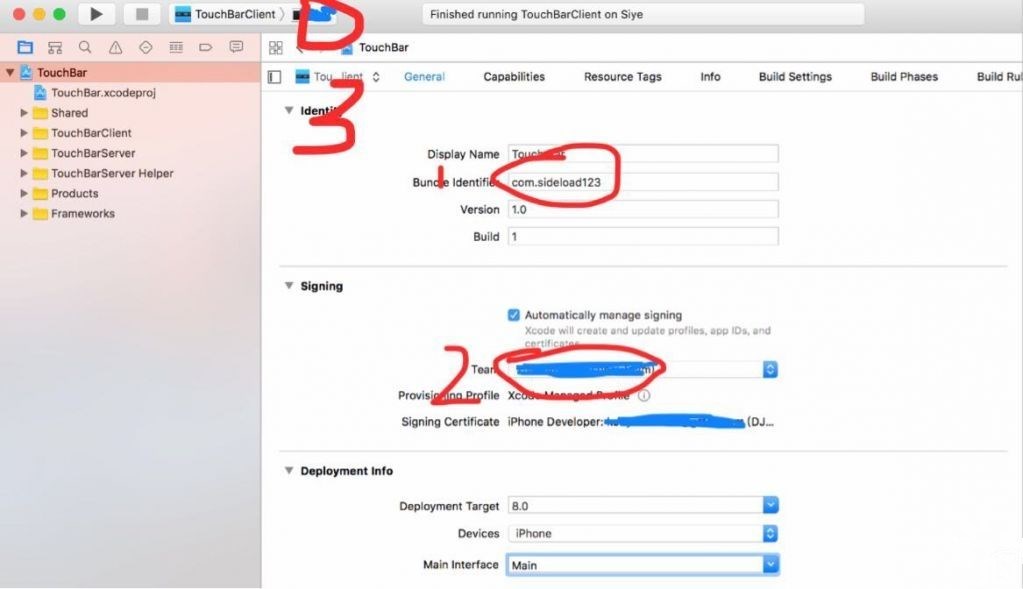
Step 4: Click Product-Destination, choose your own iDevice and click Launch.
Step 5: Open the Settings of your iPhone, click General -> Description file, select your own account and click Trust.
Step 6: You need to launch Touch Bar app on iPhone.










