 TUTORIALS
Changed Mobile Phone, How to Migrate Device Data?
 05/12/2020
 779254
Functional description
Use 3uTools to migrate SMS, call logs, photos, music, ringtones, contacts, memos, apps, and applications from an Android or iOS device to another mobile device.
Note: Call log and SMS transfer only support Android Device; memo and ringtone transfer only support iOS devices.
Transfer data from iOS device to iOS device
Android device data transfer to the iOS device
How to transfer data from iOS device to iOS device:
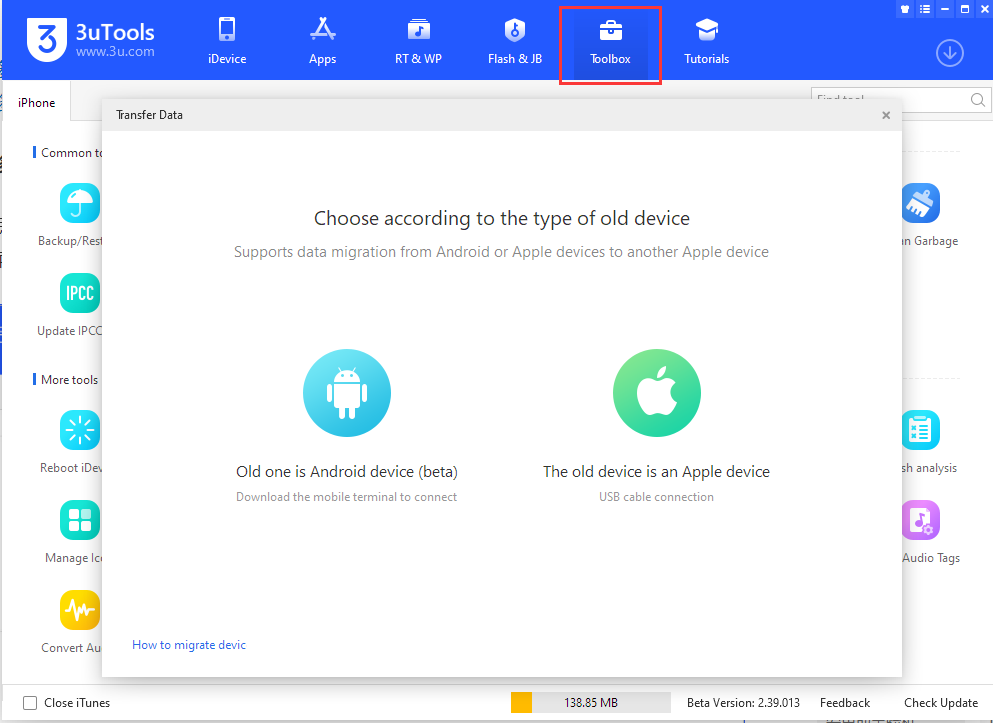
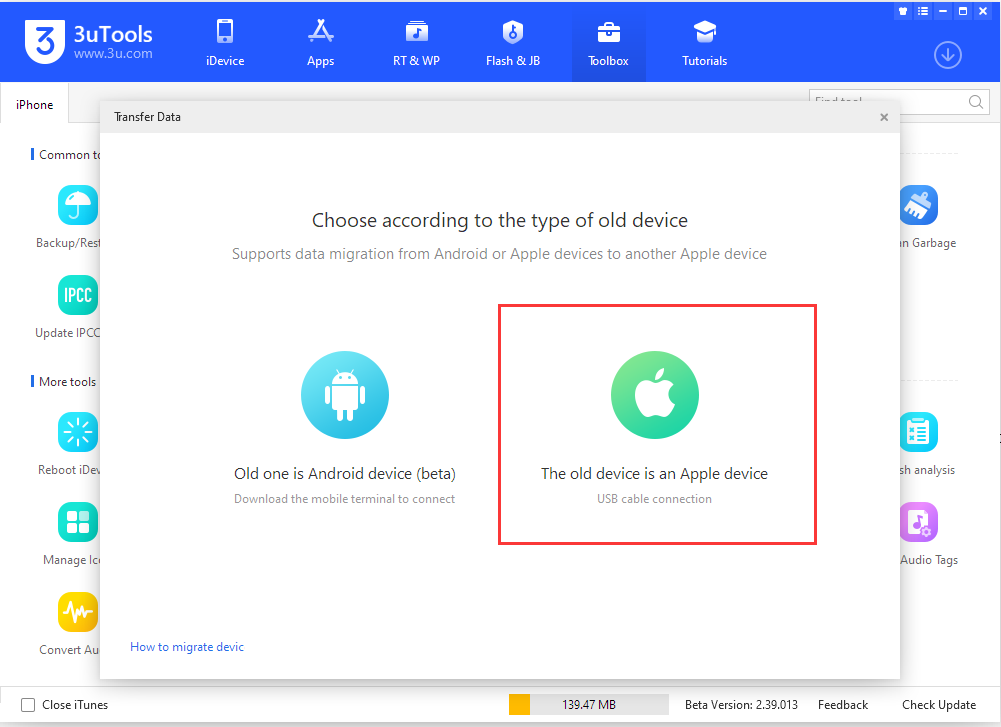
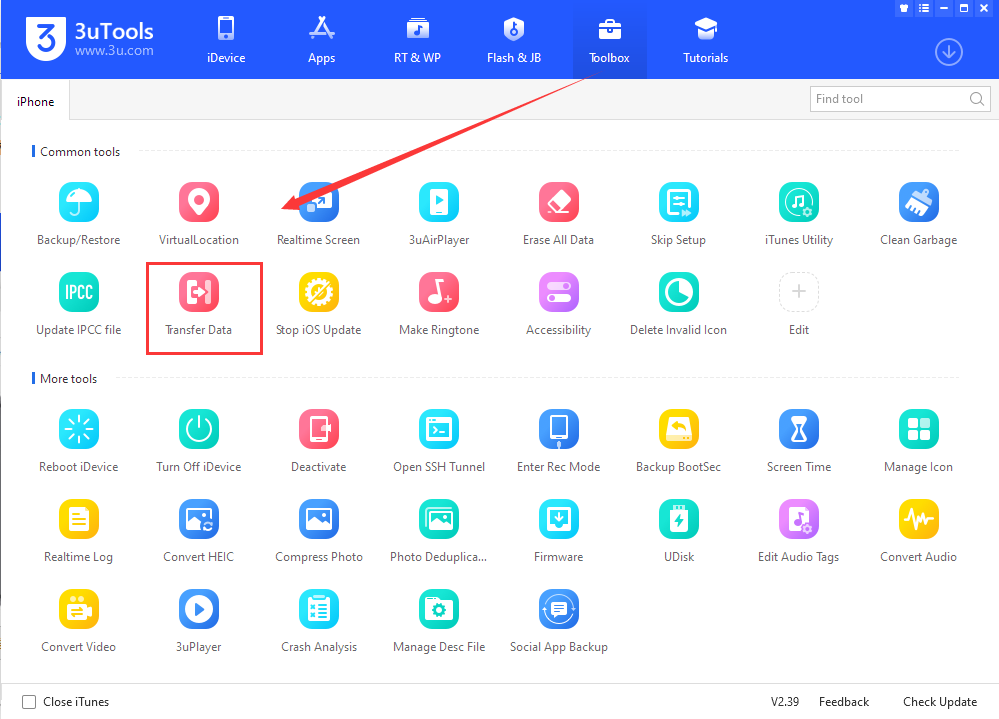
1. Open 3uTools, connect both iOS devices to the computer through the USB cable, open "Toolbox-Transfer data" and click "Old device is Apple device";
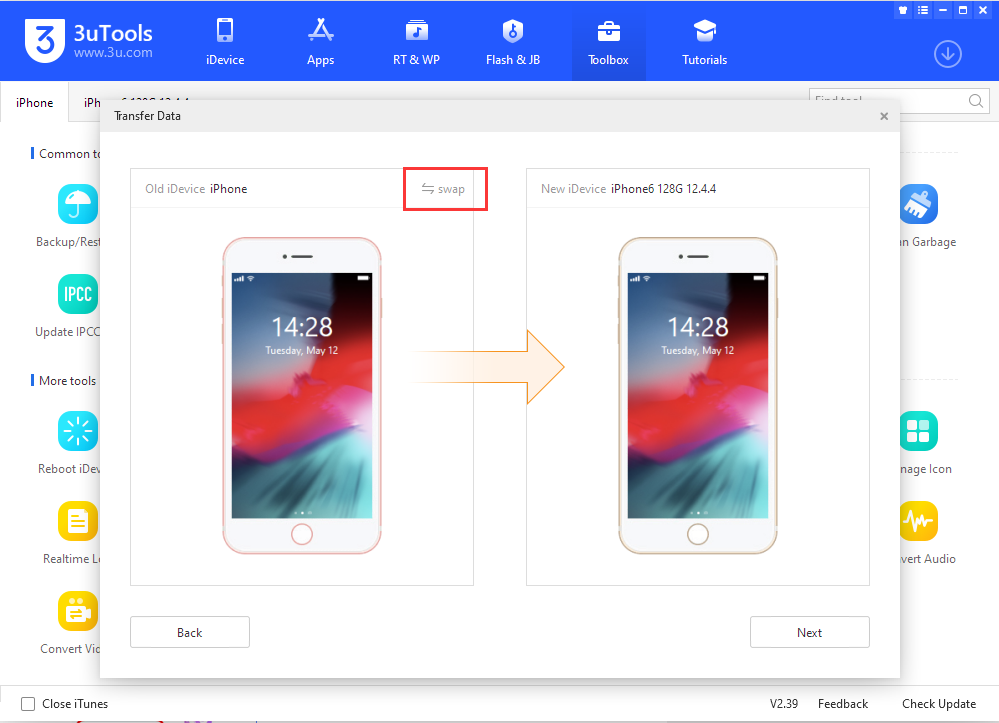
2. After connected the iDevice, click the "Switch" button to adjust the order of the new and old devices. After the adjustment, click "Next";
3. Check the type of data to be migrated and click "Migrate Now";
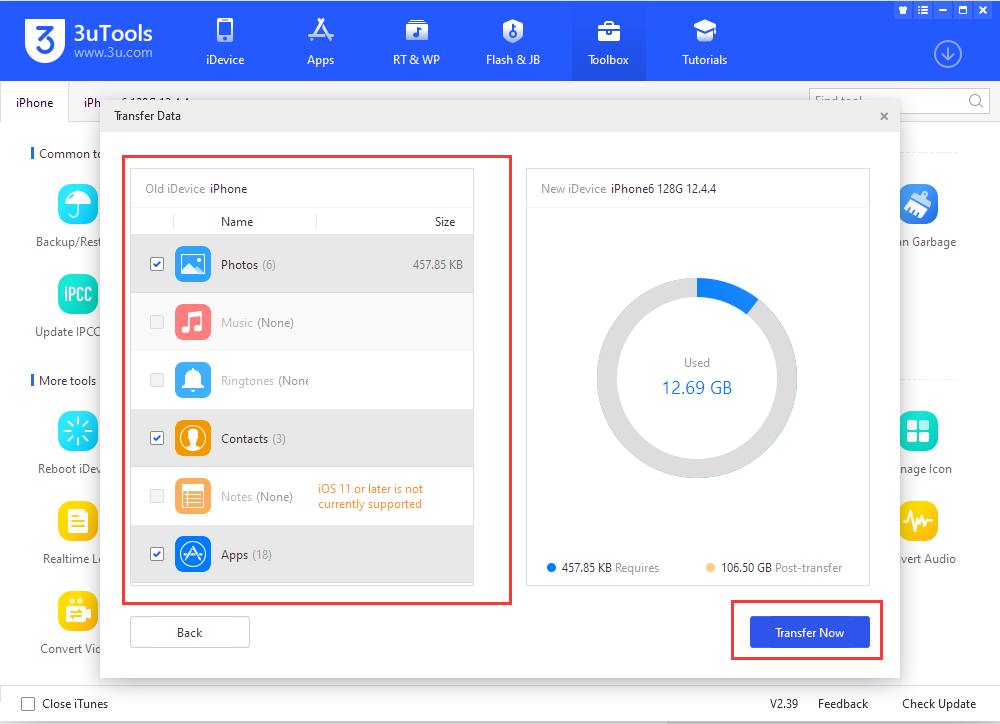
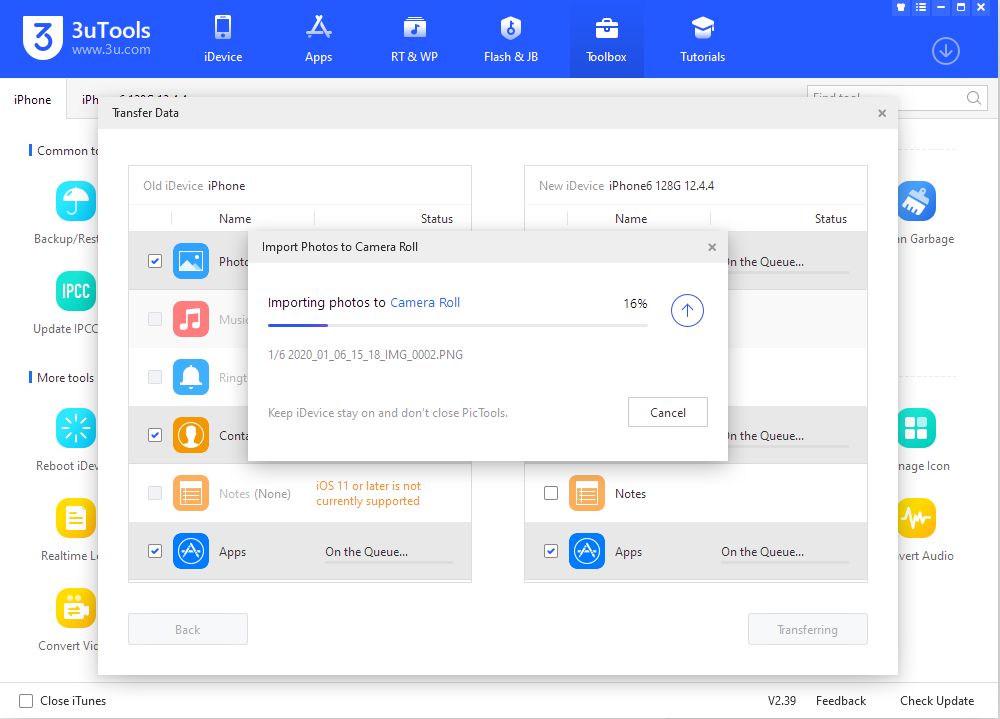
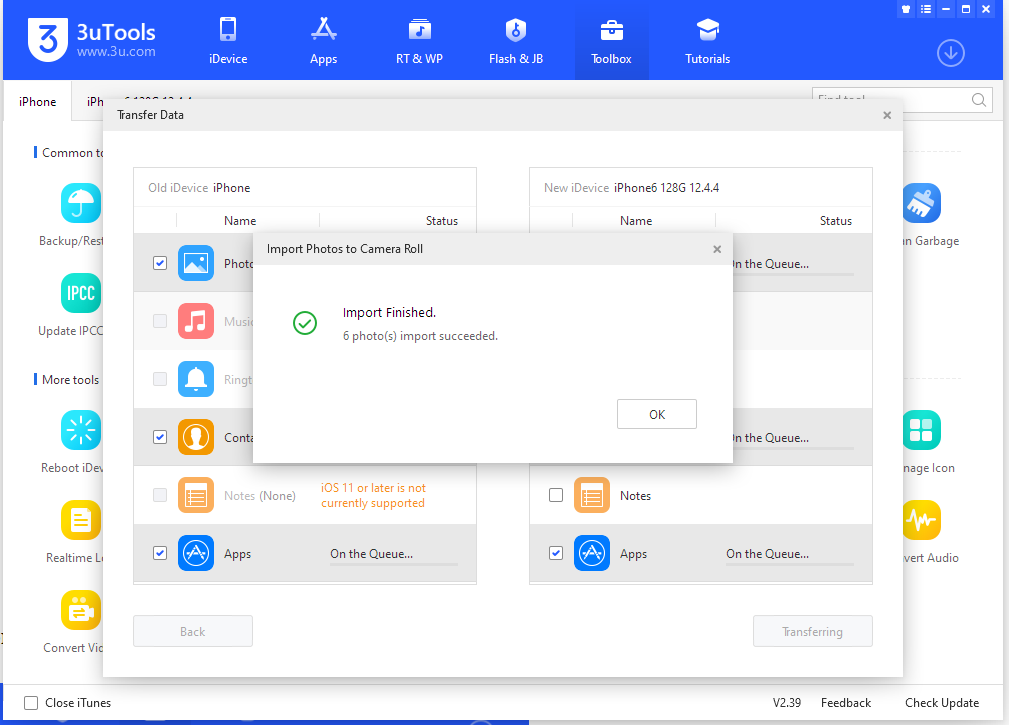
4. After that, 3uTools will automatically migrate your selected content. Do not disconnect the USB cable and wait for the migration to finish;
You need to open the “Photo Processing Tool” on the “New iDevice” when transferring photos. The import will start automatically. After transferring all the data, click the "OK" button.
How to transfer data from Android device to the iOS device:
1. Open 3uTools, connect the iOS device to the computer through the data cable, open "Toolbox-Transfer data", and click "Old one is Android device";
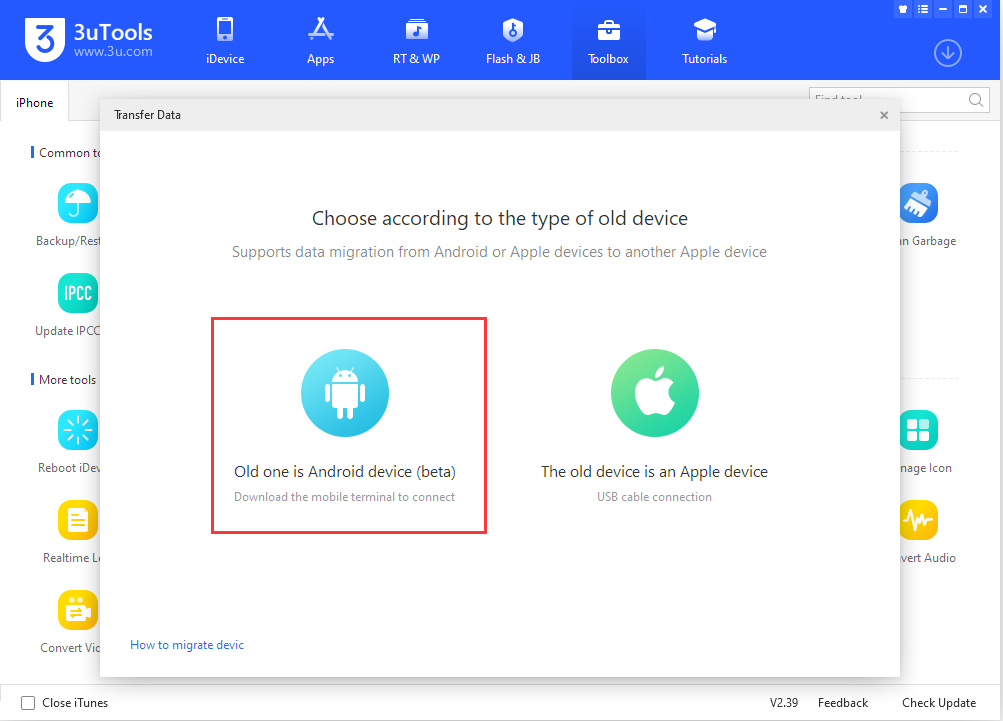
2. Use the Android phone browser to scan the QR code to download the mobile terminal of 3uTools and install it.
Note: Since transferring data requires access to the address book and other files, please be sure to allow the 3uTools to use the address book and other devices on the phone after installation Permissions.
After downloading, installing, and opening access permissions, click the "I have downloaded" button;
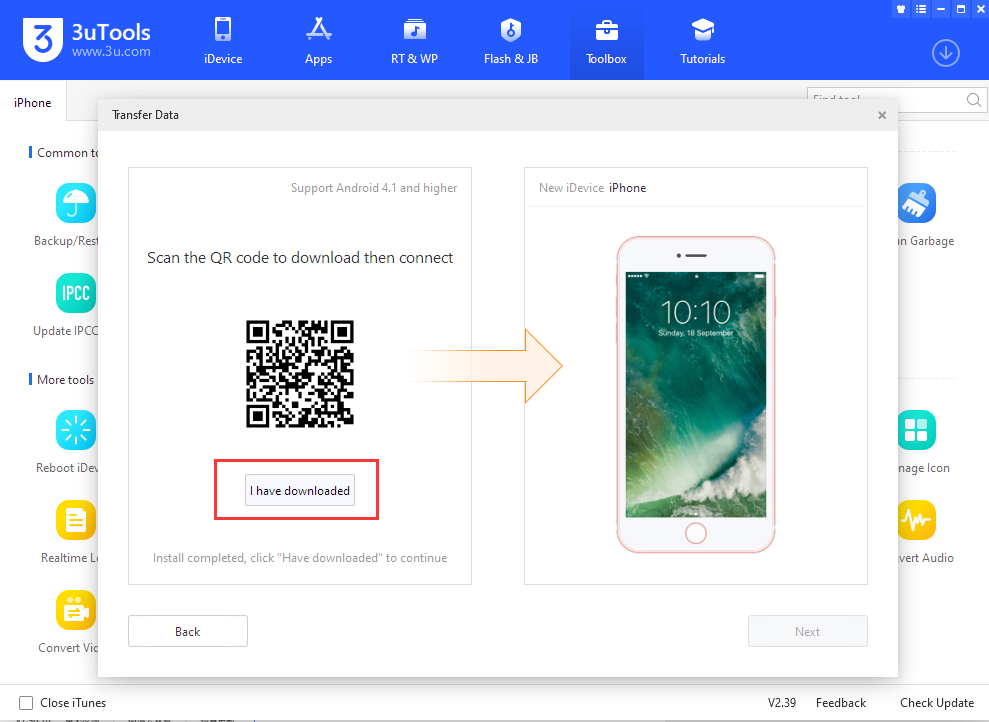
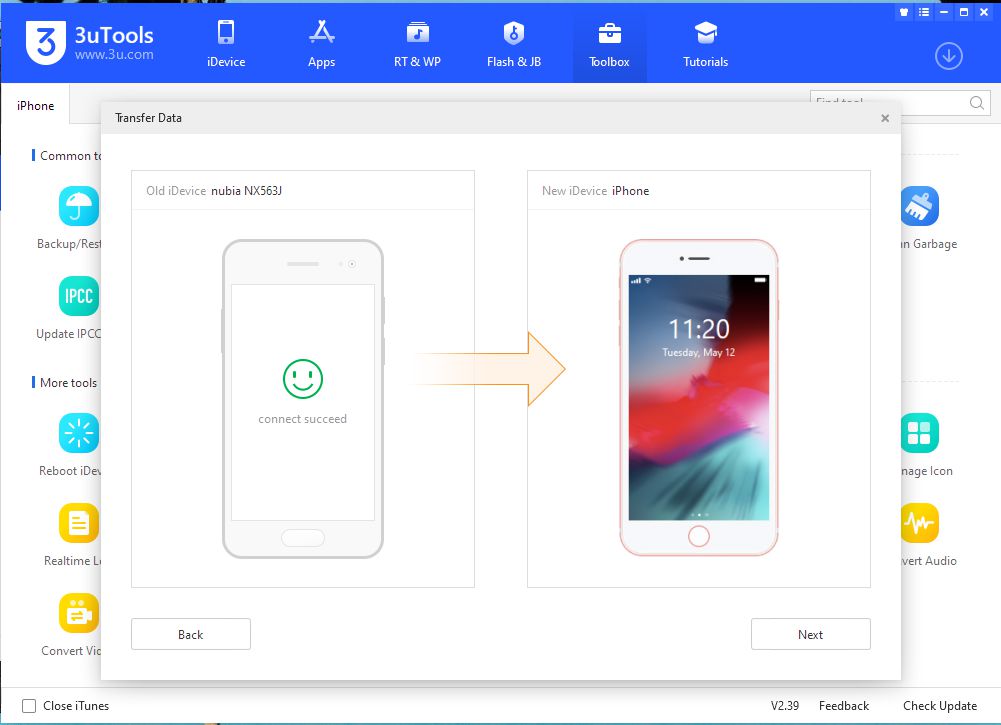
3. Make sure that the current Android device and computer are in the same local area network, open the mobile terminal of the 3uTools to scan the QR code displayed on the computer, and then the phone will automatically connect to 3uTools on the computer.
After the connection is successful, click "Next" ;
4. Check the type of data to be migrated and click "Transfer Now";
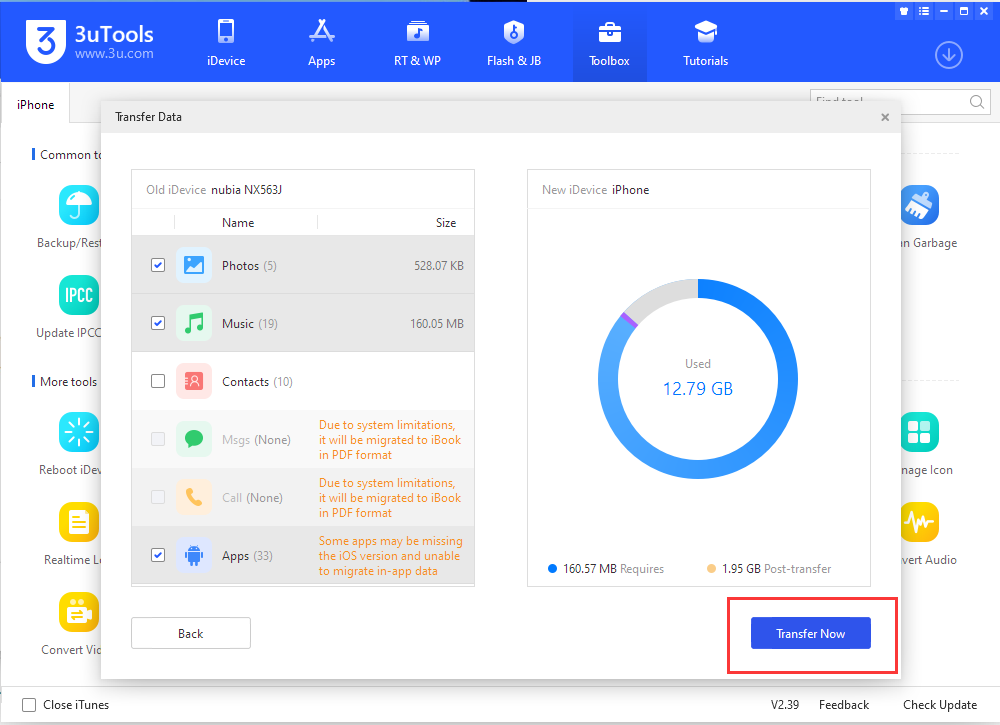
5. After that, 3uTools will automatically migrate the content you selected. Do not disconnect the data cable connection of the iOS device or exit the 3uTools on the Android side. Wait for the migration to end; you need to open the "New Device" when transferring photos "Photo processing tool", click "OK" button after the transfer.










