TUTORIALS

How to Use the Virtuallocation

07/10/2019

478518

With the Virtuallocation of 3uTools, you are now able to set a virtual location on your iDevice and display the virtual location in your social media. You may also skip the region restriction of specific games with this function.


There are a few steps to set it up.


1. Install the latest 3uTools and connect your iDevice to a computer/laptop.


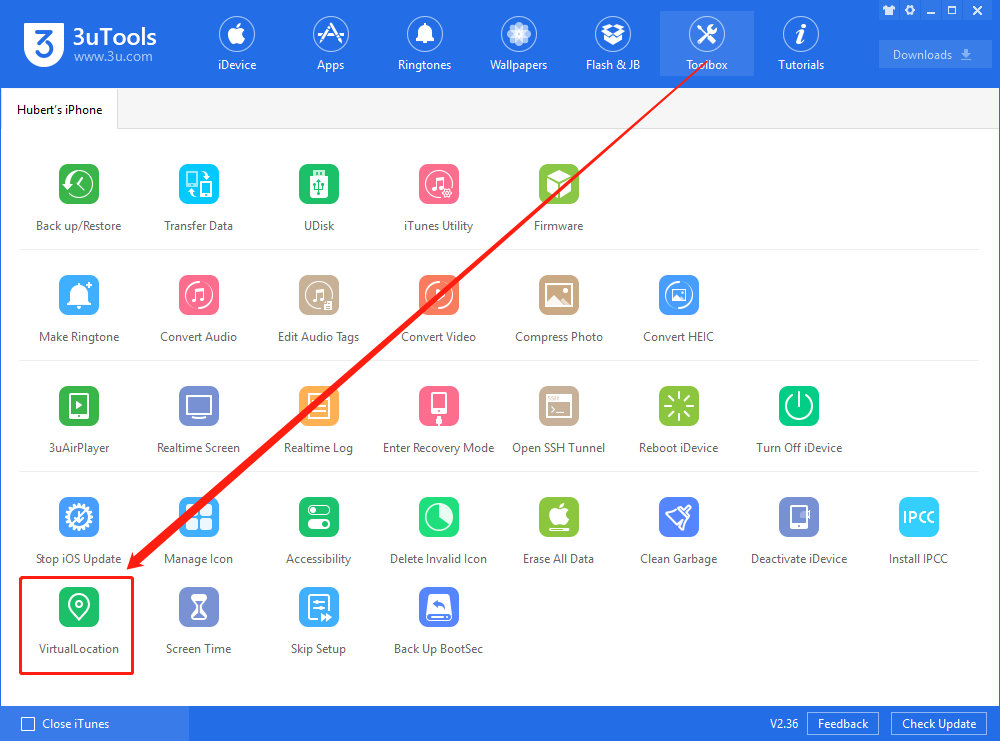
2. When the iDevice is connected, please go to "Toolbox → VirtualLocation".

How to Use the Virtuallocation


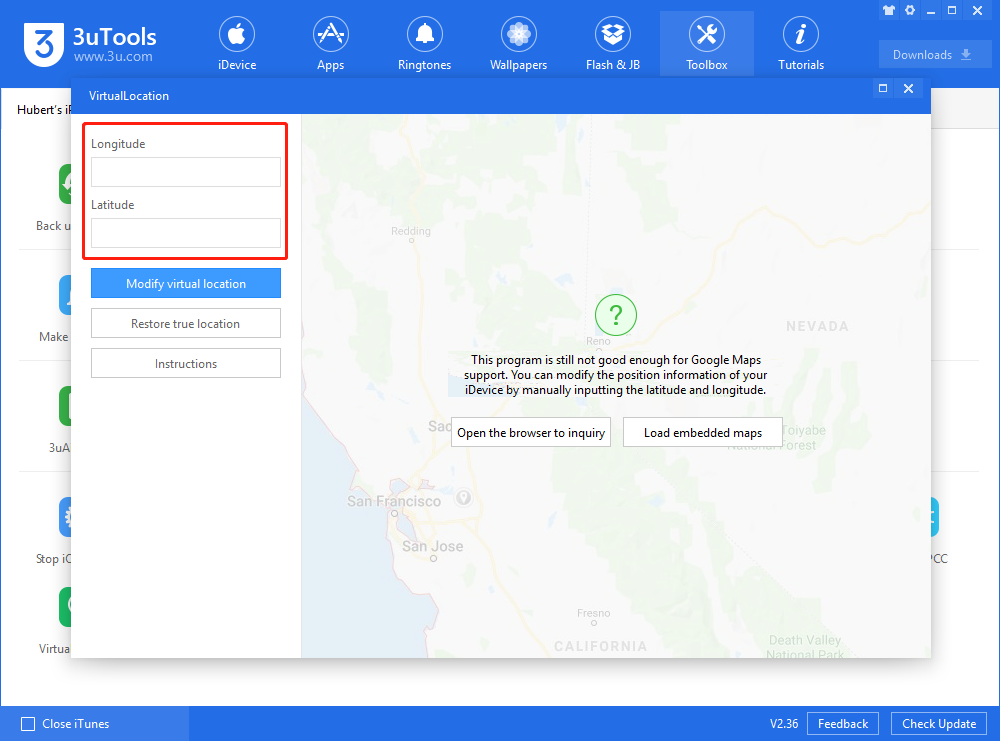
3. You will need to type the latitude and longitude of the address which you'd like to set here. (Click here to learn how to get the latitude and longitude address on Google Maps.)

How to Use the Virtuallocation


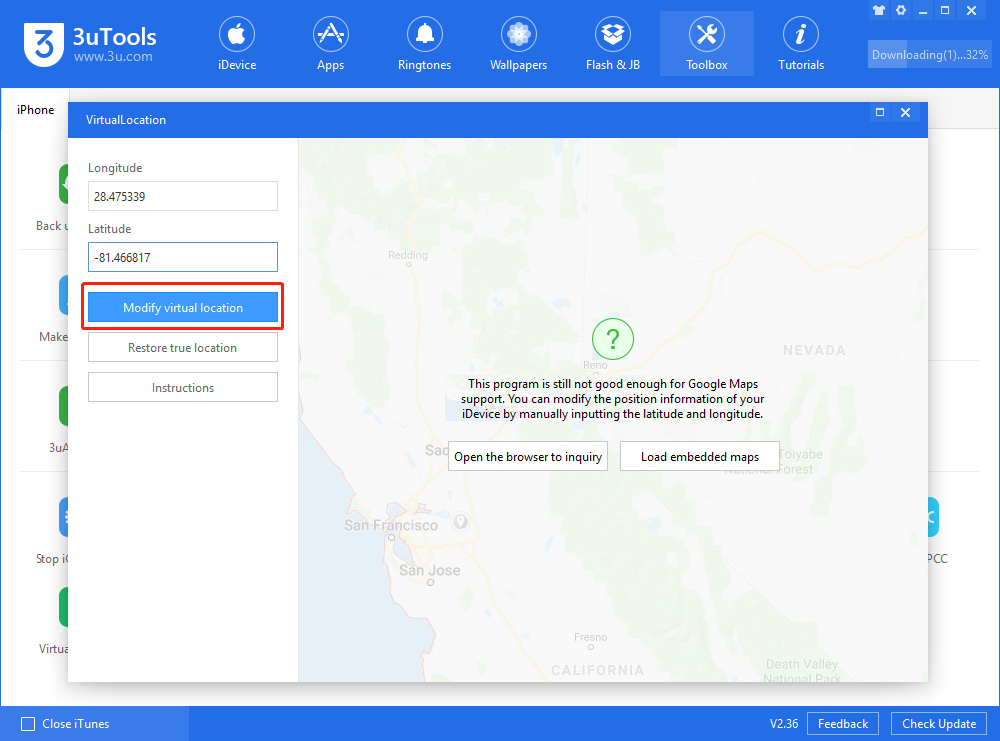
4. Click the button "Modify virtual location" after all set. You will learn whether it is successful from a prompt popped up soon after the click.


Note: make sure the screen is unlocked during the process, or the process may fail.

How to Use the Virtuallocation

How to Use the Virtuallocation


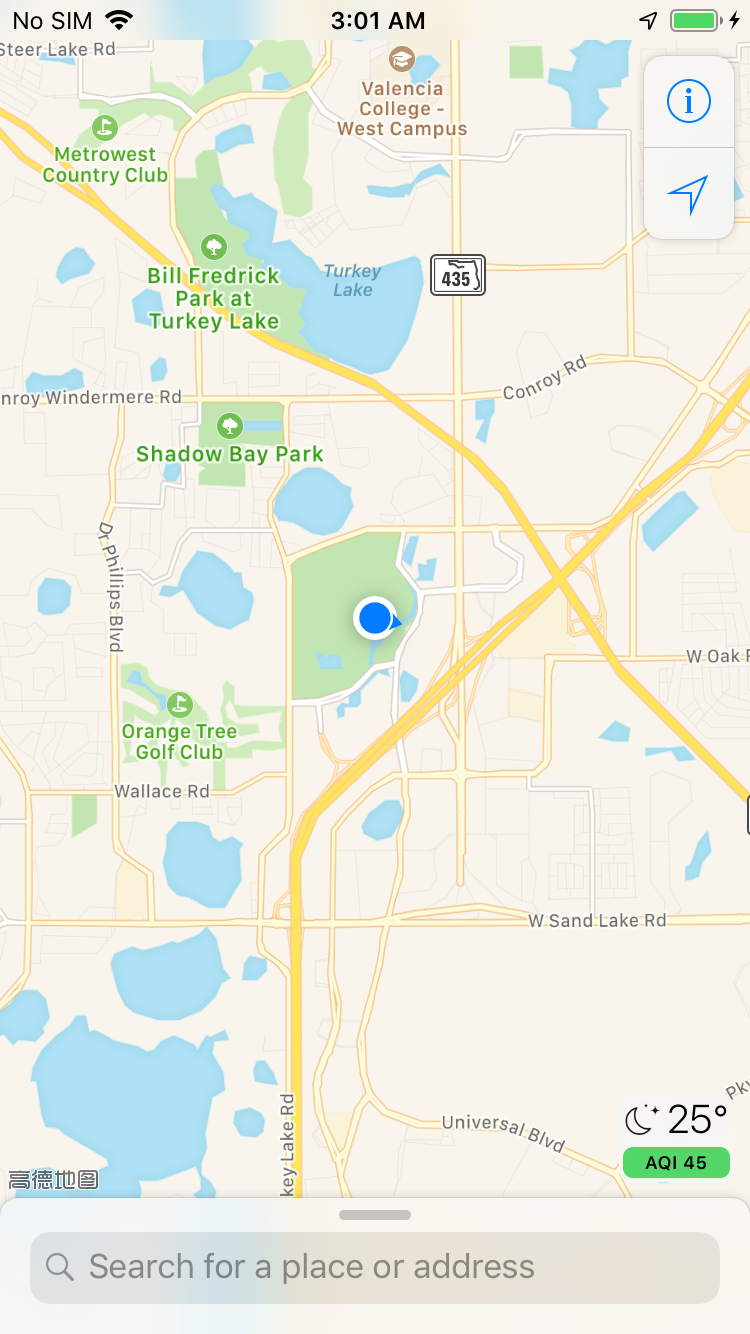
5. Now, you are supposed to find that the display of location in your social media has turned to the virtual location.

How to Use the Virtuallocation


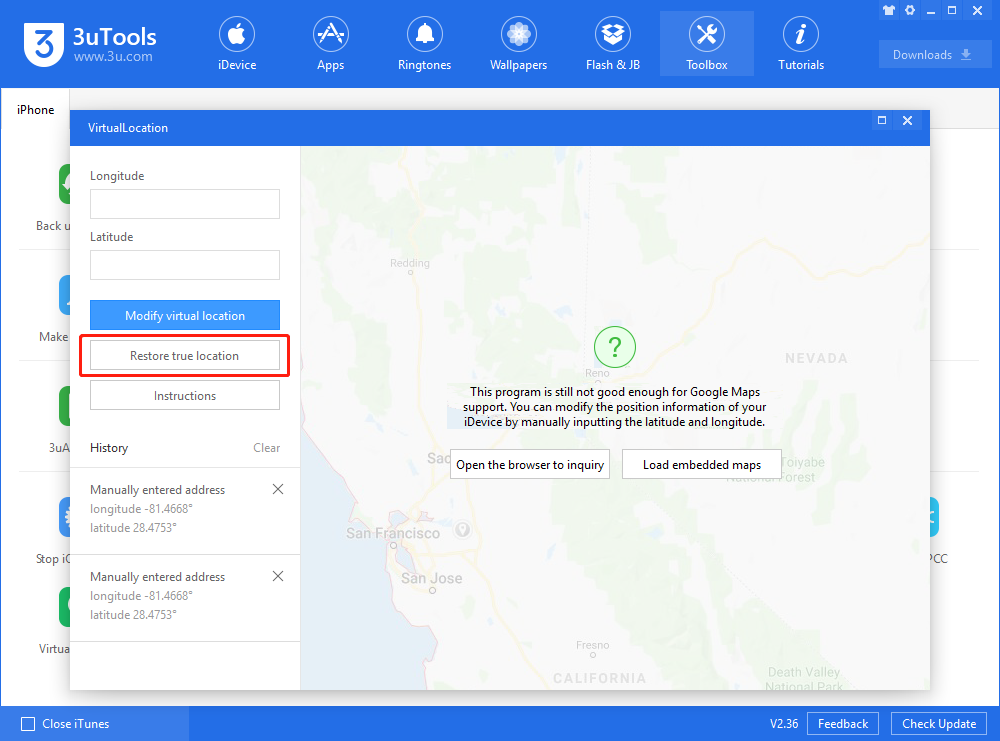
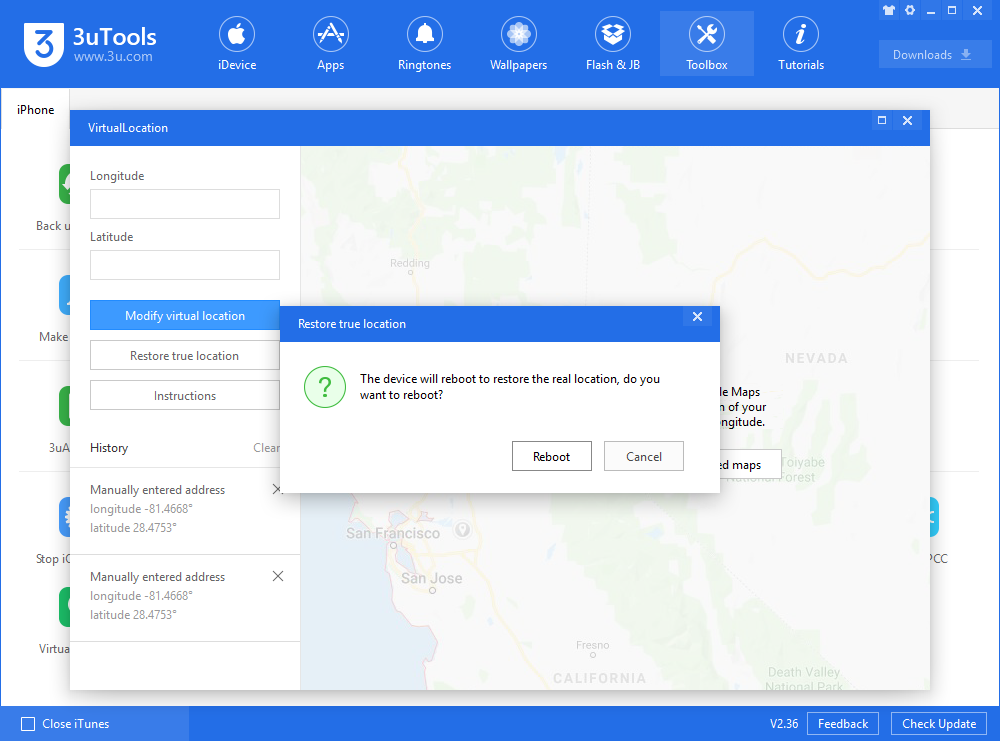
6. If you want to restore the genuine location, you may simply click the button "Restore true location" and reboot your iDevice; You can even reboot the device directly to restore the genuine location.
How to Use the Virtuallocation

How to Use the Virtuallocation


Reminder


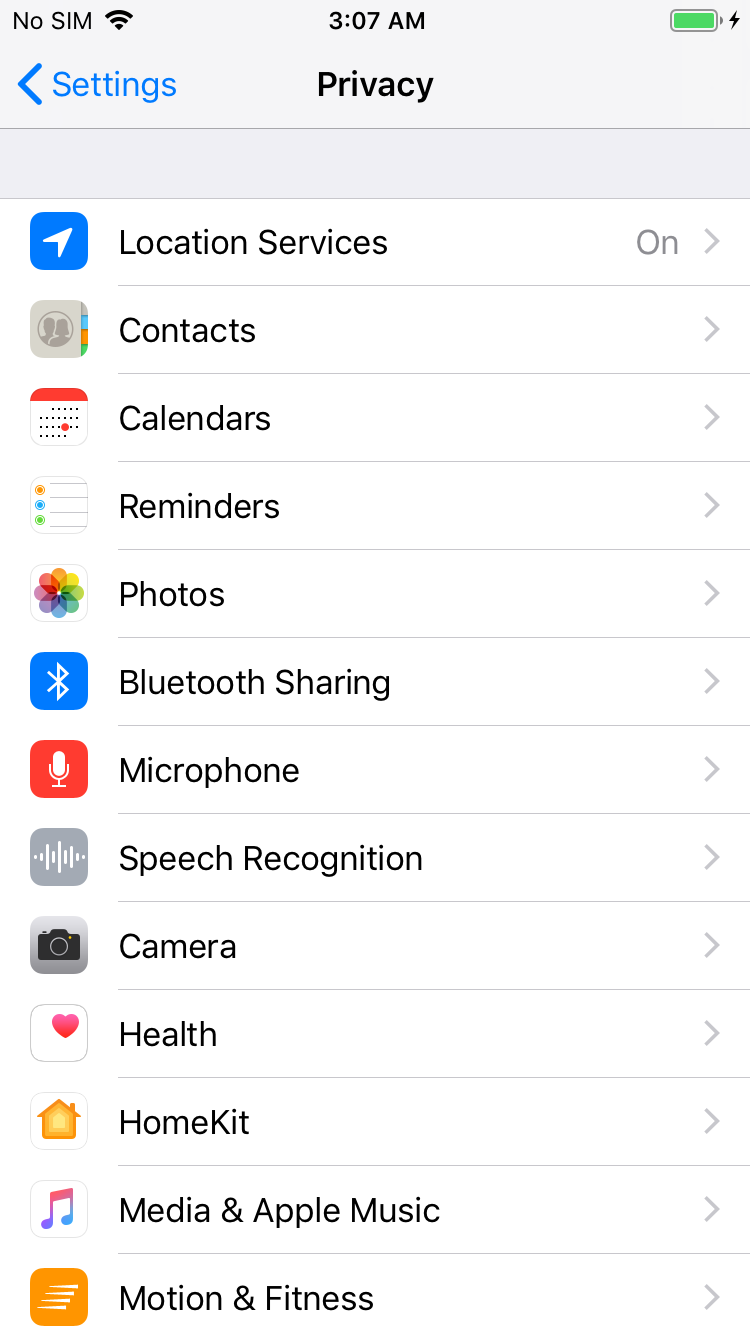
1. In order to obtain the location, you need to allow the Location Services in "Settings - Privacy" for your social media.
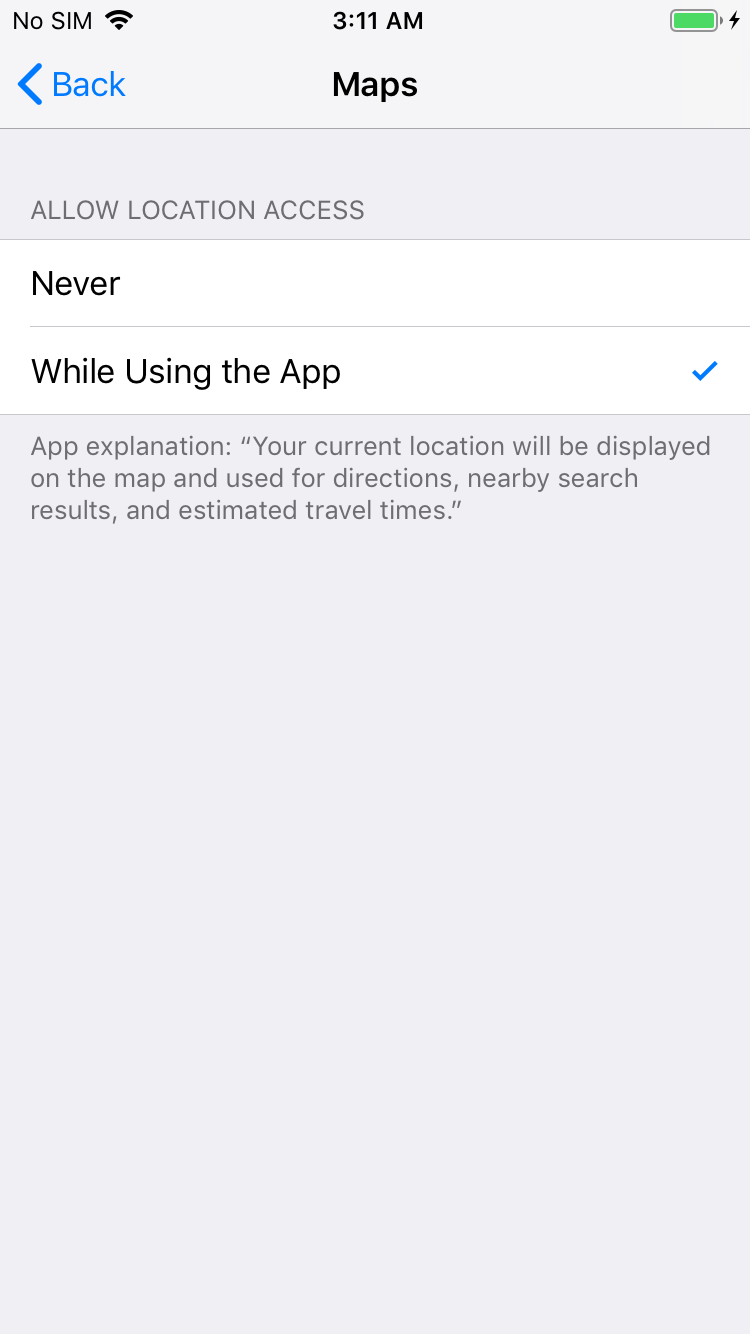
How to Use the Virtuallocation How to Use the Virtuallocation


2. Modifying VirtualLocation will affect the location of all of the apps on the iDevice, and it may cause an error to Maps. You only need to reboot your iDevice to fix the error in this case.


Windows
Mac OS
iOS
Linux
3uTools
Win 64-bit For this device
V9.0 2025-11-11
Download
Win 32-bit For this device
V9.0 2025-11-11
Download
3uTools
Intel Chip How to Identify Chip Type
V9.0 2025-12-02
Download
Apple Chip
V9.0 2025-12-02
Download
How to Identify Chip Type
1.  Click the Apple icon in the top-left corner of the screen and select About This Mac.
2.  Check the Processor or Chip field to determine if it is "Intel" or "Apple".
Please use the 3uTools PC client to install the iOS client:
1、 Install either the Windows or Mac version of 3uTools on your computer
2、 Open the PC client and connect your device to the computer via USB cable
3、 After the connection is successful, wait for the computer to automatically install the mobile app for the device, or locate “Install Mobile App” on the computer and manually click to install.
3uTools
deb file
V3.01 2025-11-20
Download
rpm file
V3.01 2025-11-20
Download
Windows
Windows
iOS
iOS
Android
Android
TV
TV
3uAirPlayer
Win 64-bit For this device
V6.0.2 2025-11-19
Download
Win 32-bit For this device
V6.0.2 2025-11-19
Download
iOS Device Mirroring (No App Required)
1、 Install 3uAirPlayer on the Windows PC
2、 Open Control Center and select Screen Mirroring
3、 From the list, choose your PC to start mirroring
4、 Or connect your iOS device to the PC via USB to begin mirroring
Scan to get "3uAirPlayer" App
3uAirPlayer TV V1.0.18
2025-11-28
TV System Requirements: Android 7.0 or later
Download the TV installation package, copy it to a USB drive, insert it into your TV or set-top box, then select the file from the home screen to install.