TUTORIALS

How to Fix iOS 12 Battery Drain Problem?

10/10/2018

8599

How to Fix iOS 12 Battery Drain Problem?


Like any other initial iOS update, iOS 12 has its share of battery draining issues. It is suspected that iOS 12 Screen Time causes excessive iPhone battery drain.


We have it running perfectly fine on our iOS devices, but some of you may see excessive battery usage on your iPhone after updating to iOS 12. Below are some of the fixes that usually fixes the battery drain problem on iPhone:


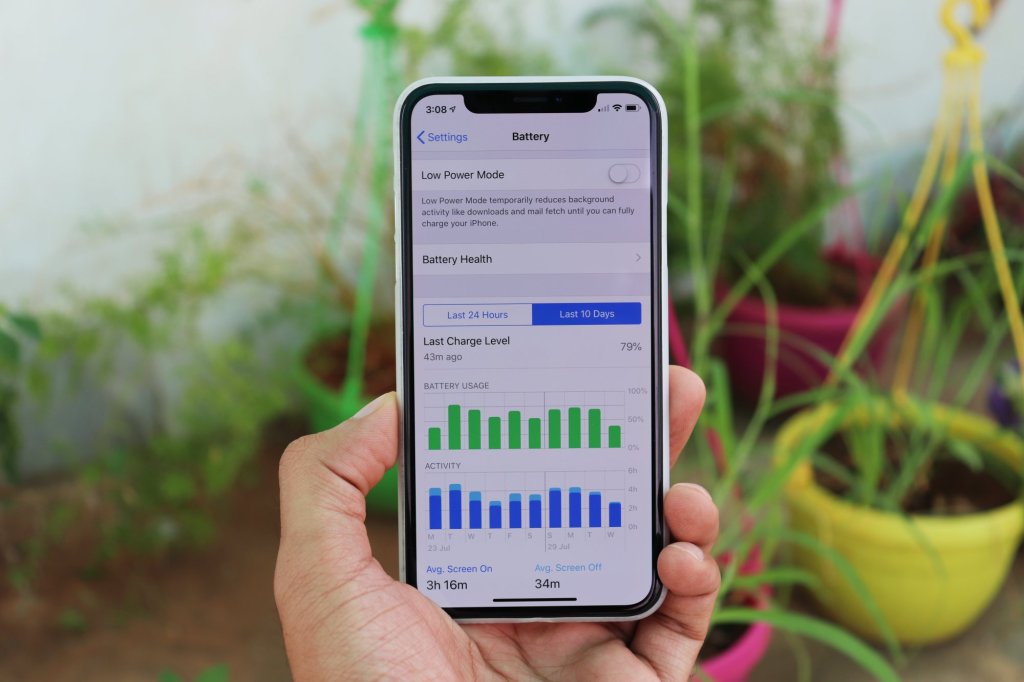
1. Check for faulty apps: Go to the device Battery settings and look for apps that have been using most of your phone’s battery. If you find something unusual about an app, remove it from your iPhone. And if the app is essential, download it again but be sure to monitor its battery consumption for the next few days. Removing and re-installing an app could help fix any problems it may have with your iPhone.


2. Turn Off Location Services: It’s possible that an app might be excessively using Location Services on your iPhone, and thus causing a battery brain. Go to Settings → Privacy → Location Services and turn off the toggle switch.


3. Don’t let your iPhone run hot. When you find your iPhone running hot, identify which app might be causing it, and delete it from your device.


4. If you’ve just installed iOS 12, then Restart your iPhone, and give it a few days to adjust itself to iOS 12.


5. Reset your iPhone.


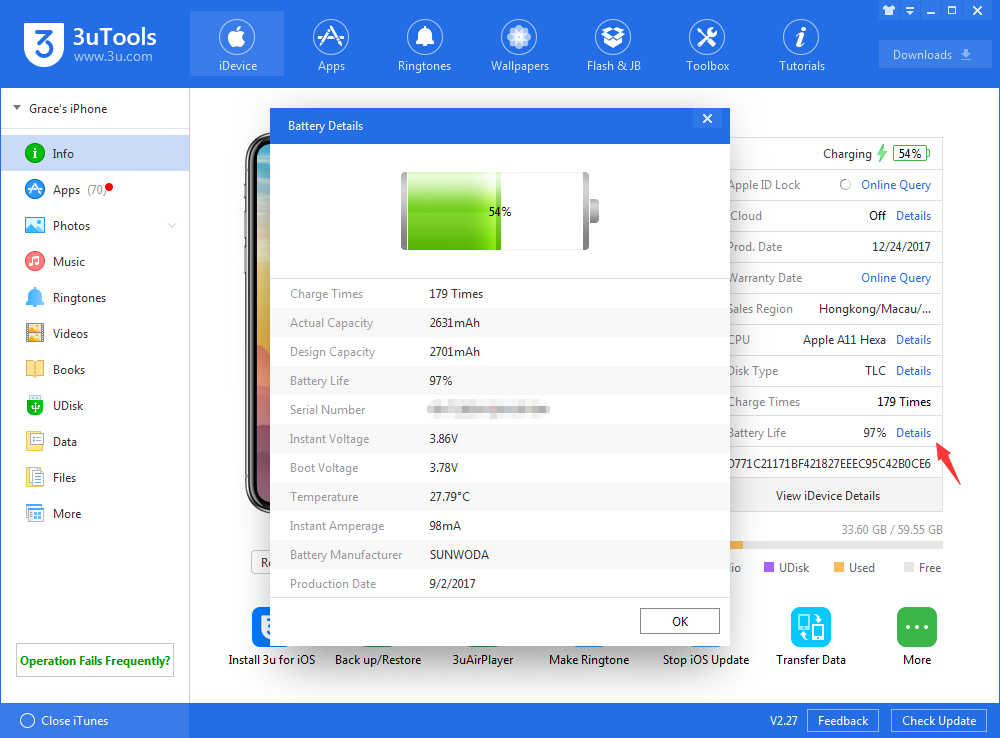
You can check battery details on 3uTools.

How to Fix iOS 12 Battery Drain Problem?


Windows
Mac OS
iOS
Linux
3uTools
Win 64-bit For this device
V9.0 2025-11-11
Download
Win 32-bit For this device
V9.0 2025-11-11
Download
3uTools
Intel Chip How to Identify Chip Type
V9.0 2025-12-02
Download
Apple Chip
V9.0 2025-12-02
Download
How to Identify Chip Type
1.  Click the Apple icon in the top-left corner of the screen and select About This Mac.
2.  Check the Processor or Chip field to determine if it is "Intel" or "Apple".
Please use the 3uTools PC client to install the iOS client:
1、 Install either the Windows or Mac version of 3uTools on your computer
2、 Open the PC client and connect your device to the computer via USB cable
3、 After the connection is successful, wait for the computer to automatically install the mobile app for the device, or locate “Install Mobile App” on the computer and manually click to install.
3uTools
deb file
V3.01 2025-11-20
Download
rpm file
V3.01 2025-11-20
Download
Windows
Windows
iOS
iOS
Android
Android
TV
TV
3uAirPlayer
Win 64-bit For this device
V6.0.2 2025-11-19
Download
Win 32-bit For this device
V6.0.2 2025-11-19
Download
iOS Device Mirroring (No App Required)
1、 Install 3uAirPlayer on the Windows PC
2、 Open Control Center and select Screen Mirroring
3、 From the list, choose your PC to start mirroring
4、 Or connect your iOS device to the PC via USB to begin mirroring
Scan to get "3uAirPlayer" App
3uAirPlayer TV V1.0.18
2025-11-28
TV System Requirements: Android 7.0 or later
Download the TV installation package, copy it to a USB drive, insert it into your TV or set-top box, then select the file from the home screen to install.