TUTORIALS
You Can Now Experience iOS 12 Beta 3 on 3uTools
 07/21/2018
 9183
9183
Apple today seeded the third beta of the upcoming iOS 12 update to developers for testing purposes. Registered developers can download the new iOS 12 beta from Apple's Developer Center or over-the-air after installing the proper certificate. Or you could just upgrade to it using 3uTools.
Maps - The new Maps design has rolled out in the San Francisco Bay Area on devices running the latest iOS 12 beta.
Voice Memos - The Voice Memos app has an updated iPad interface.
Share My Location - Location sharing details have been moved from the Privacy section of the Settings app to a new more prominent location in a user's profile right near iCloud settings.
iPad Notifications - There's an option to clear all notifications on the iPad when long pressing on the X at the top of the list of notifications.
Photos - The list of Media Types in the albums section of the Photos app has been cleaned up a bit and no longer lists categories if you have no photos of that type. For example, if you have no time-lapse photos, the time-lapse media type is not included in the list.
Haptic Feedback - On devices with a Home button and haptic feedback, the Home button no longer buzzes every time the iPhone is unlocked. This was an issue on the iPhone 6s and iPhone 7.
Please back up your iDevice regularly just in case.
Step 1: Connect your iDevice to PC using the USB cable and launch 3uTools on your PC.
Step 2: Click "Flash & JB" -> "Easy Flash", then select the firmware iOS 12 beta 3 as the following picture, finally click "Flash".
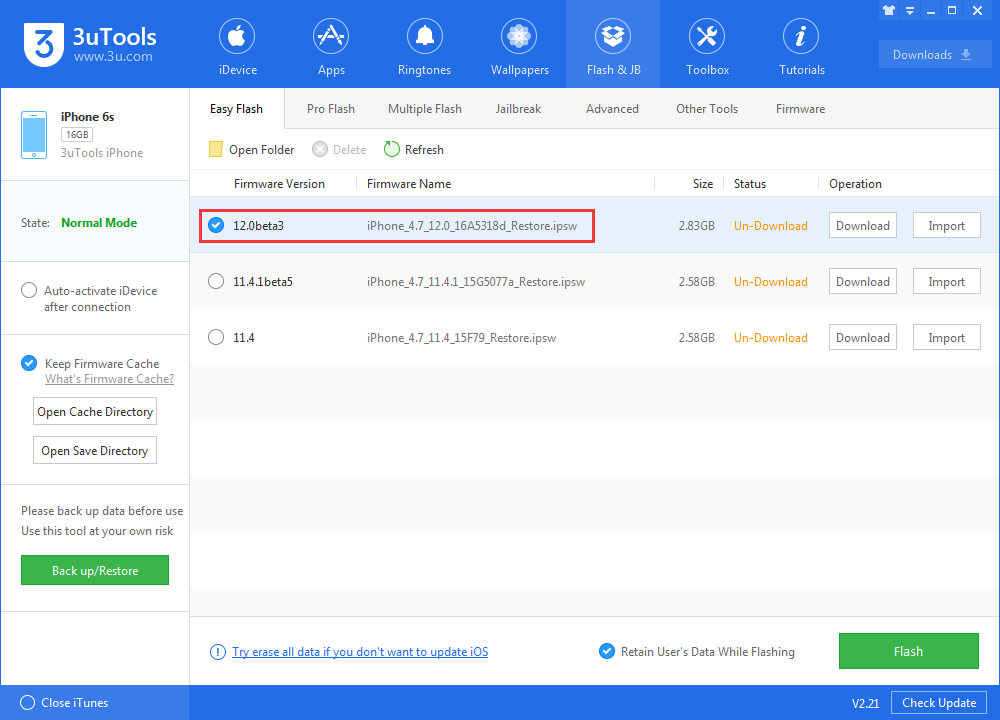
If you want to save iDevice's data, you need to select the checkbox that "Retain User's Data While Flashing"
Step 3: Keep a good connection between iDevice and PC, and then just wait patiently till this process is finished. It would take 5~10 minutes in general. After that, you can feel free to experience iOS 12 Beta 3.