
TUTORIALS

How to Create Custom Vibration Pattern Ringtones for iPhone?

04/16/2018

5922

iOS offers a myriad of ways to customize your iPhone and it can be easy to look past some handy options. Follow along for how to create custom vibration patterns for phone calls.

How to Create Custom Vibration Pattern Ringtones for iPhone?


Whether you haven’t used this feature in a while or have never tried it before, custom vibration ringtones can be a valuable way to discreetly know who’s calling. Whether you often keep your iPhone in a bag or don’t want to take it out of your pocket during a meeting or other situation, custom patterns are worth setting up.


How to create custom vibration pattern ringtones for iPhone?

Open Settings

Swipe down and tap on Sound & Haptics (make sure at least Vibrate on Silent is turned on if not Vibrate on Ring too)

Tap Ringtone, then Vibration


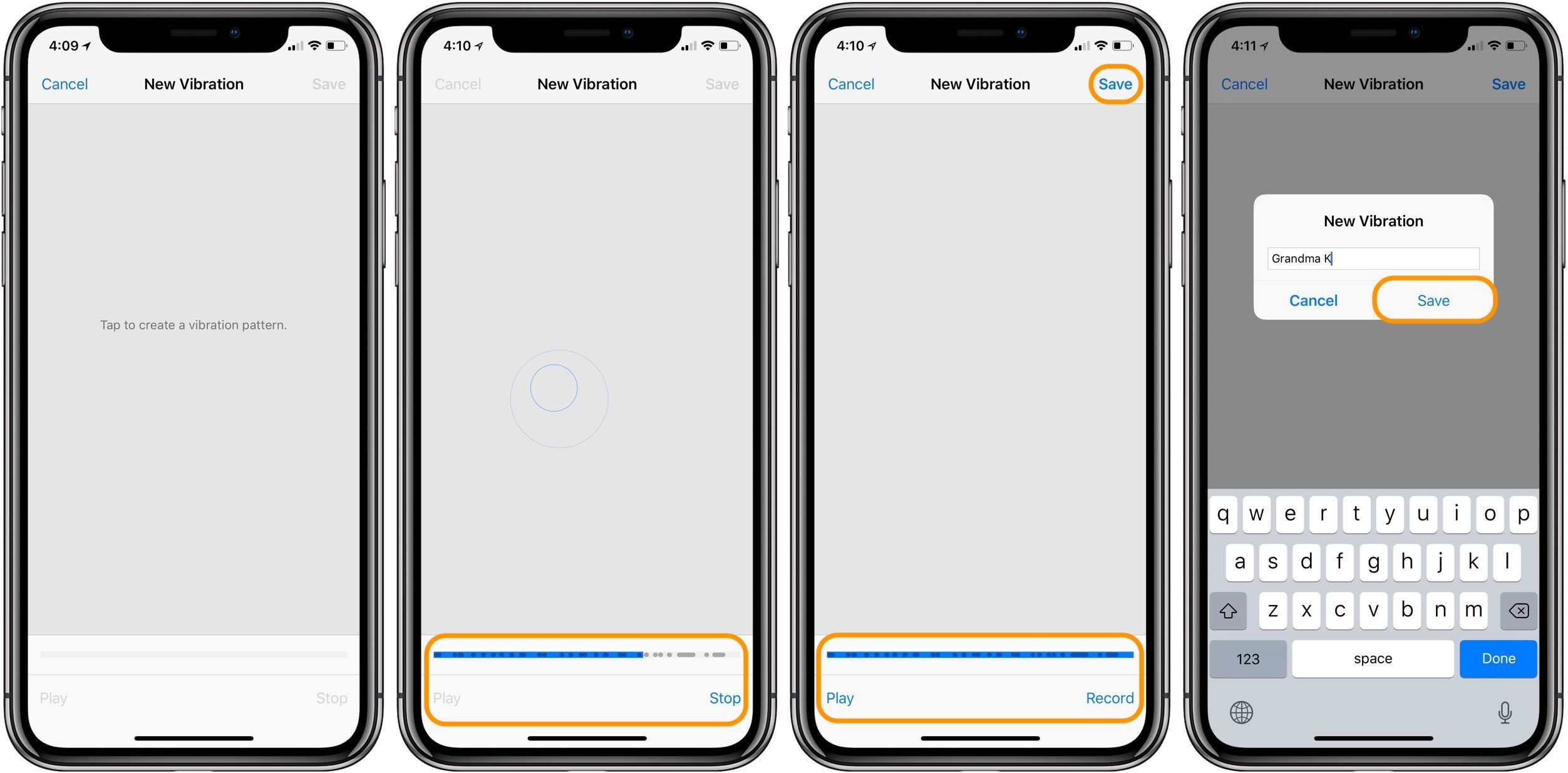
At the bottom, tap Create New Vibration

Tap to create a new pattern, as below:

Your new custom pattern will show up in the list now

How to Create Custom Vibration Pattern Ringtones for iPhone?


The last step is to apply the new custom vibration pattern to the contacts of your choosing.


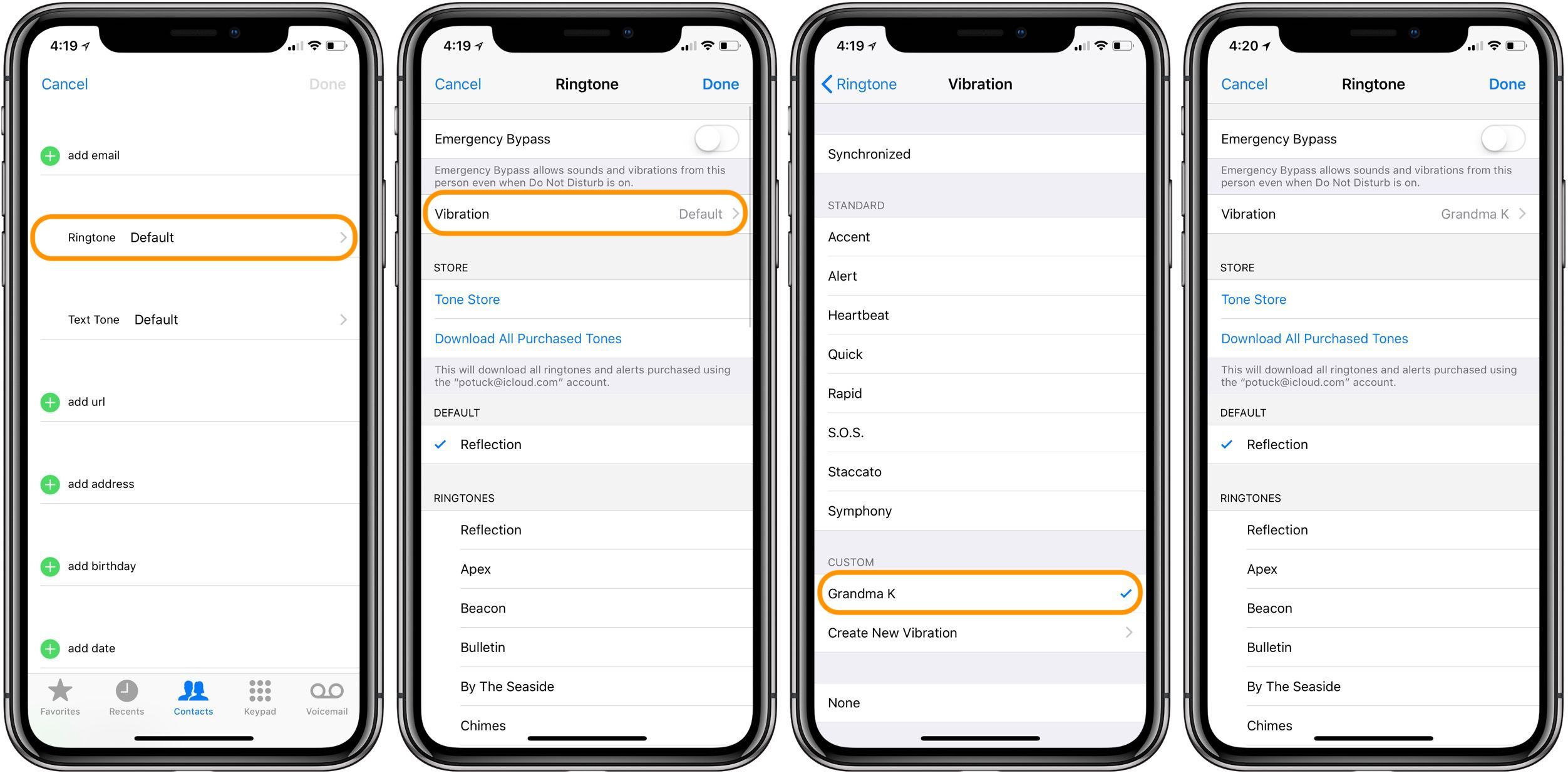
Open the contact you’d like to use a custom pattern for

Tap Edit in the top right hand corner

Swipe down and tap Ringtone and select Vibration

Choose the custom vibration you’d like to apply

How to Create Custom Vibration Pattern Ringtones for iPhone?


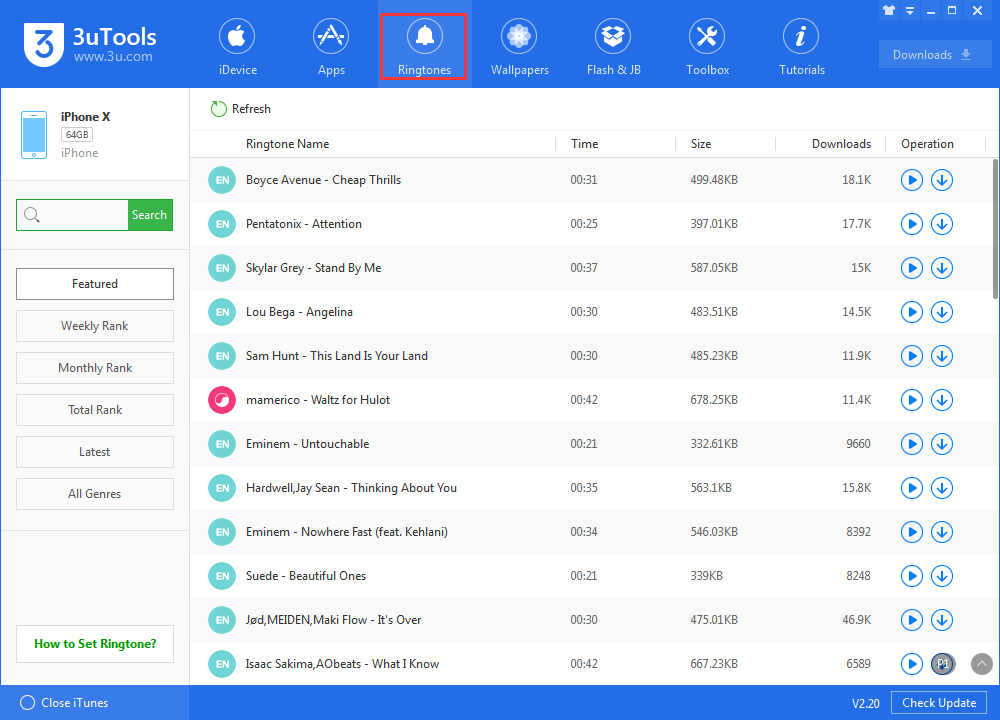
If you want to downlooad and set your own ringtones, 3uTools could do it for you.

Read here:  How to Set Any Song as iPhone Ringtone?

How to Create Custom Vibration Pattern Ringtones for iPhone?


Windows
Mac OS
iOS
Linux
3uTools
Win 64-bit For this device
V9.0 2025-11-11
Download
Win 32-bit For this device
V9.0 2025-11-11
Download
3uTools
Intel Chip How to Identify Chip Type
V9.0 2025-12-02
Download
Apple Chip
V9.0 2025-12-02
Download
How to Identify Chip Type
1.  Click the Apple icon in the top-left corner of the screen and select About This Mac.
2.  Check the Processor or Chip field to determine if it is "Intel" or "Apple".
Please use the 3uTools PC client to install the iOS client:
1、 Install either the Windows or Mac version of 3uTools on your computer
2、 Open the PC client and connect your device to the computer via USB cable
3、 After the connection is successful, wait for the computer to automatically install the mobile app for the device, or locate “Install Mobile App” on the computer and manually click to install.
3uTools
deb file
V3.01 2025-11-20
Download
rpm file
V3.01 2025-11-20
Download
Windows
Windows
iOS
iOS
Android
Android
TV
TV
3uAirPlayer
Win 64-bit For this device
V6.0.2 2025-11-19
Download
Win 32-bit For this device
V6.0.2 2025-11-19
Download
iOS Device Mirroring (No App Required)
1、 Install 3uAirPlayer on the Windows PC
2、 Open Control Center and select Screen Mirroring
3、 From the list, choose your PC to start mirroring
4、 Or connect your iOS device to the PC via USB to begin mirroring
Scan to get "3uAirPlayer" App
3uAirPlayer TV V1.0.18
2025-11-28
TV System Requirements: Android 7.0 or later
Download the TV installation package, copy it to a USB drive, insert it into your TV or set-top box, then select the file from the home screen to install.





