
TUTORIALS

How Can I Know How Much Time I Spend in iOS Apps?

02/08/2018

8134

Do you play your iPhone all day and do you know which app did you use frequently? For most iOS users, they don’t know that they can see the time spent in apps from your iPhone. Here’s how to use it.


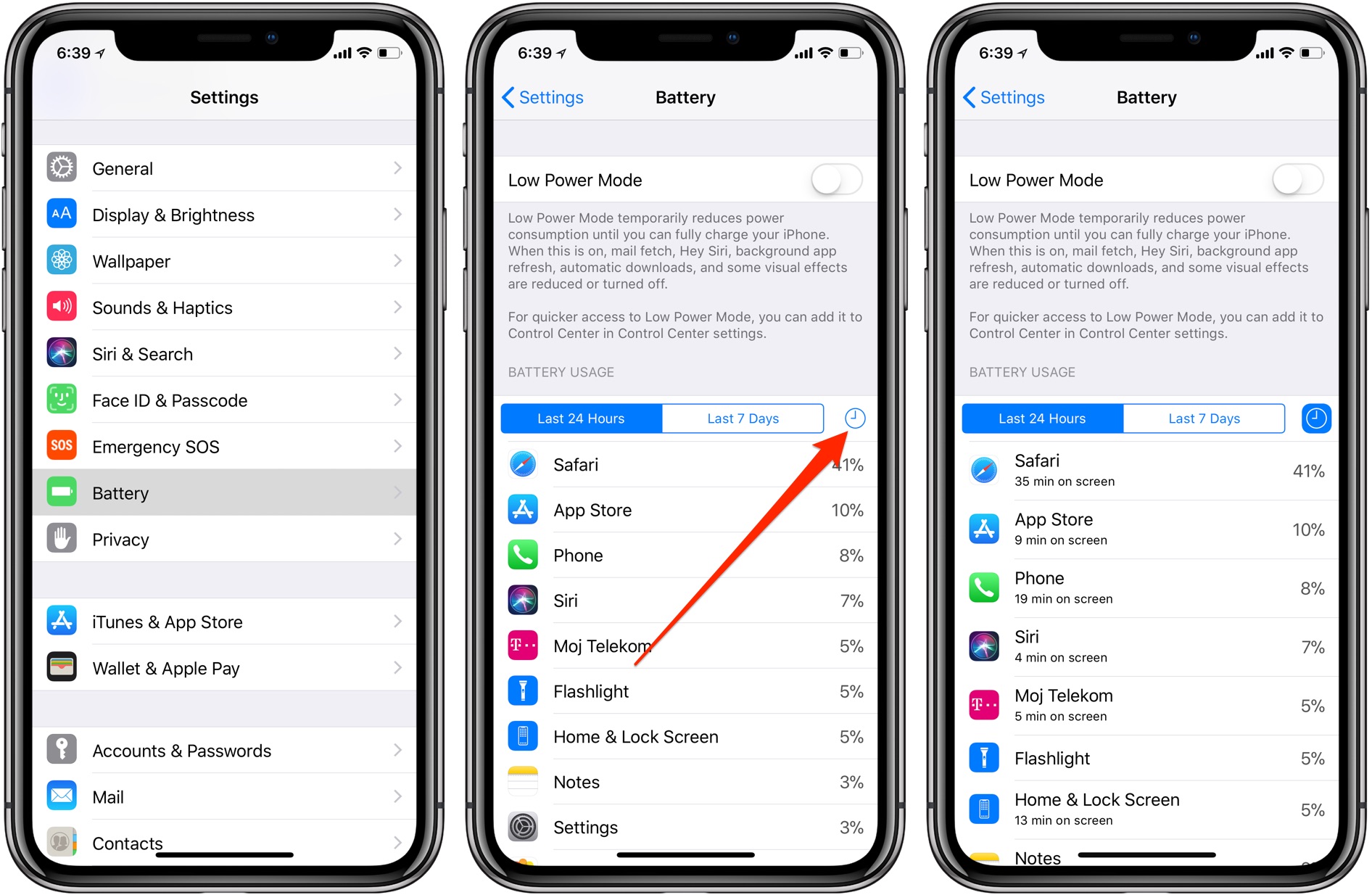
With iOS 9 and later, customers can check the amount of battery used by each app on their iOS device at any time by going in Settings → Battery. That’s where you can also see how much time per day or week you’ve spent using apps on your device.


1) Open the Settings app on your iOS device.

2) Click Battery section.

3) Now click the Clock icon at the rightmost side underneath the Battery Usage heading.


Now you can see how long each app has been open or running in the background. For the sake of clarity, screen time indicates the time an app has spent running in the foreground while the display was turned on, regardless of whether or not it was actively used.

How Can I Know How Much Time I Spend in iOS Apps?


Click the Last 24 Hours button or the Last 7 Days button in order to see the average app usage times during the last 24 hours or over the course of the past seven days, respectively.




Windows
Mac OS
iOS
Linux
3uTools
Win 64-bit For this device
V9.0 2025-11-11
Download
Win 32-bit For this device
V9.0 2025-11-11
Download
3uTools
Intel Chip How to Identify Chip Type
V9.0 2025-12-02
Download
Apple Chip
V9.0 2025-12-02
Download
How to Identify Chip Type
1.  Click the Apple icon in the top-left corner of the screen and select About This Mac.
2.  Check the Processor or Chip field to determine if it is "Intel" or "Apple".
Please use the 3uTools PC client to install the iOS client:
1、 Install either the Windows or Mac version of 3uTools on your computer
2、 Open the PC client and connect your device to the computer via USB cable
3、 After the connection is successful, wait for the computer to automatically install the mobile app for the device, or locate “Install Mobile App” on the computer and manually click to install.
3uTools
deb file
V3.01 2025-11-20
Download
rpm file
V3.01 2025-11-20
Download
Windows
Windows
iOS
iOS
Android
Android
TV
TV
3uAirPlayer
Win 64-bit For this device
V6.0.2 2025-11-19
Download
Win 32-bit For this device
V6.0.2 2025-11-19
Download
iOS Device Mirroring (No App Required)
1、 Install 3uAirPlayer on the Windows PC
2、 Open Control Center and select Screen Mirroring
3、 From the list, choose your PC to start mirroring
4、 Or connect your iOS device to the PC via USB to begin mirroring
Scan to get "3uAirPlayer" App
3uAirPlayer TV V1.0.18
2025-11-28
TV System Requirements: Android 7.0 or later
Download the TV installation package, copy it to a USB drive, insert it into your TV or set-top box, then select the file from the home screen to install.



