
TUTORIALS

How to Fix iPhone 8 Stuck At Apple Logo?

12/22/2017

19807

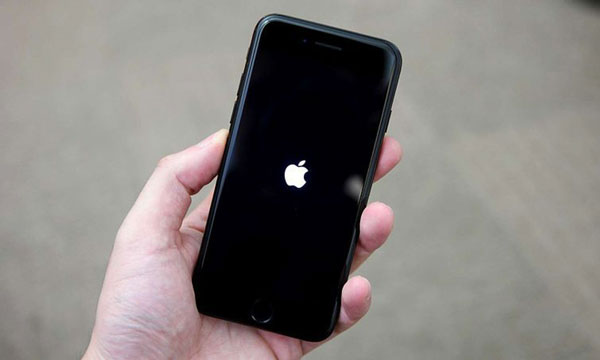
iPhone 8 stuck on Apple logo with an unresponsive home button? If you are troubled with the same problem that iPhone 8 can’t be activated, check this tutorial for the solution!

How to Fix iPhone 8 Stuck At Apple Logo?


Why and how?

Different from previous versions, there is a built-in hardware detection during booting process for iPhone 8. Once touch ID gets malfunctioned, the iPhone will hang on Apple logo during startup and therefore won't turn on.


# Force Restart iPhone 8/8 Plus to Exit Apple Logo Stuck

When an iPhone/iPad frozen on Apple logo and loading bar, there is a fast way to solve it: by force rebooting. Apple changed the way to force restart iPhone since iPhone 7. If you want to force restart iPhone 8/8 Plus, you may follow this tutorial how to force restart iPhone 8. Or, just Reboot After that if the problem still exists, you may go to the following solution. 


# Restore your iPhone with 3uTools

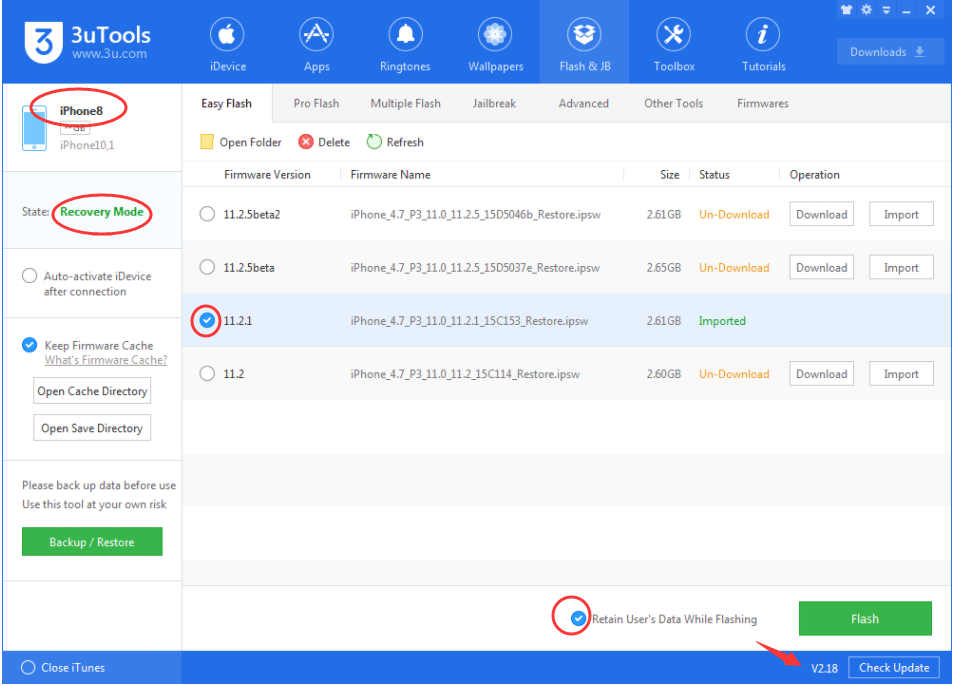
Download and install the latest 3uTools V2.18 on your computer. Set your iDevice into Recovery mode -> connect iPhone to 3uTools -> click Flash & JB -> select an available firmware for your iDevice in Easy flash-> select the option Retain User’s Data While Flashing -> click Flash. Then wait till this process is finished.  Don’t worry, your iPhone’s data won’t get lost.

How to Fix iPhone 8 Stuck At Apple Logo?

Windows
Mac OS
iOS
Linux
3uTools
Win 64-bit For this device
V9.0 2025-11-11
Download
Win 32-bit For this device
V9.0 2025-11-11
Download
3uTools
Intel Chip How to Identify Chip Type
V9.0 2025-12-02
Download
Apple Chip
V9.0 2025-12-02
Download
How to Identify Chip Type
1.  Click the Apple icon in the top-left corner of the screen and select About This Mac.
2.  Check the Processor or Chip field to determine if it is "Intel" or "Apple".
Please use the 3uTools PC client to install the iOS client:
1、 Install either the Windows or Mac version of 3uTools on your computer
2、 Open the PC client and connect your device to the computer via USB cable
3、 After the connection is successful, wait for the computer to automatically install the mobile app for the device, or locate “Install Mobile App” on the computer and manually click to install.
3uTools
deb file
V3.01 2025-11-20
Download
rpm file
V3.01 2025-11-20
Download
Windows
Windows
iOS
iOS
Android
Android
TV
TV
3uAirPlayer
Win 64-bit For this device
V6.0.2 2025-11-19
Download
Win 32-bit For this device
V6.0.2 2025-11-19
Download
iOS Device Mirroring (No App Required)
1、 Install 3uAirPlayer on the Windows PC
2、 Open Control Center and select Screen Mirroring
3、 From the list, choose your PC to start mirroring
4、 Or connect your iOS device to the PC via USB to begin mirroring
Scan to get "3uAirPlayer" App
3uAirPlayer TV V1.0.18
2025-11-28
TV System Requirements: Android 7.0 or later
Download the TV installation package, copy it to a USB drive, insert it into your TV or set-top box, then select the file from the home screen to install.





