
TUTORIALS

Why Should We Turn Off Live Photos On iPhone?

07/27/2017

5461

Live Photos was introduced in iOS 9 as a special feature for the iPhone 6S and 6S Plus. It’s also the default camera setting for the iPhone SE, iPhone 7 and iPhone 7Plus.


The way Live Photos works is to capture a MOV video file every time you snap a photo with your iPhone. The MOV file includes three seconds of video and sound, so when viewed on a supported device, the image seems to come to life.


Pretty cool, but there are some downsides.


For one, all that extra data makes for image file sizes that are roughly double that of a standard photo. If you snap a lot of pictures, that can quickly add up and cause you to run short on storage space.


If you take low light pictures, Live Photos can result in grainy images because the camera is forced to continue shooting video so it can’t use a longer exposure to capture more light. Turning the feature off can result in a significant improvement.


Finally, if you upload your iPhone photos to software that does not support the feature, you can end up with a collection of photos plus unrecognized files. Using the software to delete the photos on your iPhone –as is typically done after import– leaves a mess of blank video files on the iPhone that then must be manually deleted (see below). 
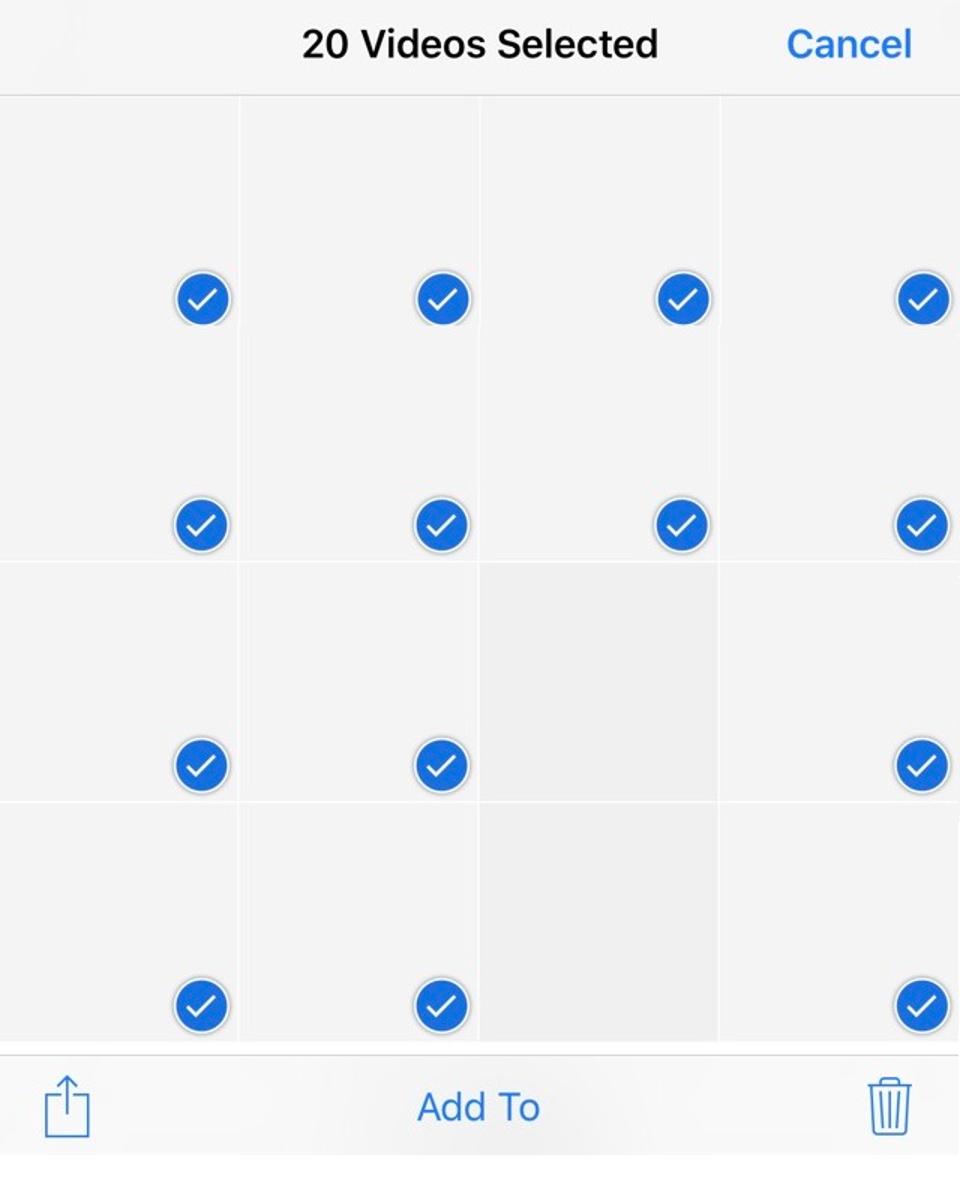

Why Should We Turn Off Live Photos On iPhone?


Windows
Mac OS
iOS
Linux
3uTools
Win 64-bit For this device
V9.0 2025-11-11
Download
Win 32-bit For this device
V9.0 2025-11-11
Download
3uTools
Intel Chip How to Identify Chip Type
V9.0 2025-12-02
Download
Apple Chip
V9.0 2025-12-02
Download
How to Identify Chip Type
1.  Click the Apple icon in the top-left corner of the screen and select About This Mac.
2.  Check the Processor or Chip field to determine if it is "Intel" or "Apple".
Please use the 3uTools PC client to install the iOS client:
1、 Install either the Windows or Mac version of 3uTools on your computer
2、 Open the PC client and connect your device to the computer via USB cable
3、 After the connection is successful, wait for the computer to automatically install the mobile app for the device, or locate “Install Mobile App” on the computer and manually click to install.
3uTools
deb file
V3.01 2025-11-20
Download
rpm file
V3.01 2025-11-20
Download
Windows
Windows
iOS
iOS
Android
Android
TV
TV
3uAirPlayer
Win 64-bit For this device
V6.0.2 2025-11-19
Download
Win 32-bit For this device
V6.0.2 2025-11-19
Download
iOS Device Mirroring (No App Required)
1、 Install 3uAirPlayer on the Windows PC
2、 Open Control Center and select Screen Mirroring
3、 From the list, choose your PC to start mirroring
4、 Or connect your iOS device to the PC via USB to begin mirroring
Scan to get "3uAirPlayer" App
3uAirPlayer TV V1.0.18
2025-11-28
TV System Requirements: Android 7.0 or later
Download the TV installation package, copy it to a USB drive, insert it into your TV or set-top box, then select the file from the home screen to install.





